First 100 spots 50% lifetime discount. Start free.
Putting an image on a page
The Image element shows one picture from your media library. It goes inside a Column, a Container or a Div, like any other content element.
| Where | Image in the Content elements group of the component list; its settings under Properties (the gear icon) |
|---|---|
| Takes effect | After you publish (how) |
Image size and Image ratio affect loading time. They decide how big the file your visitor actually downloads is, and what shape it's cropped to. Getting them right is the difference between a page that opens instantly and one that doesn't.
Choosing the picture
The Image property opens your media library. Browse to the file, select it, and confirm, or upload a new one from inside the same dialog. See Uploading and managing your files for what you can upload and how big it may be.
Image size and Image ratio
These two work together, and they're the reason ClickWhale images stay fast.
Image size is a width in pixels: 320, 480, 640, 720, 960, 1280, 1400, 1600, 1920 or 2560. Whatever you choose, ClickWhale prepares a copy of your picture at exactly that width and serves that copy, not your 4000-pixel original.
Image ratio is the shape: 16/9, 4/3, 2/1, 1/1, 1/2, 3/4 or 9/16. Your picture is cropped from the centre to fit, so a portrait photo set to 16/9 loses its top and bottom.
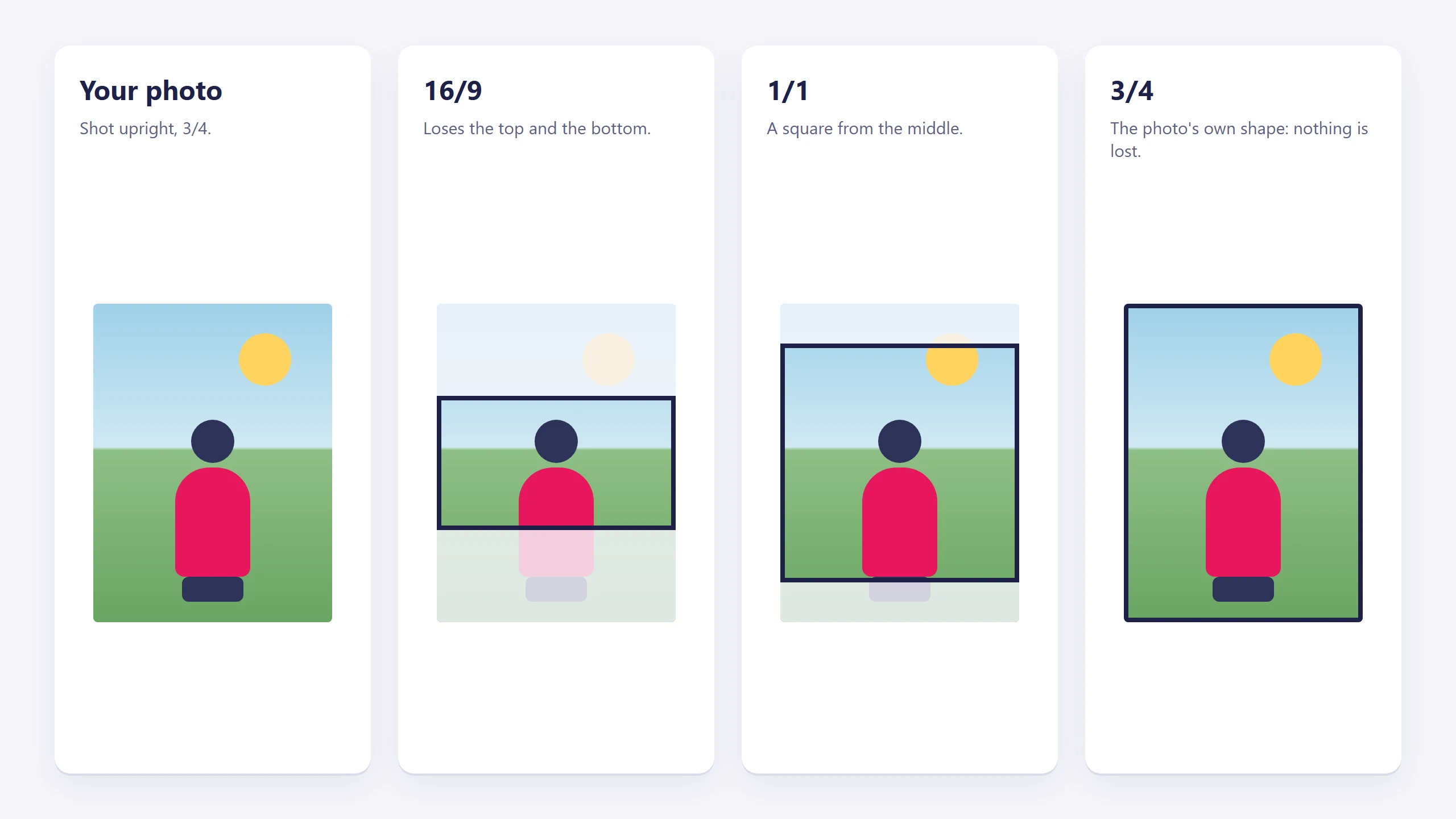
Pick the size from how wide the image will really be on screen, not from how large the original is:
| Where it sits | Sensible size |
|---|---|
| A full-width banner | 1600 or 1920 |
| Roughly half the page | 960 |
| One of three or four columns | 480 or 640 |
| A small logo or icon | 320 |
Choosing a bigger size than you need doesn't make the picture sharper on screen; it just makes the page heavier.
One value each, for the whole element. Unlike the settings in the Display settings pane, properties like these are not set per screen size, so pick a size that is sensible on the widest screen the image appears at full width on.
The prepared copy is kept, so the second visitor gets it instantly. It's also why replacing a file under the same name doesn't work: see "Replacing a file" in Uploading and managing your files.
Making the image a link
Link action turns the picture into something clickable. It offers the same options as a button (see Buttons and links), except that an image starts on Do nothing: just a picture.
Always prefer Open page over pasting your own address for a page on your own site. Rename the page later and a typed address breaks silently, while a picked page doesn't.
Styling it
An image element has three display settings: border, border radius and box shadow. Everything else about an image's size and position is decided by two other things:
- How wide it is comes from the column, container or div it sits in. To make an image narrower, make its column narrower, or put it in a Div you can set a width on.
- What shape it is comes from Image ratio, above.
Because rounded corners and shadows are exactly the kind of styling you want identical on every image on the site, images are a good candidate for a display set: style one, attach the set to the rest. See Reusable styling with display sets.
Alt text
Alt text is the short description a screen reader announces and a search engine reads. The Image element has no alt text field, so an image placed this way carries no description.
Where a description genuinely matters (a photo that carries information, not just decoration) use a Photo gallery or a Photo slider instead, even for a single picture. Both have an Edit metadata button that gives every image an alt text and a caption.
For anything purely decorative, an image without alt text is the correct outcome anyway.
Common issues
My image is blurry.
keyboard_arrow_down
remove
The Image size is smaller than the space it's shown in. The browser is stretching a small copy. Choose the next size up. If it's still blurry, the original you uploaded isn't big enough.
My image is cut off.
keyboard_arrow_down
remove
The Image ratio is cropping it. Try a ratio closer to the picture's own shape, or crop the picture yourself before uploading so you decide what's lost.
The image doesn't show at all.
keyboard_arrow_down
remove
Either nothing is selected in the Image property, or the file behind it was deleted from the media library.
It is fine on my screen but too big on a phone.
keyboard_arrow_down
remove
An image is as wide as the column, container or div holding it, so this is a layout question rather than an image one. Narrow the column at that screen width, or hide the image there. See Making your site work on phones.
What will you create today?

ClickWhale is a website management system created by Ikabus