First 100 spots 50% lifetime discount. Start free.
The photo gallery
A photo gallery lays several pictures out in a grid, all visible at once, with an optional click-to-enlarge. It's for sets where every picture counts: a portfolio, a product range, the photos from an event.
| Where | Photo gallery in the Advanced elements group of the component list |
|---|---|
| Takes effect | After you publish (how) |
Gallery or slider? A gallery shows everything and grows downwards; a slider shows one thing and stays the same height. Use a gallery when the pictures are the content, and a slider when they're alternatives you'd be happy for a visitor to skip.
Choosing the pictures
Images opens the media library with multi-select. Pick as many as you like and drag them into order inside the dialog. That's the order they appear in, filling the grid left to right, top to bottom.
Alt text and captions: Edit metadata
Image metadata → Edit metadata gives every picture two fields:
- Alt text: the description a screen reader announces and a search engine reads.
- Description: a caption, shown under the thumbnail. Leave it empty for no caption.
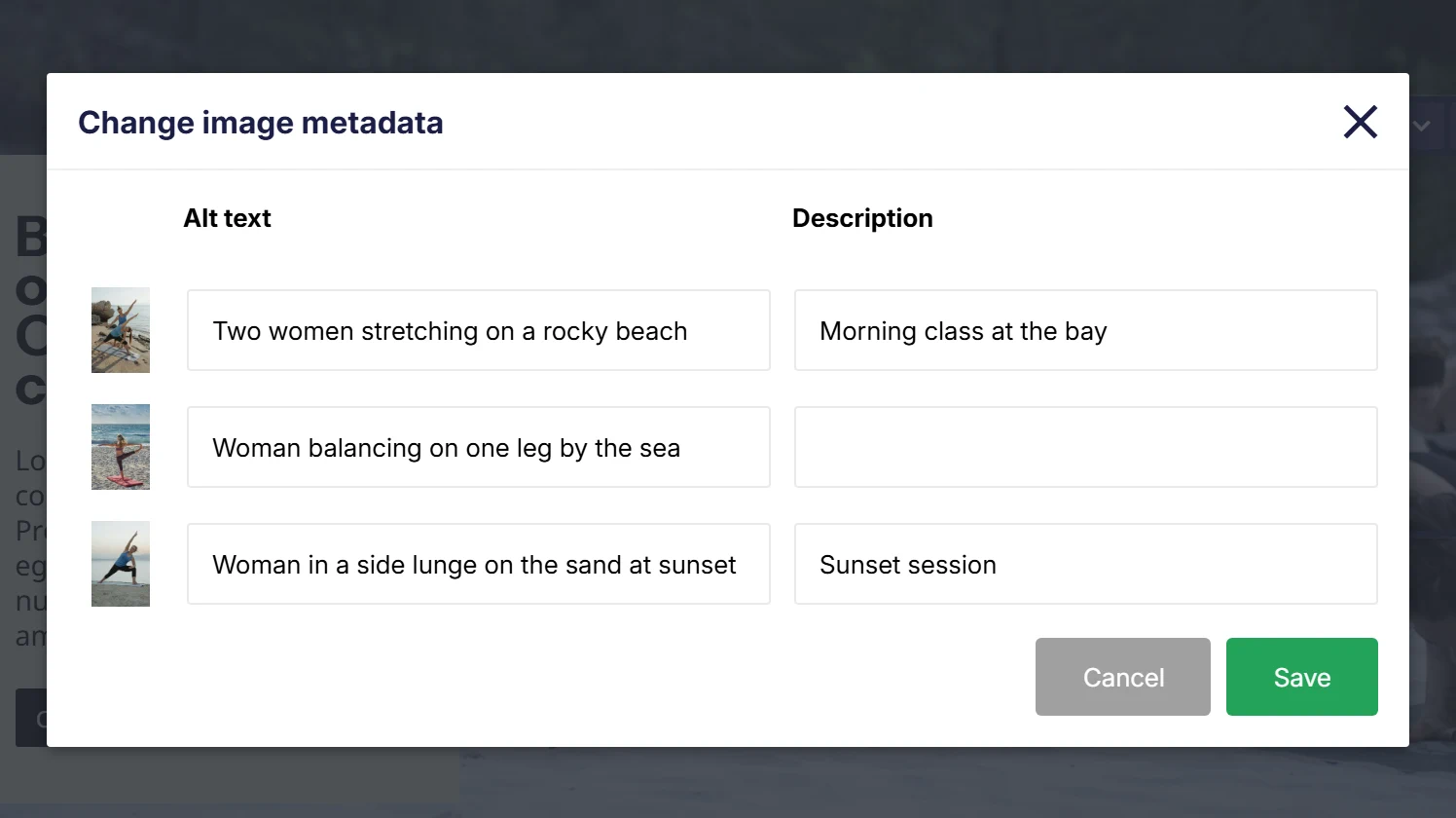
Fill these in for every picture: a gallery is often the most image-heavy page on a site, and a page of pictures with no alt text is a page with nothing for a search engine to read.
How many across
The number of columns is a display setting, not a property: select the gallery and look for Number of items per row in the Display settings pane.
Because it's a display setting, it can be set per screen size, and it should be. A four-across gallery on a desktop should usually be two across on a tablet and one on a phone. Set it on All first, then override it on the smaller widths. See Making your site work on phones.
Gap controls the space between the tiles, and padding the space inside the gallery's own box.
Cropping
A grid of pictures at different shapes looks like a mistake. Crop image makes them all the same, and turning it on reveals:
- Max image size: the width in pixels each tile is actually downloaded at: 320 up to 2560. In a four-column gallery each tile is small, so 480 or 640 is usually plenty, and with a dozen pictures on the page, this is the single setting that decides whether the page loads quickly.
- Image ratio: 16/9, 4/3, 2/1, 1/1, 1/2, 3/4 or 9/16, cropped from the centre. 1/1 (square) is the safe choice for a mixed set of portrait and landscape photos.
With Crop image off, every picture keeps its own shape and its own file size, and the grid becomes ragged.
Click to enlarge
Enable image popover makes each tile open the full picture over the page when clicked. The enlarged version is the original file, not the cropped tile, so this is how a visitor sees the whole photograph.
Leave it off for a gallery of decorative thumbnails; turn it on wherever a visitor might want a closer look: products, artwork, floor plans.
Styling the tiles
The gallery element itself takes gap, padding and number of items per row. The tiles are styled separately: select the gallery, then pick the part from the Selected component of Photo gallery dropdown, under Design settings in the styling pane on the right. The element itself takes you back to the gallery's own settings:
| Part | What you can style |
|---|---|
| Photo gallery image | Background, border, border radius and shadow, with a hover state |
A subtle hover (a shadow, or a slightly stronger border) is what tells a visitor the tiles are clickable when the popover is on.
Common issues
The tiles are all different heights.
keyboard_arrow_down
remove
Crop image is off. Turn it on and choose a ratio. 1/1 if the pictures are a mix of portrait and landscape.
All my pictures are in one long column.
keyboard_arrow_down
remove
Number of items per row isn't set, or it's set to 1 at the screen width you're looking at. It's in the Display settings pane, and it's per screen size.
The gallery takes forever to load.
keyboard_arrow_down
remove
Max image size is too high for the size the tiles are shown at, or Crop image is off. Bring the size down; nothing on screen gets worse.
Clicking a picture does nothing.
keyboard_arrow_down
remove
Enable image popover is off.
My captions don't show.
keyboard_arrow_down
remove
The Description field in Edit metadata is empty for those pictures.
What will you create today?

ClickWhale is a website management system created by Ikabus