First 100 spots 50% lifetime discount. Start free.
The photo slider
A photo slider shows several pictures in one place, one (or a few) at a time, with arrows and dots to move between them. It's the right choice when the pictures are alternatives: different views of the same product, a handful of reference projects, a rotating hero image.
| Where | Photo slider in the Advanced elements group of the component list |
|---|---|
| Takes effect | After you publish (how) |
A slider hides everything except the current slide. Visitors mostly don't click through, and search engines see the whole set but your reader sees one. If every picture matters, a photo gallery shows them all at once and is usually the better answer.
Choosing the pictures
Images opens the media library with multi-select. Pick as many as you want, and drag them into order inside the dialog. The order you leave them in is the order they'll appear.
To add or remove one later, open the property again; your existing selection is still there.
Alt text and captions: Edit metadata
Image metadata → Edit metadata opens a list of the pictures you selected, each with two fields:
- Alt text: the short description a screen reader announces and a search engine reads. Describe what the picture shows, not that it's a picture: "Blue three-seater sofa, side view".
- Description: a caption, shown to everyone underneath the picture. Leave it empty and no caption appears.
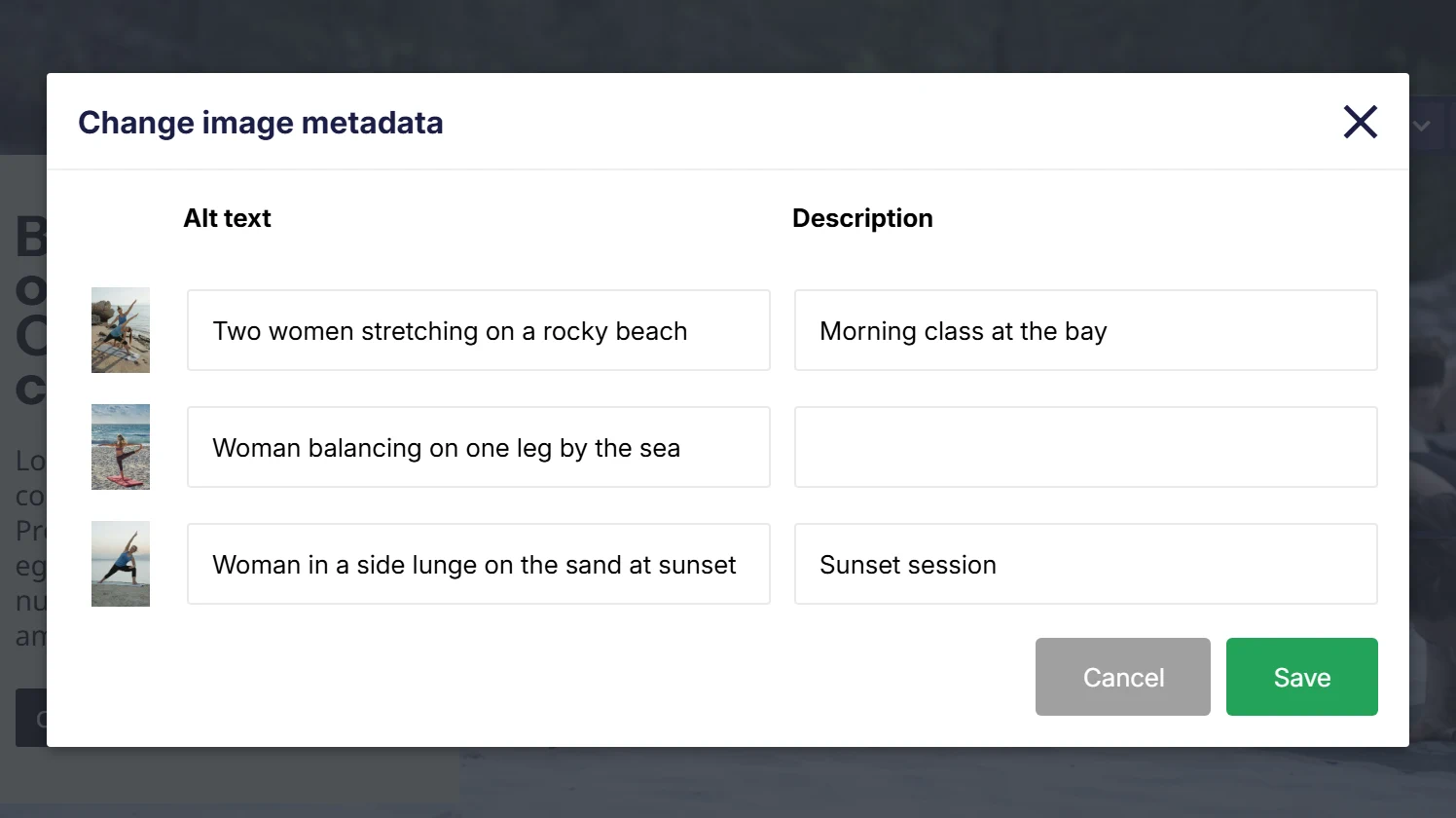
This is the only place in ClickWhale where you can give a picture alt text, which is a good reason to use a slider or a gallery even for a small set of important images.
Cropping
Pictures shot at different sizes make a slider jump about as it moves. Crop image fixes that, and turning it on reveals two more settings:
- Max image size: the width in pixels that visitors actually download: 320 up to 2560. Pick from how wide the slider really is on screen, not from the size of the originals.
- Image ratio: the shape everything is cropped to: 16/9, 4/3, 2/1, 1/1, 1/2, 3/4 or 9/16. The crop is taken from the centre.
With Crop image off, each picture is served at its original size and keeps its own shape.
Movement
| Setting | What it does |
|---|---|
| Enable autoplay | Advances by itself. |
| Autoplay interval (milliseconds) | How long each slide stays. 2000 is two seconds, usually too fast to read a caption; 5000–7000 is kinder. |
| Slides to show | How many pictures are visible at once. 1 is a classic slider; 3 or 4 turns it into a scrolling strip of thumbnails. |
Autoplay takes control away from the reader, and anyone who started reading a caption loses it mid-sentence. If the slider is decorative, autoplay is fine; if it carries information, leave it off.
Arrows and dots
The controls are the arrows on either side and the pagination dots. Five settings decide how they look and where they sit:
- Hide arrows and Hide pagination: turn either off. Don't turn off both: with no controls and no autoplay, nothing can move the slider at all.
- Combined controls for arrows and pagination: puts the dots between the two arrows as one group, instead of positioning arrows and dots separately.
- Show controls on top of slides: lays the controls over the pictures rather than below them.
- Alignment: horizontal (left, centre, right, and for some, separated) and vertical (top, centre, bottom).
The alignment settings you get depend on the two switches above: with combined controls on you get one pair for the whole group; with it off you get a pair for the arrows and a pair for the dots. That is why alignment settings appear and disappear as you change the switches.
Styling the slider
The slider element itself takes gap, minimal height and padding. Its two moving parts are styled separately: select the slider, then pick the part from the Selected component of Photo slider dropdown, under Design settings in the styling pane on the right. The element itself takes you back to the slider's own settings:
| Part | What you can style |
|---|---|
| Photo slider arrow | Background, border, border radius, padding, margin, shadow and text, with a hover state |
| Photo slider image | Background, border, border radius and shadow |
The styling pane is there in Compact view too. Only Full hides it: that view is a preview inside the builder.
Give the arrows a hover state. On a busy photograph an arrow with no background is hard to find.
Common issues
The slider jumps around as it moves.
keyboard_arrow_down
remove
The pictures are different shapes. Switch on Crop image and pick a ratio.
My pictures are stretched or squashed.
keyboard_arrow_down
remove
The ratio you chose is a long way from the pictures' own shape. Pick a closer ratio, or crop the originals yourself before uploading.
The slider is very slow to load.
keyboard_arrow_down
remove
Max image size is higher than the slider needs, or Crop image is off and you're shipping full-size originals. See Uploading and managing your files for sensible sizes.
Nothing moves.
keyboard_arrow_down
remove
Autoplay is off and both Hide arrows and Hide pagination are on. Turn at least one of them back on.
My captions don't show.
keyboard_arrow_down
remove
The Description field in Edit metadata is empty for those pictures. Alt text alone shows nothing. That's for screen readers and search engines.
What will you create today?

ClickWhale is a website management system created by Ikabus