First 100 spots 50% lifetime discount. Start free.
Saving, previewing and publishing
Saving, previewing and publishing are three separate actions, each with a different result.
| Where | Publish in the black bar at the top |
|---|---|
| Takes effect | Within seconds of pressing Publish website |
The three actions
| Action | Where | Who can see the result |
|---|---|---|
| Save | The button in the editor's toolbar | Only you, in the builder |
| Show preview | The website-name dropdown, top right | Anyone you give the preview address to |
| Publish | The Publish screen | The whole internet |
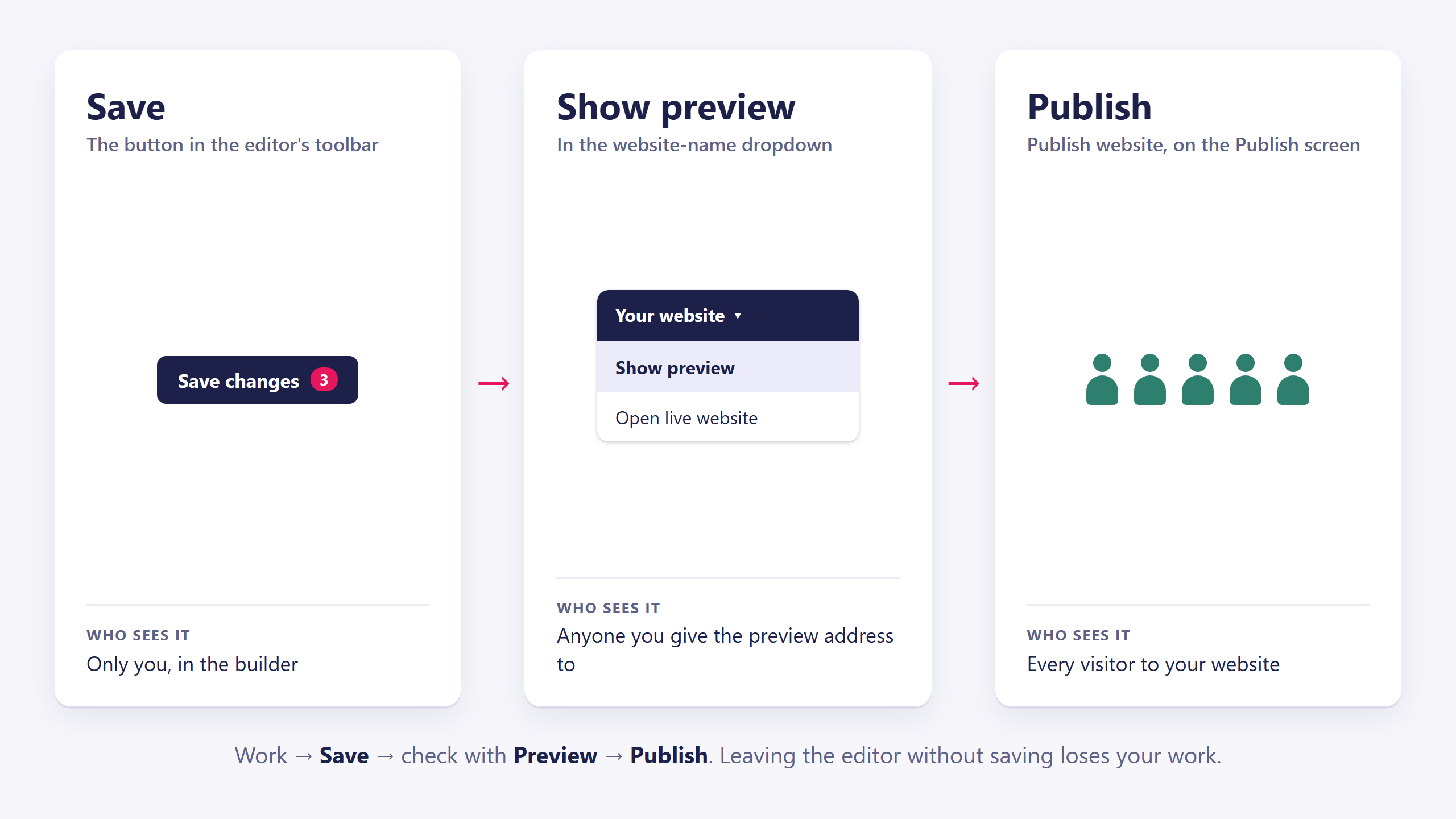
They're steps, not alternatives. Work → Save → check with Preview → Publish.
Save
The Save changes button in the editor, with a counter showing how many unsaved changes you have.
Saving stores your work in the builder. Nothing about your live website changes. There is no automatic save, so leaving the editor without saving loses your work.
Show preview
In the black bar, click your website's name and choose Show preview.
ClickWhale builds your website at a temporary address and opens it. It is the real thing (the real styling, the real menus, the real forms) just not at your own domain. Nothing about the live site is touched.
Use it for the last check before publishing, and for showing a colleague or a client something that isn't ready to be public.
The same dropdown has Open live website, which opens the published version. Comparing the two is the quickest way to see whether your changes are actually live yet.
Publish
The Publish screen lists your publish snapshots. A snapshot is a complete frozen copy of your website at the moment you made it. One of them is the Active one. That's what visitors get.
To publish your work: press Publish website. ClickWhale builds a new snapshot, makes it active, and refreshes the cache for every domain linked to the site. Your changes are live within seconds.
Three snapshots are kept
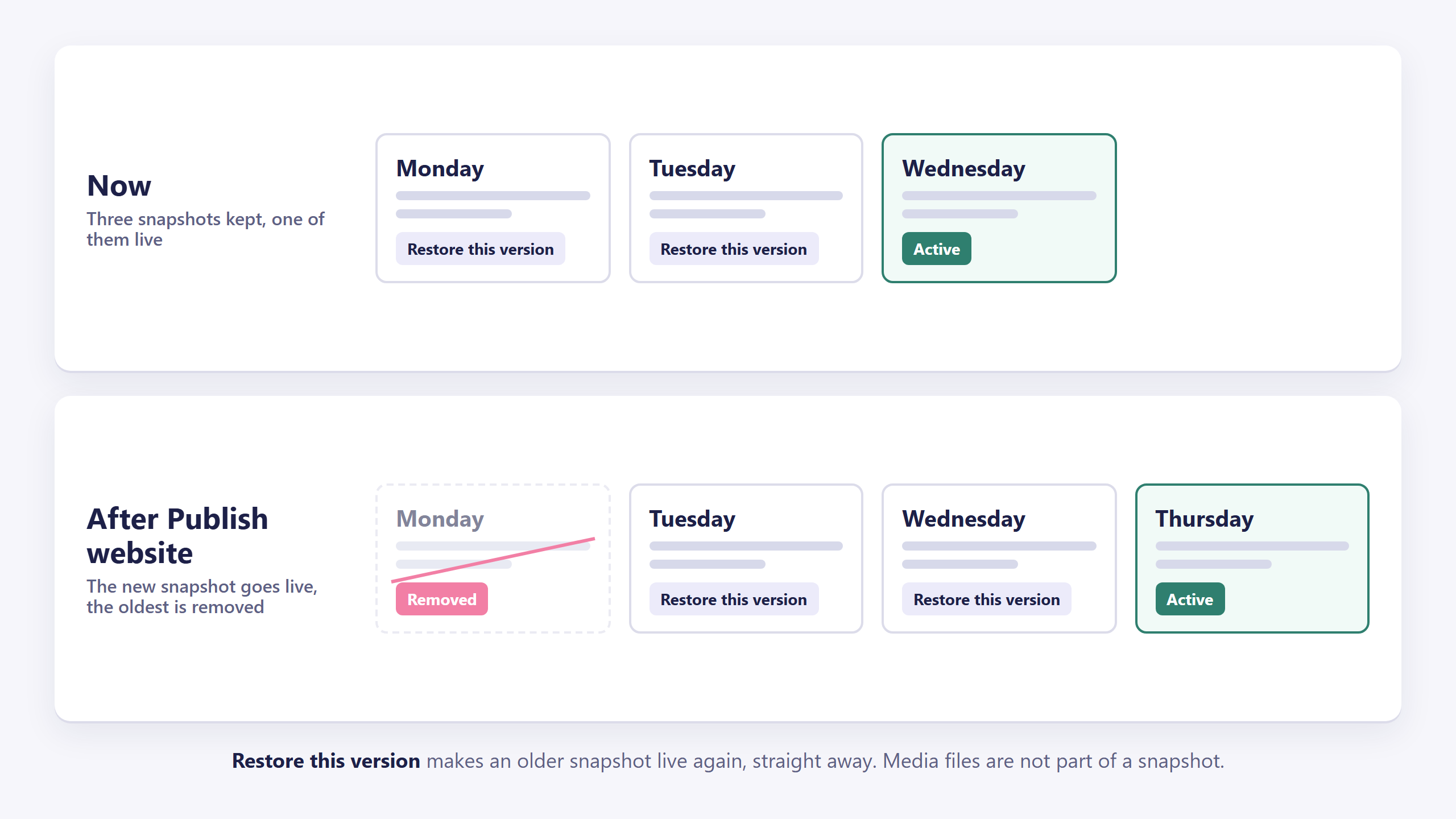
ClickWhale keeps your three most recent snapshots. When you already have three, the Publish screen says:
The 3 most recent snapshots are kept. Publishing again removes the oldest.
Press Publish website and the oldest one is removed once the new snapshot is live. You can also remove a snapshot yourself with Remove snapshot (not the active one).
Going back to an earlier version
Every snapshot that isn't active has a Restore this version button next to it. Press it and that older version becomes live again, immediately.
So if a publish went wrong (a broken layout, text that wasn't ready, a change you regret) you don't have to fix it under pressure. Restore yesterday's snapshot, take your time, and publish again when you're happy.
Each new snapshot pushes out the oldest, so a good version from a while ago is gone after three more publishes.
Snapshots do not include your media files. Images, PDFs and other uploads live in the Media library, which is shared by every snapshot. Deleting a file from Media removes it from the active snapshot and from older ones, so a rollback won't bring a deleted image back. Be careful when tidying up Media.
What needs publishing
Almost everything. Not just page content:
- Anything you edited in a template or a page
- Colours, fonts and display sets
- Menus
- Website settings, including the cookie bar, dark mode, the 404 page and indexing
- Analytics IDs and site verification codes
- Organization details and social media profiles
Three things don't wait for a publish: URL redirects and short file addresses reach the live site within a minute of saving, and blog articles as soon as you save them. A changed form shows up after a publish, or by itself within four hours.
If you changed something anywhere in the builder and the live site looks the same, publishing is the first thing to check, not the last.
Nothing changed on the live site. What now?
Two answers cover most of it:
You saved but didn't publish. Open the Publish screen and create a snapshot.
Your browser is showing you a cached copy. Open the site in a private window. If the change is there, it's live and your own browser is behind. A hard refresh (Ctrl + F5 on Windows, Cmd + Shift + R on a Mac) fixes it.
If neither of those is it, work through "I changed it and the website didn't change", which takes the remaining causes in order of likelihood.
What will you create today?

ClickWhale is a website management system created by Ikabus