First 100 spots 50% lifetime discount. Start free.
Making your website work on phones
More than half your visitors will arrive on a phone. ClickWhale handles most of it for you, but a few things need a decision from you.
| Where | In the editor: the Screen size buttons in the toolbar, Breakpoint on a row, Visibility in an element's properties |
|---|---|
| Takes effect | After you publish (how) |
The screen-size buttons don't just resize the preview. They decide which version of a setting you are editing. Change the text size with the phone icon selected and you've changed it for phones. The desktop keeps what it had.
The six sizes

| Button | Applies from | Down to |
|---|---|---|
| all | Every width | |
| Desktop icon | 1400 px | and smaller |
| Laptop icon | 1200 px | and smaller |
| Tablet icon | 992 px | and smaller |
| Landscape phone icon | 769 px | and smaller |
| Portrait phone icon | 480 px | and smaller |
"And smaller" is the important half. These are not five separate device settings. A value set at the tablet size also applies to both phone sizes, unless you set something different there.
They stack in order, each one overriding the one above it:
all → 1400 → 1200 → 992 → 769 → 480
So you set the padding to 60 px at all and 20 px at tablet, and you get: 60 px on desktops and laptops, 20 px on tablets and on both phone sizes. You don't have to repeat yourself downward.
Where to start
- Build everything at "all" first. Every element, every setting. Don't touch the other sizes.
- Then walk down the sizes, largest to smallest, and fix only what's broken.
- Most of the time you'll only need "all" and one phone size. Sites that need all six are rare.
Doing it the other way round (designing at phone size first, or setting values at each size as you go) produces a page where nobody can work out where a value came from.
If a setting you made seems to have vanished, check which screen size was selected when you made it.
When columns stack
A row of three columns can't stay three columns on a phone. At some width they have to stack into a single column, and you choose that width with the Breakpoint setting.
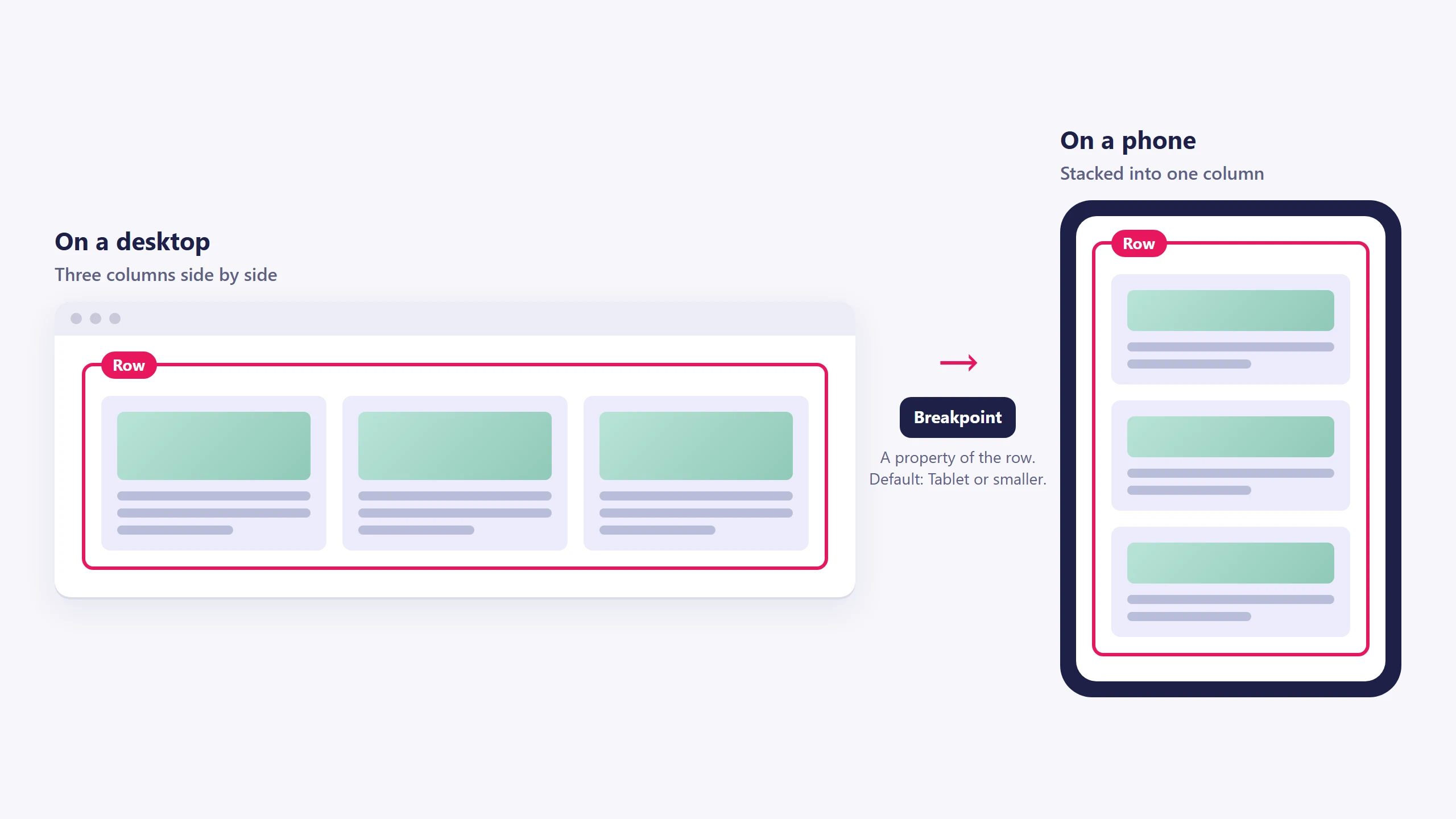
Select the row and look for Breakpoint in the properties (the gear icon). The options are:
| Option | Meaning |
|---|---|
| Never | Columns stay side by side at every width |
| Mobile portrait or smaller | Stack only on a phone held upright |
| Mobile landscape or smaller | Stack on phones |
| Tablet or smaller | Stack on tablets and phones, the default |
| Laptop or smaller | Stack on laptops too |
| Desktop or smaller | Stack on almost everything |
| Always | Never side by side |
The default, Tablet or smaller, is right for most content. Two cases where you'll change it:
- A row of small logos or icons. Four logos side by side are fine on a phone. Set Never.
- Two columns of body text. Cramped on a tablet. Set Laptop or smaller so they stack sooner.
Rows, splitters, menus, forms and article overviews all have this setting.
Hiding an element on some sizes
Every element has Visibility switches in its properties, one per size:
- Show on widescreen
- Show on desktop
- Show on laptop
- Show on tablet
- Show on mobile landscape
- Show on mobile portrait
All on by default. Switch one off and the element disappears at that size.
Useful for a decorative image that has no room on a phone, or a wide table that would break the layout. But use it sparingly, and never for anything a visitor might need. A phone visitor who can't find your address because it's desktop-only will simply leave. Hiding something is also not a fix for it being too big; resizing it usually is.
Don't build two versions of the same block: one shown on desktop, one on mobile. It doubles your work forever, and the two will drift apart. Make one block that adapts.
Common problems
Text too large on a phone. Headline sizes chosen on a wide monitor are often enormous at 400 px. Select the phone size and bring the heading down.
Padding eating the screen. 80 px of padding on each side of a section leaves very little room on a 375 px-wide phone. Reduce it at the tablet or phone size.
Columns that should have stacked. Check the row's Breakpoint setting.
Images pushing the page sideways. A very wide image can force horizontal scrolling. Give the image element a width of 100%.
A menu that doesn't fit. Select the Menu element and check its mobile menu type: that's the setting that turns it into a phone-friendly menu.
Check before you publish
Walk the sizes in the toolbar from all down to the portrait phone and look at each one.
Then use Show preview and open it on your actual phone. The editor is an accurate preview, but on a real device you also find out whether your tap targets are big enough.
Common issues
I changed something and it only applied to one size.
keyboard_arrow_down
remove
You had that size selected. Switch to all and set it there.
I set it at 'all' and the phone still shows something different.
keyboard_arrow_down
remove
There's a value set at a smaller size overriding it. Select the phone size and look for the setting with its switch on.
My columns won't stack.
keyboard_arrow_down
remove
The row's Breakpoint is set to Never, or to a size smaller than the one you're looking at.
An element has disappeared.
keyboard_arrow_down
remove
Check its Visibility switches. One of them is off for the size you're viewing.
It's right in the editor and wrong on my phone.
keyboard_arrow_down
remove
Publish first: the editor shows unsaved and unpublished work, your phone shows the live site. If it's still wrong after publishing, refresh the page on the phone. See Saving, previewing and publishing.
What will you create today?

ClickWhale is a website management system created by Ikabus