First 100 spots 50% lifetime discount. Start free.
Display sets
A display set is a named bundle of styling that you attach to as many elements as you like. Change the set, and every element wearing it changes at the same moment.
| Where | Manage → Design → Elements |
|---|---|
| Takes effect | After you publish (how) |
You attach a set in the editor, from the dropdown at the top of the Display settings pane. It reads Display element as and starts out on -- Choose styleset --.
Sets are for styling that repeats. Buttons, headings, body text, menus, form fields, article cards, images. Layout that belongs to one spot (this section, this row, this column, this container) is styled directly on the element instead. A set used in one place is just a setting you've made harder to find.
The list under Design → Elements
Sets are grouped by the kind of element they style. Buttons together, menus together, typography together. Each set is a folder; open it and you see the set itself, plus its child sets: the sub-parts that element is built from.
| Set | Child sets |
|---|---|
| Menu | Menu item, sub item, sub item container |
| Typography | H1, H2, H3, H4, paragraph, link |
| Form | Label, input field, submit button, list, list item |
| Publication | Article item, image, content |
| Accordion | Summary, details, details content |
Click any row and it opens in the Display settings pane on the right. The same pane you use in the editor, with the same screen sizes and the same default/hover/active states. Set what you want and press Save changes.
A set belongs to one element type
A button set can only be used by buttons, a menu set only by menus. That's why the dropdown on an element is often short: it's showing you the sets that fit.
It also means an element built from several parts offers several dropdowns. A menu element has one for the menu, one for its items, one for sub items and one for the sub-item container. Style each part separately, hover states included.
Making your own set
There's no blank-set button. Every new set starts as a copy of an existing one. Copy the one that's closest and change the values you care about.
- Open the
⋮menu next to a set. - Choose Copy display set.
- Give it a name you'll recognise in a dropdown six months from now: Primary button, not Button 2.
- Create.
The copy includes the child sets, so copying a menu gives you the items and sub items along with it.
The default sets
Every website starts with a set of defaults. Default button, default menu, default typography, default form, default publication, and so on. They can't be edited, renamed or deleted: their ⋮ menu offers Copy display set and nothing else.
Your website falls back on them. Copy one and edit the copy.
Your own sets have the full menu: Change name, Copy display set, Delete display set. Deleting a set that's still in use doesn't warn you, and the elements that used it fall back to whatever they set for themselves, which is usually not much. Check before you delete.
Sets that are applied automatically
Add a button and it already looks like a button; add a form or an article overview and the same thing happens. Those elements select the default set for their type automatically when you add them.
They only ever do this the first time. Once you've picked a set yourself, or explicitly picked nothing, ClickWhale leaves your choice alone.
Element settings override the set
A display set is the starting point. Anything you set directly on an element overrides the set, for that one element only.
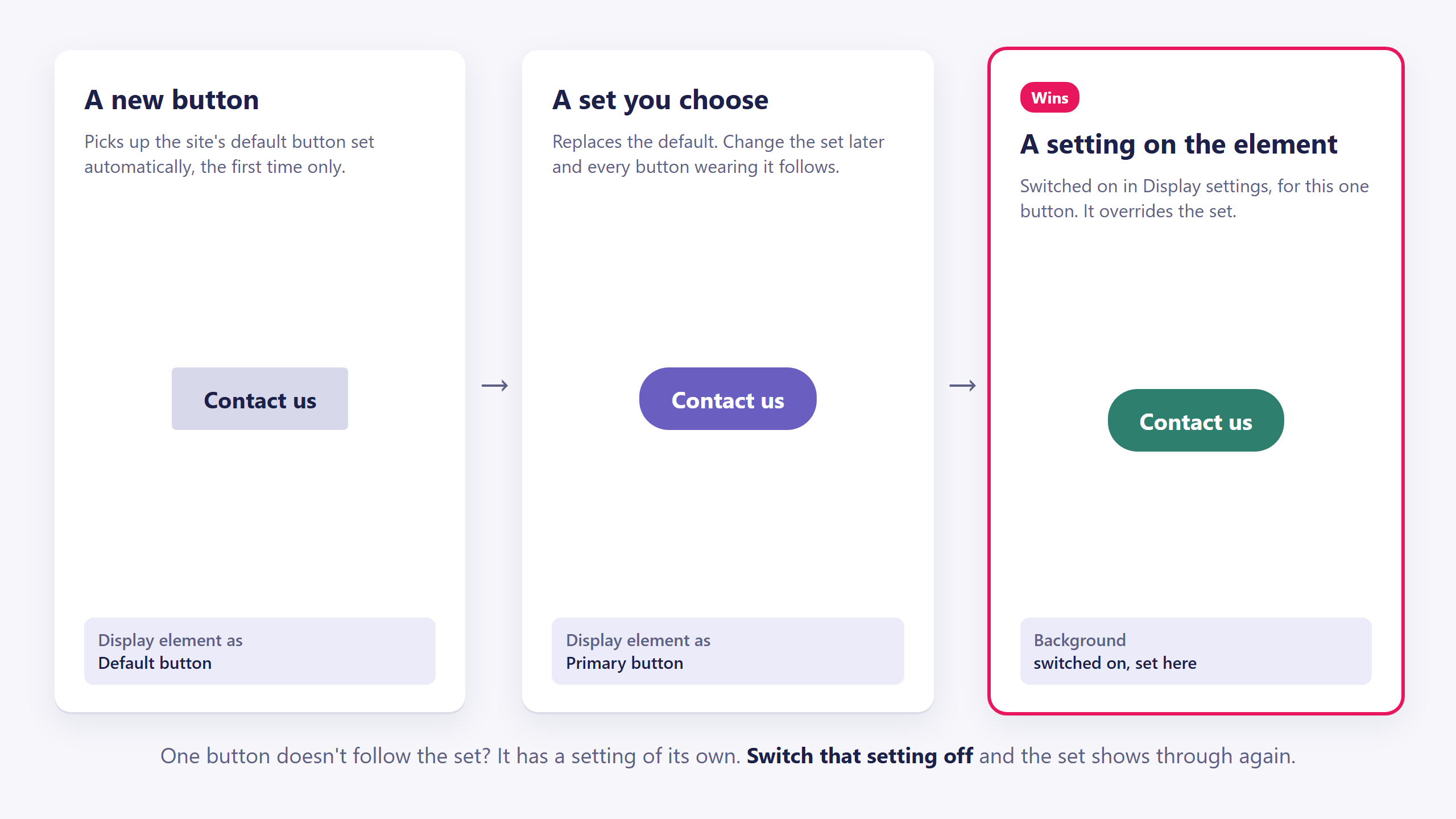
If one button doesn't follow the set, it has an option set directly on it. Switch that option off on the element, which lets the set through again. See Styling elements with the Display settings panel.
Colours in a set
Pick colours from the functions tab of the colour picker rather than typing values. A function colour is referenced by name, so changing it recolours every set and every element pointing at it. Of the first eight, text goes on the text slots (2, 7 and 8, or the accent for a link) and backgrounds on the others, so each can change without the other. See The colour palette.
Common issues
The set I want isn't in the dropdown.
keyboard_arrow_down
remove
It's made for a different element type. Sets aren't interchangeable between types. Copy a set of the right type instead.
I changed the set and one element didn't follow.
keyboard_arrow_down
remove
That element has its own value set directly on it, which wins. Select it, find the setting, and switch it off.
I changed the set and nothing followed.
keyboard_arrow_down
remove
Check you edited the set the elements are actually wearing. With several similar names it's easy to edit the wrong one. Select an element and look at what its dropdown says.
I can't rename or delete a set.
keyboard_arrow_down
remove
It's a default. Copy it, and work in the copy.
What will you create today?

ClickWhale is a website management system created by Ikabus