First 100 spots 50% lifetime discount. Start free.
Styling elements with the Display settings panel
Display settings control how an element looks: its background, borders, spacing, size and text. They apply to whatever you have selected.
| Where | The Display settings tab (the paint icon) in the editor's right column |
|---|---|
| Takes effect | After you publish (how) |
Every setting has an on/off switch. Nothing you haven't switched on is applied, which is why a brand-new element inherits its look from elsewhere instead of being blank. Turning a switch on is what says "this element decides this for itself".
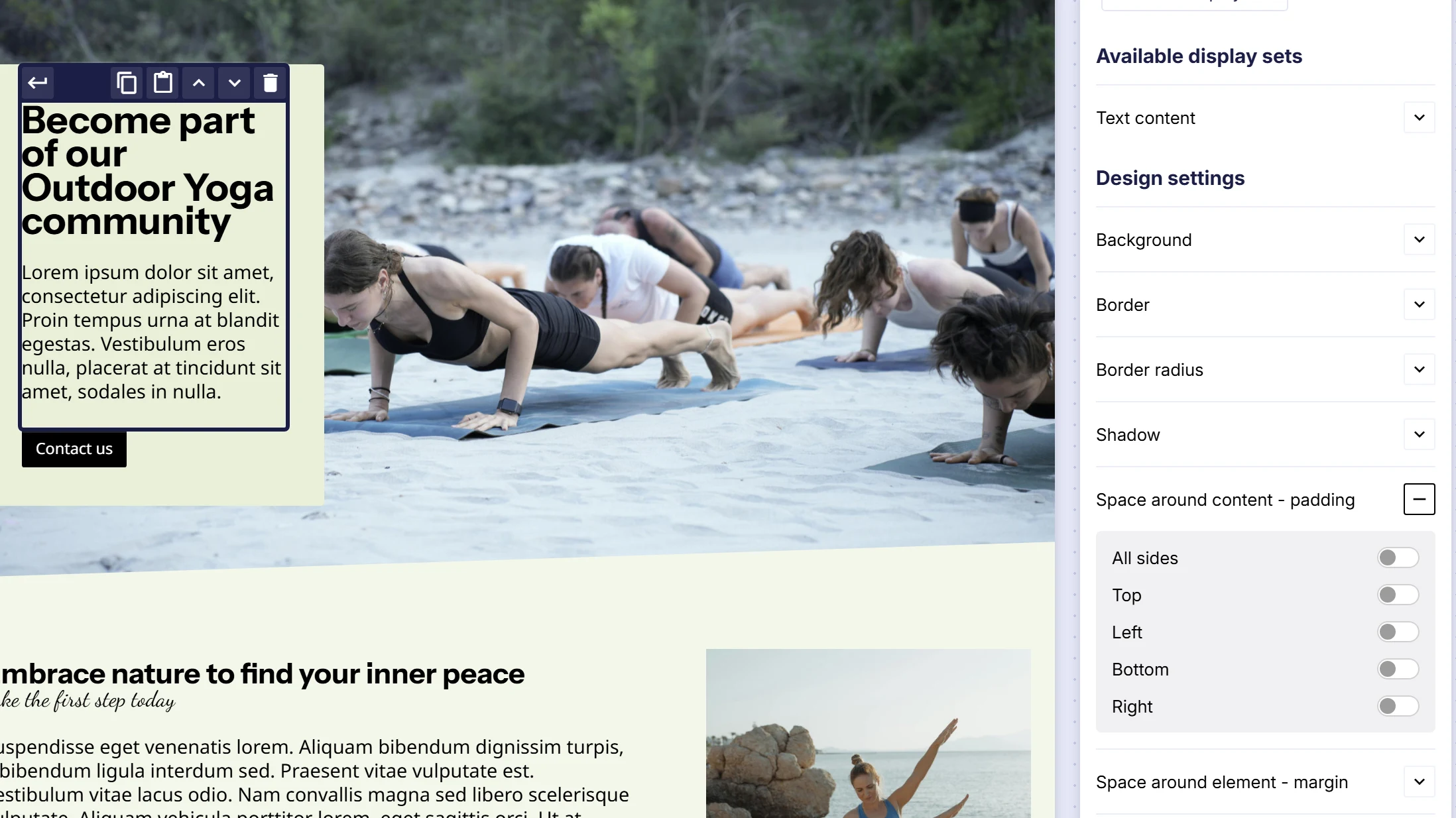
The settings
Not all of them appear for every element. The panel shows what applies to what you selected.
| Setting | Controls |
|---|---|
| Background | Colour, image, gradient, image size, repeat, horizontal and vertical position, clipping |
| Border | Width, style and colour, per side |
| Border radius | Rounded corners |
| Shadow | Drop shadow |
| Text | Font, size, line height, weight, italic, underline, alignment, colour |
| Content alignment | Direction and alignment of the children inside this element |
| Space around content - padding | Space inside the element |
| Space around element - margin | Space outside the element |
| Space between elements - gap | Space between the element's children |
| Width | How wide the element is |
| Minimal height | A floor on the element's height |
| Number of items per row | For galleries and overviews |
| Fixed position | Pins an element in place, e.g. a sticky header |
| Grid position | Where a cell sits in a grid |
| Grid height | The height of a grid |
Sizes and units
Anywhere you type a size, there's a unit dropdown beside it:
| Unit | Means | Good for |
|---|---|---|
| px | Pixels, a fixed size | Borders, small precise spacing |
| % | Percentage of the containing element | Widths that should adapt |
| em | Relative to the element's own font size | Padding around text that scales with it |
| vh | Percentage of the screen height | A hero band that fills the screen |
| vw | Percentage of the screen width | Rarely, usually % is what you want |
If in doubt: px for anything small and fixed, % for widths, vh for full-screen bands.
Colours
Clicking a colour opens the palette, which has two halves: Light mode and Dark mode. If your website has dark mode switched on, you pick both. If it doesn't, only the light half matters.
Pick colours from the picker's own tabs rather than typing values, and know which tab you're in. The palette tab hands out remembered values: the colour is copied into the element, so changing the palette afterwards leaves this element alone. The functions tab hands out a reference: change that colour and every element pointing at it follows. Both are set up under Manage → Design → Colors. See The colour palette.
Hover and active
Some elements (buttons, links, form fields, menu items, article cards) have three states:
| State | When it applies |
|---|---|
| Default | Normally |
| Hover | While the mouse is over it |
| Active | While it's being clicked, or when it's the current item |
Hover and active build on default. You only set what changes. Give a button a hover background colour and it keeps its default padding, borders and text settings. You don't restate them, and if you later change the default padding, hover follows automatically.
A note for phones: there is no hover on a touchscreen. Hover styling is a nice touch, never the only way to show something important.
Styling one element or all of them
Before you spend time styling something, ask whether this styling is going to repeat.
- It repeats: every button, every heading, every article card. Use a display set: style it once, attach it everywhere, change it in one place forever after. Display sets live under Manage → Design → Elements. See Display sets.
- It's specific to this spot: the padding on this one section, the width of this one column. Style it directly here.
The dropdown at the top of the panel, Display this element as…, is where you attach a display set. Anything you then set directly on the element wins over the set, for that element only.
Every setting is per screen size
The screen-size buttons in the toolbar decide which version of a setting you're editing. See Making your website work on phones.
Set everything at all first, then fix only what breaks at smaller sizes.
Common issues
The setting I want isn't in the panel.
keyboard_arrow_down
remove
It doesn't apply to this element. A Text element has no gap; an Image has no text settings. Check whether you should have selected the element's parent instead. Use the breadcrumb.
I set it and nothing happened.
keyboard_arrow_down
remove
Check the setting's on/off switch. An option that's off is not applied, whatever value is in it.
It changed on desktop but not on mobile
keyboard_arrow_down
remove
: or the reverse. You set it at one screen size. Switch to all and set it there.
I changed the display set and this one element didn't follow.
keyboard_arrow_down
remove
That element has its own value set directly, which wins over the set. Switch that option off to let the set through again.
What will you create today?

ClickWhale is a website management system created by Ikabus