First 100 spots 50% lifetime discount. Start free.
The colour palette
Two rows of colour slots that save you from typing the same hex code into forty elements, and, if you use the second row, from ever having to do it again when the brand changes.
| Where | Manage → Design → Colors |
|---|---|
| Takes effect | After you publish (how) |
Both rows hold 21 slots.
The two rows do different things. The colour palette is a memory aid: picking a colour from it copies the value into the element, and changing the slot afterwards changes nothing that's already on the website. The function colours are a reference: change one and everything pointing at it recolours.
Which row to use
| Colour palette | Function colours | |
|---|---|---|
| On screen | Color palette | Variable feature colors for Templates and Pages (advanced) |
| What a slot is | A remembered hex value | A named colour your website refers to |
| Picking it in the editor | Copies the value into the element | Stores a reference to the slot |
| Changing the slot later | Changes nothing already styled | Recolours every element using it |
| Use it for | Any colour you type often | Your brand colours, and anything you might rethink |
Put your brand colours in both: the palette so you can find them, the function colours so a rebrand only means changing the slots.
The first eight function colours
The first eight function colours have a fixed meaning throughout ClickWhale. Ready-made sections and websites built with AI use them by number, so sections you add later pick up your colours. Hover over a slot to see its role; the list under the row names all eight.
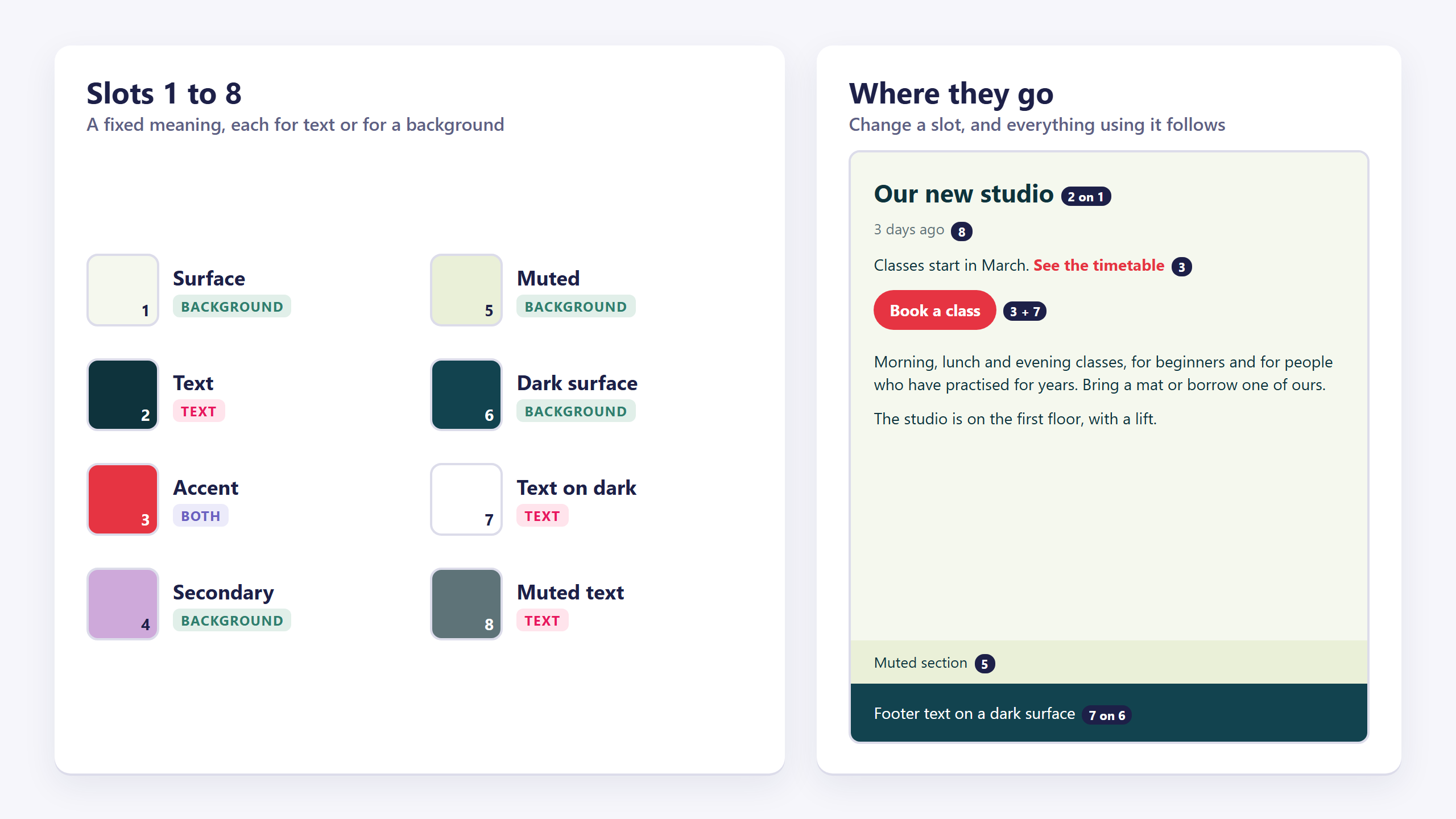
| Slot | On screen | Use it for |
|---|---|---|
| 1 | Surface | The page background |
| 2 | Text | Body text and headings |
| 3 | Accent | Buttons, links and emphasis |
| 4 | Secondary | A second button or a highlighted panel |
| 5 | Muted | Borders, dividers and quiet section backgrounds |
| 6 | Dark surface | Header, footer, dark sections and dark buttons |
| 7 | Text on dark | Text on the dark surface, the accent and the secondary colour |
| 8 | Muted text | Dates, captions and other quiet text |
Text and backgrounds each have their own slots. Slots 2 and 6 often hold the same dark colour, but body text points at 2 and a dark footer at 6, so you can give the footer a new colour without changing every paragraph. Only the accent is used for both: a button's fill and a link's colour.
A website built with AI starts with all eight filled from the palette chosen when it was ordered. Slots 9 to 21 have no fixed meaning; use them however you like.
Filling a slot
Click any slot, full or empty. A Choose color dialog opens with a single Color field, prefixed with a # that's already there for you.
- Type six hex digits (
1a5f7a) or three (c00), without the#. - Save.
- To empty a slot again, clear the field and save.
The Save button stays greyed out until what you've typed is a valid colour, which is the quickest way to spot a typo.
Using them while you're styling
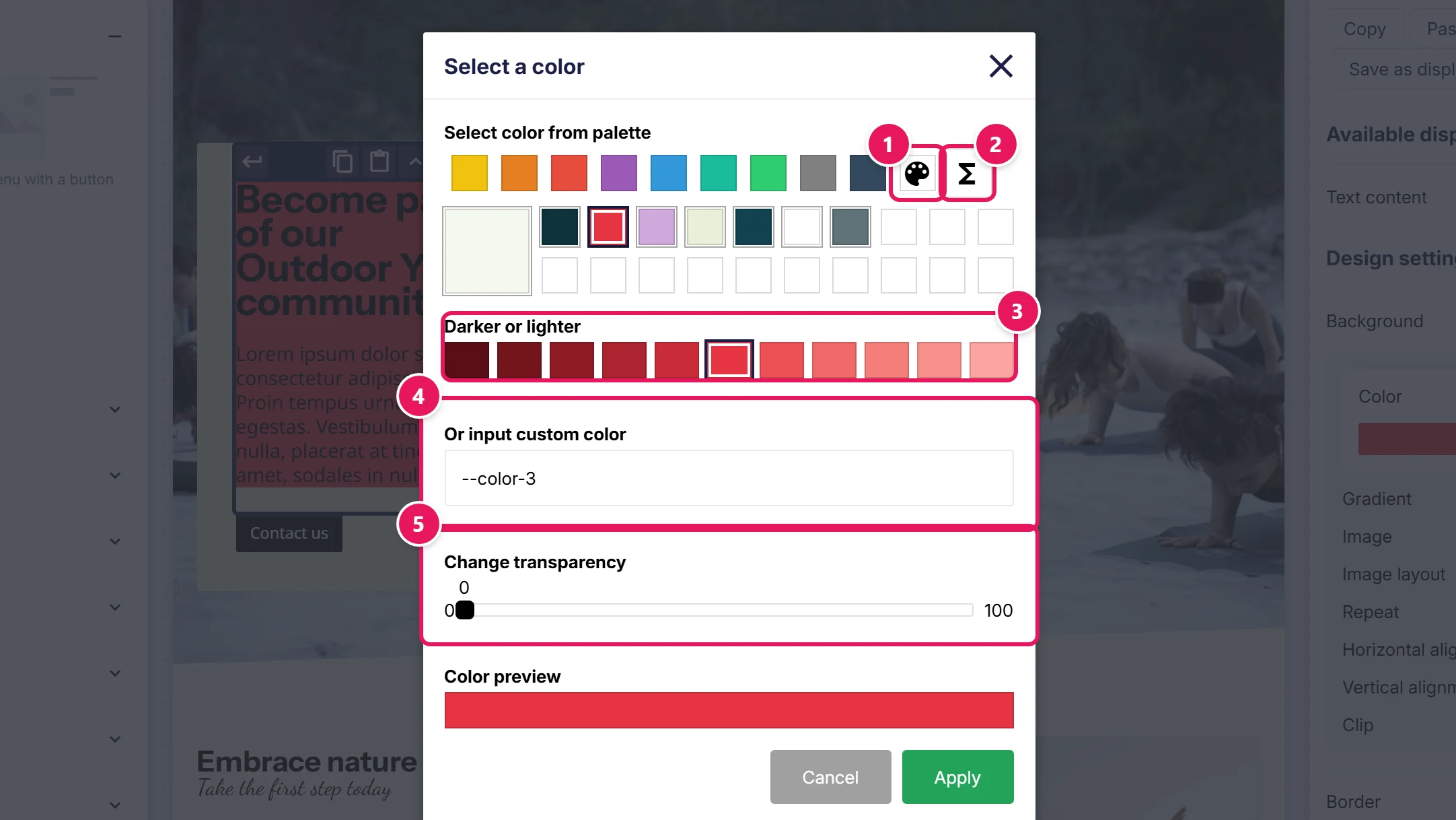
Anywhere in the editor where you click a colour, the Select a color overlay opens. Along the top is a row of tabs:
- Nine tabs of preset shades, one per hue. A quick source of tints when you just need a bit lighter.
- A palette tab (the paint-palette icon): your colour palette.
- A functions tab, the last one: your function colours. The overlay opens on this tab when the setting already uses a function colour.
Click a filled function colour and a Darker or lighter row of eleven shades appears below the slots, from 50% darker to 50% lighter in steps of 10%. The one in the middle is the slot itself. A shade follows its slot: change the slot later and the shade changes with it. That makes it the right choice for a hover colour, such as a button on slot 3 with a slightly darker slot 3 on hover. The row doesn't appear for an empty slot.
Below the tabs, Or input custom color takes a hex value typed by hand, or the name of a function colour, in the form --color-1 through --color-21, if you'd rather type it than click it. Add a percentage for a shade: --color-6 -20% is 20% of the way to black, --color-6 +20% 20% of the way to white.
Change transparency is a slider from 0 to 100, and it runs the way its name says: 0 is fully opaque, 100 is invisible. If a colour disappears on you, this slider is the first place to look.
The preview square at the bottom shows the result, transparency included.
Light and dark
If your website has dark mode switched on, every colour setting has a Light mode half and a Dark mode half, and you pick a colour for each.
Function colour slots are single values: one slot, one colour, used by both modes. So the way to have a heading that's dark navy on white and pale blue on black is to point the light half at one slot and the dark half at another. The first eight already have a meaning, so keep the dark side of your palette in slots 9 to 21.
What actually gets published
Function colours are written into the website's stylesheet as a list of named colours, once per website, and every element that uses one refers to it by name. That's what makes a change propagate. A shade is worked out from the slot in the visitor's browser, so it follows along too.
It also means a change to a function colour is a change to the website like any other: it takes effect when you publish, not when you save the slot. See Saving, previewing and publishing.
Common issues
I changed a palette colour and nothing on the site changed.
keyboard_arrow_down
remove
The palette hands out values, it doesn't own them. Elements styled earlier kept the value they were given. Use a function colour for the behaviour you're after, then restyle the elements once.
An element lost its colour after I picked a function colour.
keyboard_arrow_down
remove
The slot you picked is empty. An empty function colour has no value to hand out, so the element falls back to whatever it inherits. Fill the slot under Manage → Design → Colors.
I changed the text colour and my footer changed too.
keyboard_arrow_down
remove
The footer's background points at slot 2, which is meant for text. Point it at slot 6 (Dark surface) instead, and give slot 6 the colour you want. The same goes for a dark header, section or button.
The colour is right but the element looks washed out.
keyboard_arrow_down
remove
Check the transparency slider on that setting: 0 is fully opaque.
I changed a function colour and only some elements followed.
keyboard_arrow_down
remove
The others have a hex value typed straight into them, from before. Select one and look at its colour setting: if it shows a hex value rather than a function colour, that's the reason.
What will you create today?

ClickWhale is a website management system created by Ikabus