First 100 spots 50% lifetime discount. Start free.
The grid and free placement
Almost everything you build in ClickWhale is a stack: sections above sections, rows inside them, columns beside each other. The grid is the exception. It's a rectangle you place boxes on wherever you like, including on top of each other.
| Where | Grid in the Advanced elements group of the component list |
|---|---|
| Takes effect | After you publish (how) |
Use it where rows and columns genuinely can't reach. Overlapping cards, a caption sitting over a photograph, a deliberately off-balance magazine layout. For anything that is really a row of three things, rows and columns are less work and behave better on a phone.
Grid and grid cells
A grid holds grid cells, and nothing else. Each cell is a box you can put ordinary content in (text, an image, a button, a whole row) and each cell has a position of its own.
A new grid arrives with one cell already on it.
Adding and arranging cells
Select the grid, and a small Items panel appears beside it listing its cells. Add item at the bottom adds another. Clicking an entry selects that cell, which matters once cells start overlapping and clicking on the canvas becomes ambiguous.
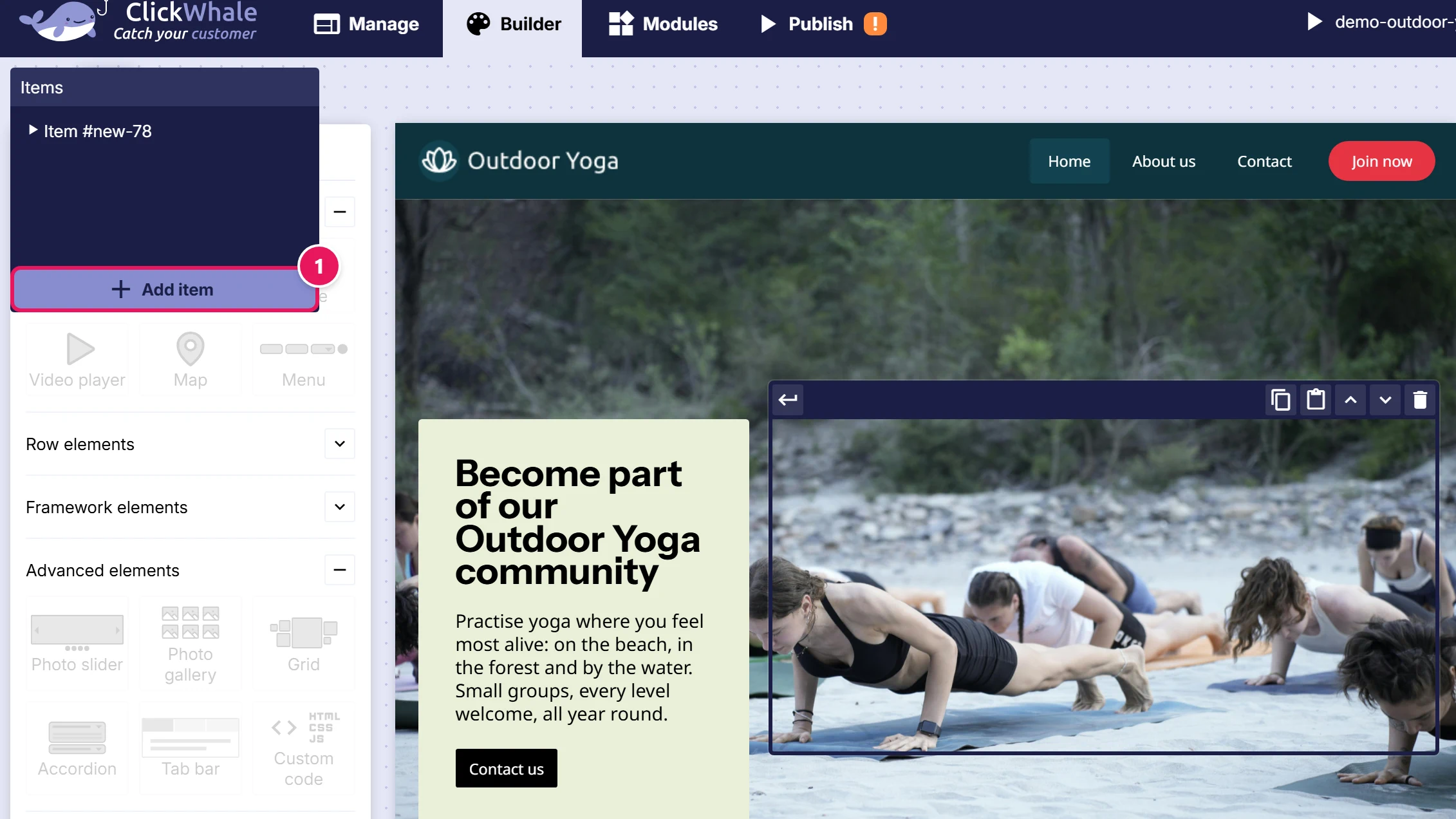
The panel is only there in Split editor view, and you can drag it aside.
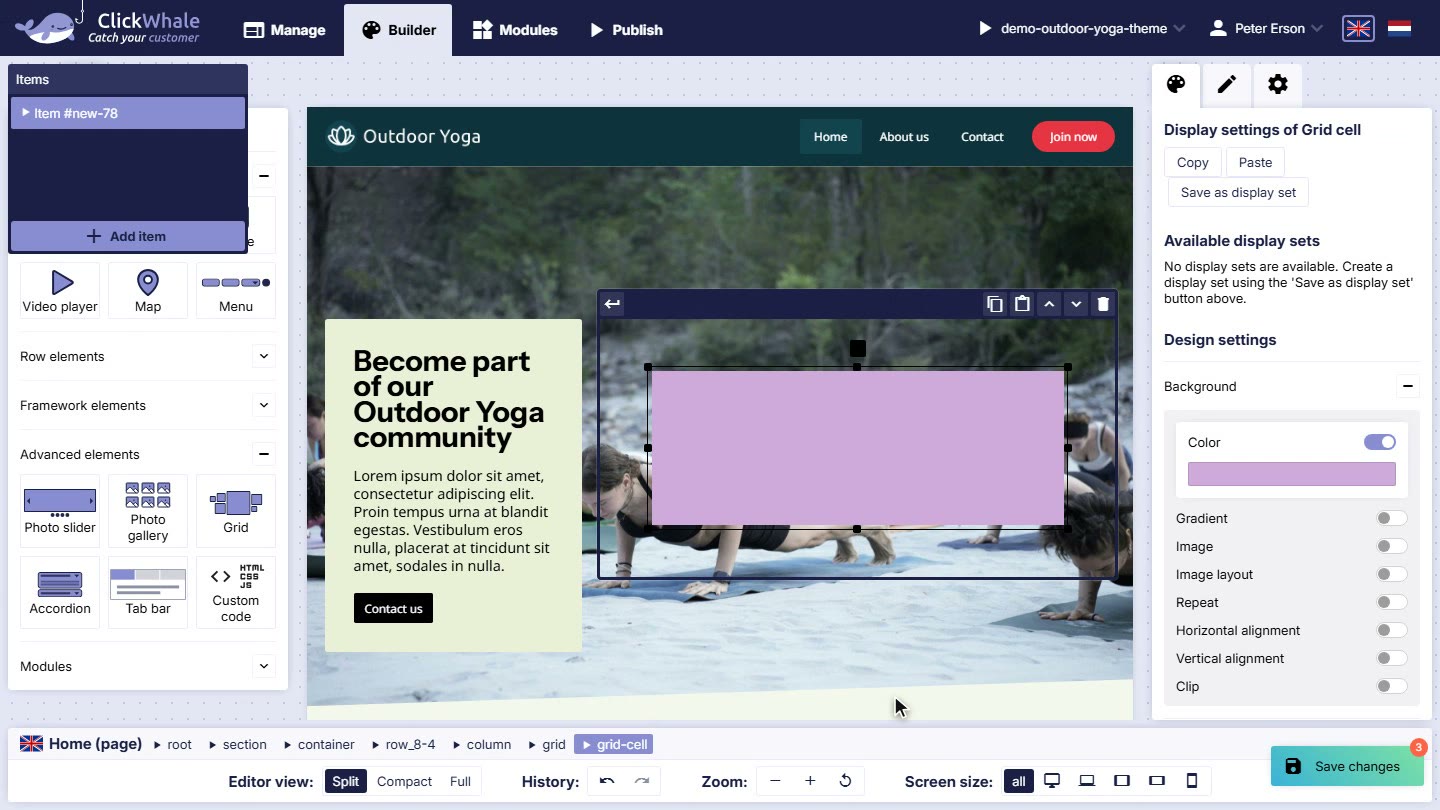
On the canvas, select a cell and:
- drag the small square above it to move it, or
- drag one of the handles on its edges and corners to resize it.
While you drag, the numbers change live so you can see exactly where you're putting it.
Position and size
Select a cell and you'll find Grid position in the Display settings pane: Top, Left, Width and Height.
All four are percentages of the grid's width, height included. Not of the grid's height, and not pixels.
Because of this, the whole arrangement keeps its proportions at every screen size. A cell at Left 10, Width 40 sits in the same place relative to everything else on a 2560-pixel monitor and on a 900-pixel laptop, and nothing overlaps by accident when the window is resized.
Grid height, on the grid itself, is a percentage of its width too. 50 means half as tall as it is wide; 100 makes it square.
A new cell starts at Top 10, Left 10, Width 80, Height 30.
Positions are per screen size
Grid position and Grid height are display settings, not properties: so like every display setting they can be set separately per screen width.
A free-placement layout that looks composed on a desktop is usually a pile on a phone, so plan to lay it out on All, then walk down the screen sizes and reposition the cells at each one. See Making your site work on phones.
Overlapping cells
Cells may overlap freely. When they do, the one later in the list is drawn on top. Reorder with the ↑ ↓ buttons on a selected cell's toolbar to change which.
An overlapping cell with a transparent background over a cell with a photograph is the standard recipe for text on an image.
Making a whole cell clickable
A cell has the same Link action as a button or an image: point it at a page, an address, or a file, and the entire cell becomes the click target. That's how you build a card that's clickable anywhere, not just on its button.
Styling
The grid takes background, border, border radius, shadow and grid height. A cell takes background, border, border radius, shadow, content alignment, gap, padding, and its grid position.
Layout that exists in one place only is exactly the kind of styling that belongs on the element rather than in a display set, so style grids and cells directly. Style the content inside them (the headings, the buttons) with sets as usual. See Reusable styling with display sets.
Common issues
I can't add a second cell.
keyboard_arrow_down
remove
It isn't in the component list. Select the grid and use Add item in the floating Items panel, in Split editor view.
I can't select the cell I want.
keyboard_arrow_down
remove
It's underneath another one. Use the floating Items panel to select it by name.
My grid is too tall / too short.
keyboard_arrow_down
remove
Change Grid height on the grid. Remember it's a percentage of the grid's width, so a wider grid gets taller at the same number.
Everything is piled on top of itself on a phone.
keyboard_arrow_down
remove
The cells still hold their desktop positions. Select each one at the smaller screen widths and give it a position that works there, usually full width, stacked.
My content overflows its cell.
keyboard_arrow_down
remove
The cell's Height is a minimum, not a limit. Content taller than it will grow past it and can end up underneath the next cell. Give it more height at that screen size, or less content.
What will you create today?

ClickWhale is a website management system created by Ikabus