First 100 spots 50% lifetime discount. Start free.
Sections, containers, rows and columns
These are the elements you don't see. They hold everything else in place, decide how wide your content is, and decide what happens on a phone.
| Where | Framework elements and Row elements in the editor's left column |
|---|---|
| Takes effect | After you publish (how) |
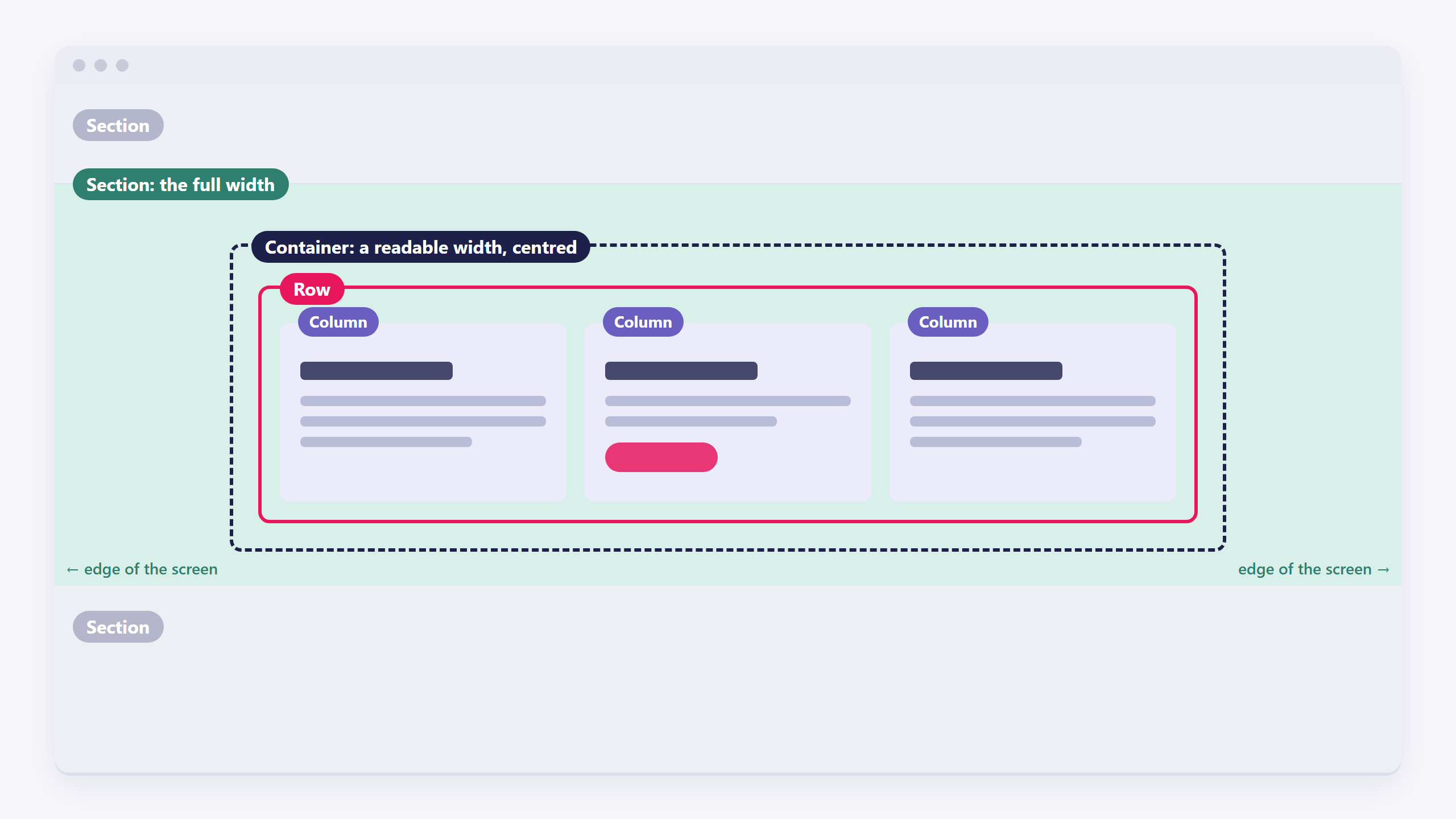
The usual structure of a page section: Section → Container → Row → Column → your content.
What each one is for
| Element | What it does | You use it for |
|---|---|---|
| Section | A full-width horizontal band, edge to edge | Background colours and images that span the whole screen |
| Container | Holds content to a readable width in the middle | Keeping text from stretching across a wide monitor |
| Row | A horizontal group of columns | Putting things side by side |
| Column | One cell of a row | Holding the actual content |
| Splitter | Two halves side by side, one of them free of the container width | A photo running to the screen edge next to a block of text |
| Div | A plain box with no opinions | Grouping a few elements so you can style or space them together |
A Section only accepts a Container. The Container keeps your text from touching the edge of the screen on a large monitor.
The nine row layouts
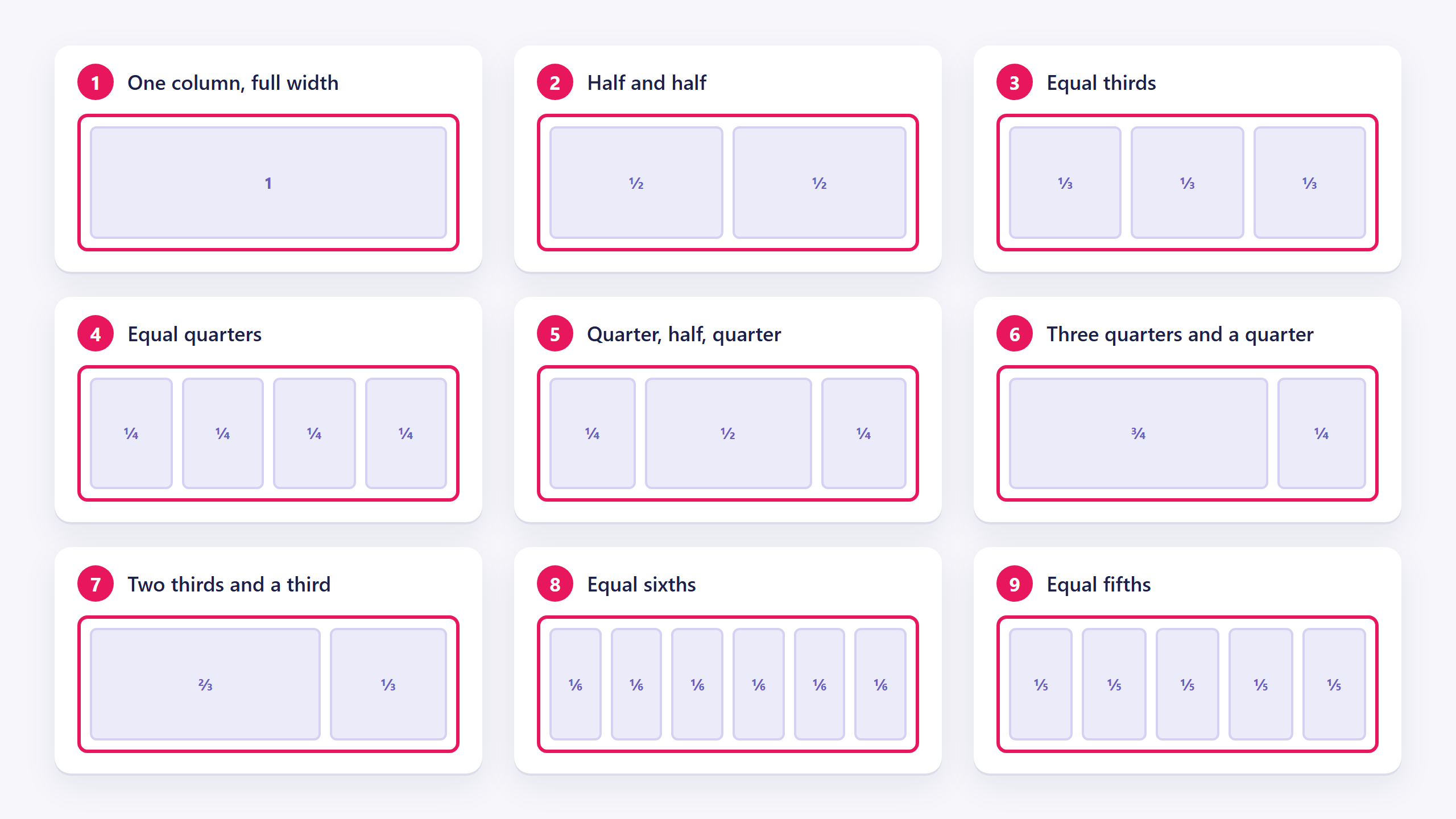
Every row layout is a preset division of the full width. From the top of the list:
| Layout | Columns | Split |
|---|---|---|
| 1 | One | Full width |
| 2 | Two | Half and half |
| 3 | Three | Equal thirds |
| 4 | Four | Equal quarters |
| 5 | Three | Quarter, half, quarter |
| 6 | Two | Three quarters and a quarter |
| 7 | Two | Two thirds and a third |
| 8 | Six | Equal sixths |
| 9 | Five | Equal fifths |
Pick the one closest to what you want. The columns can be resized afterwards by dragging their edge.
Layout 5 (quarter, half, quarter) is the standard way to centre a narrow block of text inside a wide section without touching any widths.
Column settings
"My columns are different heights." Select the row and switch on Equal column height. Without it, each column is as tall as its own content, which looks fine with matched text and wrong with cards.
"My section is too short." Give it a Minimal height. Useful for a hero band that should fill a decent part of the screen regardless of how little text is in it.
"There's no space between my columns." That's the Space between elements - gap setting on the row. Set it on the row, not by adding padding to each column. The gap only goes between columns, not around the outside.
"There's no space around my content." Padding, on the container or column. See the difference below.
Padding, margin and gap
Three ways to make space, and they're not interchangeable:
- Space around content - padding: space inside an element, between its edge and its contents. A section's background colour extends across its padding.
- Space around element - margin: space outside an element, pushing its neighbours away. The background colour does not extend into it.
- Space between elements - gap: space between the children of an element, and only between them. No space is added at the outer edges.
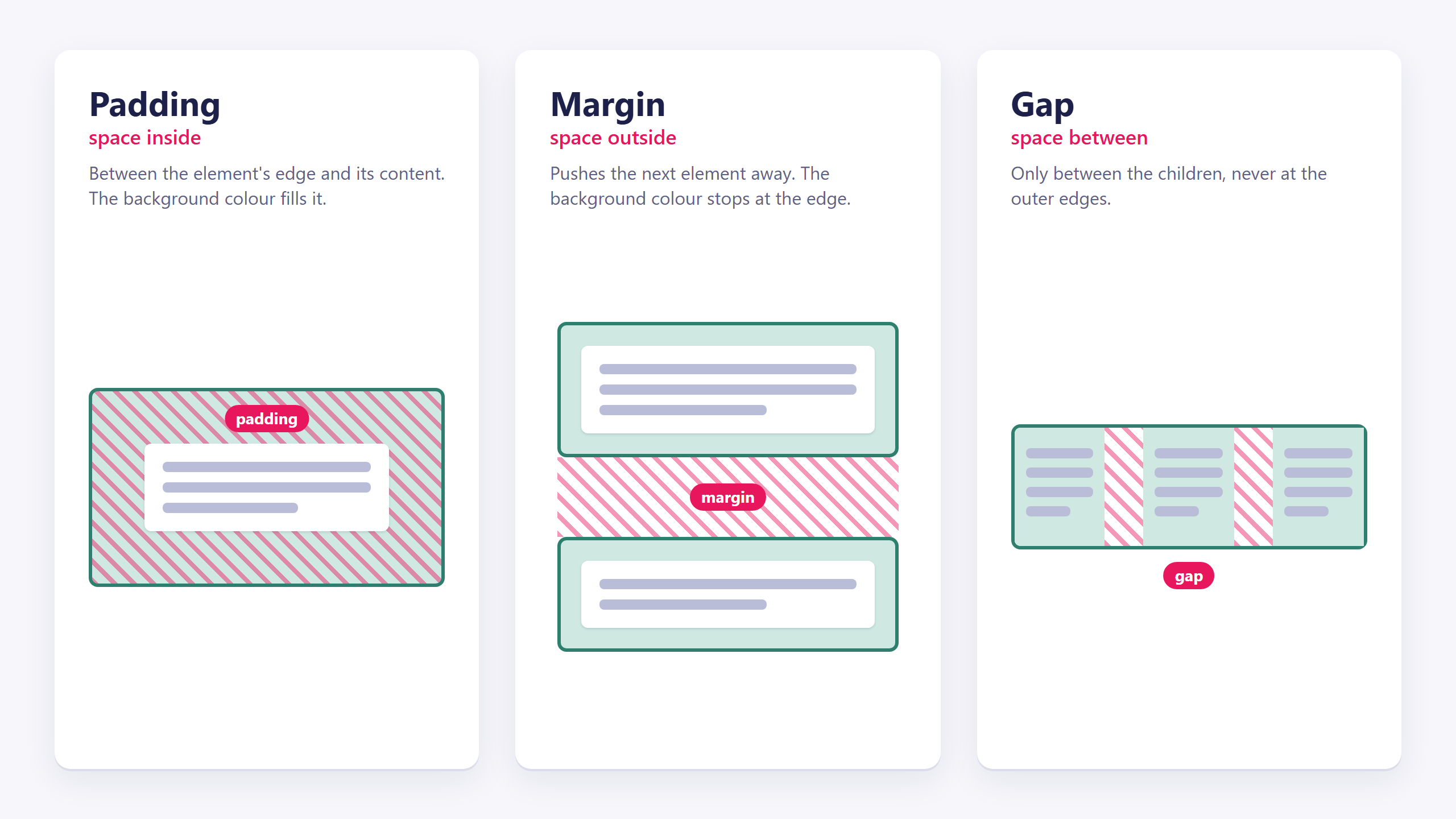
Rule of thumb: use padding to give a coloured section breathing room, gap to separate items in a row or list, and margin only when the other two can't do it.
The splitter
A splitter makes two halves side by side, where one half is a normal container (so its content stays at readable width) and the other is a free box that can run all the way to the edge of the screen.
That's the element for the classic layout where a photograph bleeds off the right-hand side of the page while the text on the left stays neatly aligned with the rest of your content.
Neither half can be deleted. They're the two sides of the splitter. Use the ← → toolbar buttons to swap which side is which.
Nesting
If you're four containers deep, something has gone wrong. Two habits keep it under control:
- One Section per visual band. A header band, a hero band, a three-column feature band, a footer band. One Section each, not one Section for the whole page.
- Reach for a Div only when nothing else fits. It's a grouping box, not a layout tool. If you want things side by side, that's a Row.
Common issues
My content touches the edge of the screen.
keyboard_arrow_down
remove
There's no Container between the Section and the content. Add one.
My text is one long line on a wide monitor.
keyboard_arrow_down
remove
Same cause. The Container is what constrains the width.
I can't add text to my section.
keyboard_arrow_down
remove
A Section only accepts a Container. See Adding elements to a page.
I can't delete this column.
keyboard_arrow_down
remove
Columns belong to their row. Switch to a row layout with fewer columns instead.
My columns don't stack on a phone.
keyboard_arrow_down
remove
That's the Breakpoint setting on the row. See Making your website work on phones.
My spacing looks fine on desktop and enormous on mobile.
keyboard_arrow_down
remove
Padding set at all applies everywhere. Select the phone size and reduce it there, same article.
What will you create today?

ClickWhale is a website management system created by Ikabus