First 100 spots 50% lifetime discount. Start free.
Adding elements to a page
Everything on a ClickWhale page is an element: a block of text, an image, a button, a row of columns. Building a page means adding elements and putting them in the right order.
| Where | Component selector in the editor's left column. Open a page from Manage → Pages or a template from Manage → Templates |
|---|---|
| Takes effect | After you publish (how) |
Elements nest. Content goes inside a Column, the Column is in a Row, the Row is in a Container, the Container is in a Section. That chain is why some components are greyed out at some moments.
What you can add
| Group | Contains |
|---|---|
| Content elements | Text content, Button, Image, Video player, Map, Menu |
| Row elements | Nine ready-made column layouts |
| Framework elements | Section, Container, Splitter |
| Advanced elements | Photo slider, Photo gallery, Grid, Accordion, Tab bar, Custom code |
| Modules | Form, Publication container, Publication category, Members |
The Modules group only shows modules you've switched on under Manage → Settings → Website settings → Enabled modules. If the Form element isn't in the list, the module is off.
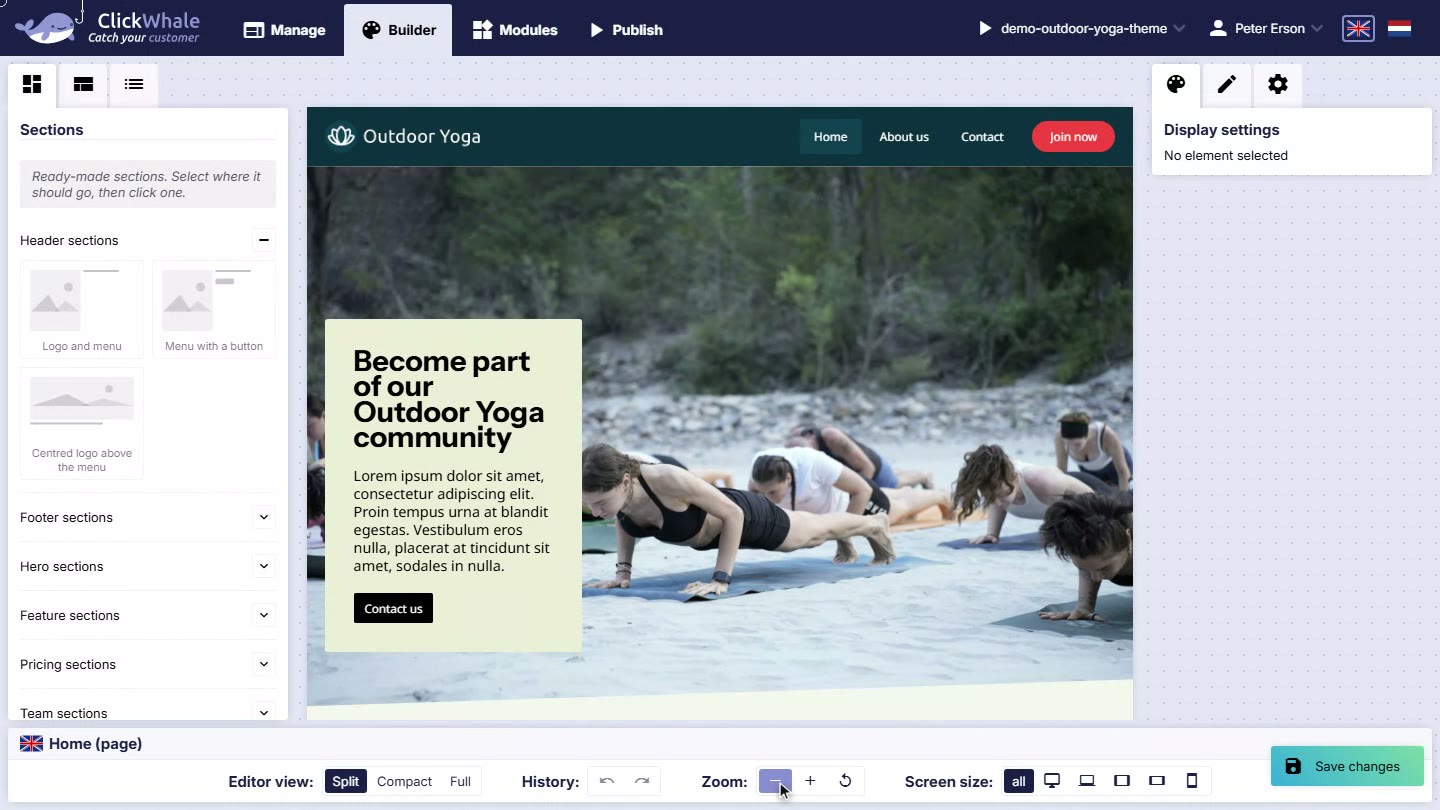
Before you add elements one at a time, look at the Sections tab. It's the first tab in the left column, and it holds ready-made sections, such as a hero, a pricing block or a team row, that arrive with their rows, columns and placeholder content already in place. Select where the section should go, double-click a tile (or drag it across), then edit what's inside it. For anything that looks like a standard page section, that's far less work than assembling it yourself.
Two ways to add one
Drag it. Pick the component up from the left column and drop it where you want it. The editor shows you where it will land as you move.
Or double-click it. Select the element you want it to go inside first, then double-click the component in the list. It's added as the last child of what you selected. This is often quicker and much more precise than dragging, especially in a crowded page.
Why a component is greyed out
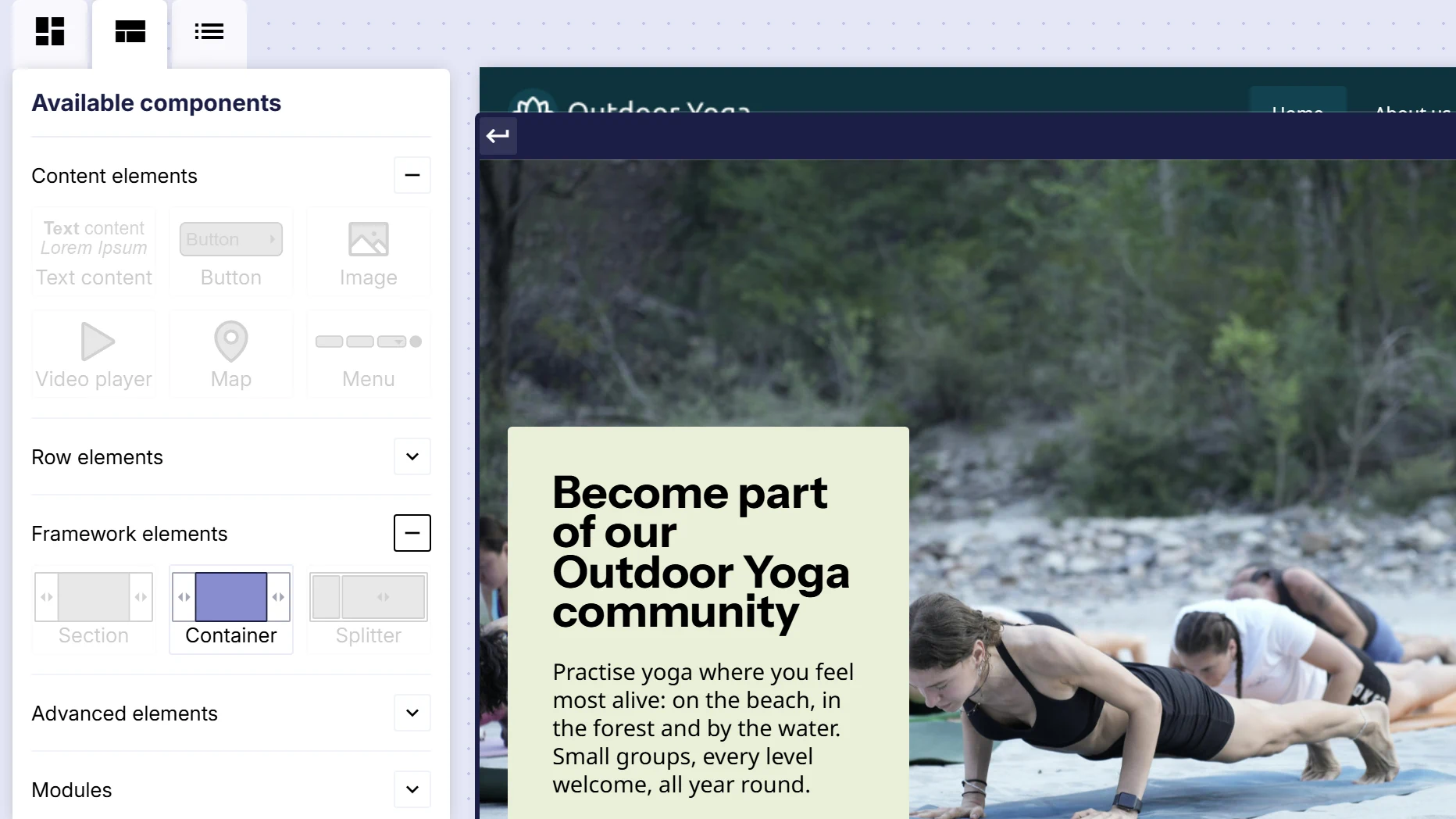
Each element only accepts certain children, and the list greys out everything the currently selected element won't take.
| Selected element | Accepts |
|---|---|
| Section | Container, and nothing else |
| Container | Any block element, and any content element |
| Column | Any block element, and any content element |
| Div | Any block element, and any content element |
| Grid cell | Any block element, and any content element |
| Row | Its columns are created for you, you don't add them |
| Button bar | Buttons |
| Accordion | Accordion items |
| Grid | Grid cells |
"Content elements" are Text content, Button bar, Button, Menu, Image, Video player and Map. "Block elements" are the bigger structural pieces: Sections, Rows, Splitters, Photo slider, Photo gallery, Grid, Accordion, Custom code and the modules.
So a Section will never accept a Text content block. Put a Container in the Section first. In practice, the fix is always the same: select something else, usually the Column, and try again.
Selecting things
Clicking an element in the middle column selects it. For anything small, overlapping, or nested, that gets fiddly, so there are two better ways:
- Component list: the third tab in the left column, showing the page as a tree. Click any entry to select that element exactly.
- The breadcrumb at the top of the editor shows the selected element's parents. Click a step to jump up a level. This is the fastest way to go from a button you clicked to the row that holds it.
The element toolbar
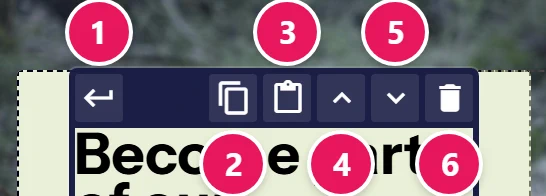
Select an element and a small toolbar appears next to it. Which buttons you get depends on the element, and none of them have labels. Here's what each one does, numbered from left to right as in the picture:
| Button | What it does |
|---|---|
| 1 | Select the parent element, one level up |
| 2 | Copy this element |
| 3 | Paste the copied element inside this one |
| 4 | Move up among its siblings |
| 5 | Move down among its siblings |
| 6 | Delete |
| Arrows left/right | Move left or right, for buttons, columns and side-by-side boxes |
| Info (i) | Only on shared elements: shows which templates share this one |
| Pencil | Only on Custom code: opens the code editor |
Copy and paste work between pages. Copy a section on one page, open another page, select where it should go, and paste. It's the quickest way to reuse a block you've already styled.
Elements you can't delete
The delete button is missing in four cases:
- Columns. They belong to their row. To get fewer columns, use a different row layout.
- Elements inside a splitter. Same reason. They're the splitter's two halves.
- Template elements, while you're editing a page. They belong to the template. Open the template to change them.
- Sub-elements of a module: a form's label, a publication's image, a slider's arrow. They're part of the module and can be styled but not removed.
Common issues
The component I want is greyed out.
keyboard_arrow_down
remove
The selected element won't accept it. Select the Column (or add a Container to your Section) and try again.
I can't find the Form, Publication or Members element.
keyboard_arrow_down
remove
That module is off. Manage → Settings → Website settings → Enabled modules.
I can't drop it where I want.
keyboard_arrow_down
remove
Drop it somewhere valid nearby, then use the ↑ ↓ ← → buttons to move it into place. Selecting the target and double-clicking the component is usually easier than dragging.
I can't add anything to the top of my page.
keyboard_arrow_down
remove
That's the template's root element. Open the template instead. See Templates and pages.
There's no delete button.
keyboard_arrow_down
remove
See the list above. Most likely it's a column, or an element that belongs to the template.
What will you create today?

ClickWhale is a website management system created by Ikabus