First 100 spots 50% lifetime discount. Start free.
Your own CSS classes on page elements
A page element is a named look you write in CSS once and then apply to individual paragraphs, headings, list items or images from inside the text editor, without touching code again. You write the rule, everyone else picks it from a list by name.
| Where | Manage → Custom code → Page elements |
|---|---|
| Takes effect | After you publish (how) |
Try a display set first. Most of what people reach for this feature for (headings all one colour, buttons all one shape) is a display set, which is visual, applies automatically and can be changed by anyone. Page elements are for the leftovers: a look the builder can't express, or a variant only some paragraphs should have.
What one is made of
| Field | What it does |
|---|---|
| Name | What you and your colleagues see in the styles list. Write it for a human: Intro paragraph, Warning box |
| CSS class name | The class the style adds to the element, e.g. intro-paragraph, no dot, no spaces |
| Used on (list of elements) | Which kinds of text it may be applied to, as HTML tag names |
| Custom element code | The CSS itself |
Making one
- Go to Manage → Custom code → Page elements.
- Under New, type a Name and click Create. The page element opens.
- Fill in CSS class name and Used on, and click Save in that section.
- Write your CSS in the Custom element code editor and click Save underneath it.
The two sections have their own Save buttons. Save both.
Write complete rules, selector and all. The field is not a rule body; whatever you type is added to your website's stylesheet as-is. So:
.intro-paragraph {
  font-size: 1.25rem;
  line-height: 1.6;
  color: #444;
}
Not just font-size: 1.25rem;. You can add as many rules as you like in one page element. A rule for the class and rules for what's inside it, as long as they all use the class you named.
"Used on" decides where it appears
This field is a comma-separated list of HTML tag names:
| You want the style on | Type |
|---|---|
| Paragraphs | p |
| Headings | h1,h2,h3,h4 |
| Paragraphs and all headings | p,h1,h2,h3,h4 |
| List items | li |
| Whole lists | ul,ol |
| Images inside text | img |
Three rules for that field:
- It can't be empty. An empty Used on doesn't mean "everywhere". It means the style is offered on nothing at all, and you'll never find it in the editor.
- Lower case, no spaces.
p,h2works;P, H2does not. - Tag names, not classes.
p, not.paragraphor Text content.
Applying it to something
Page elements live in the text editor, not in the component list. You apply them to a block of text, not to an element of the page.
- Double-click the text you want to style. The Text editor tab opens with the cursor in it.
- Look at the bottom of the Text editor tab in the right column. A row of small purple tag labels shows the tags of the block your cursor is in:
p, orh2, orulli. - Click the tag you want to style. A Properties window opens.
- Its first tab lists every page element whose Used on includes that tag. Switch the one you want on and click Apply.
- Click the tick to finish editing, then Save changes in the editor toolbar.
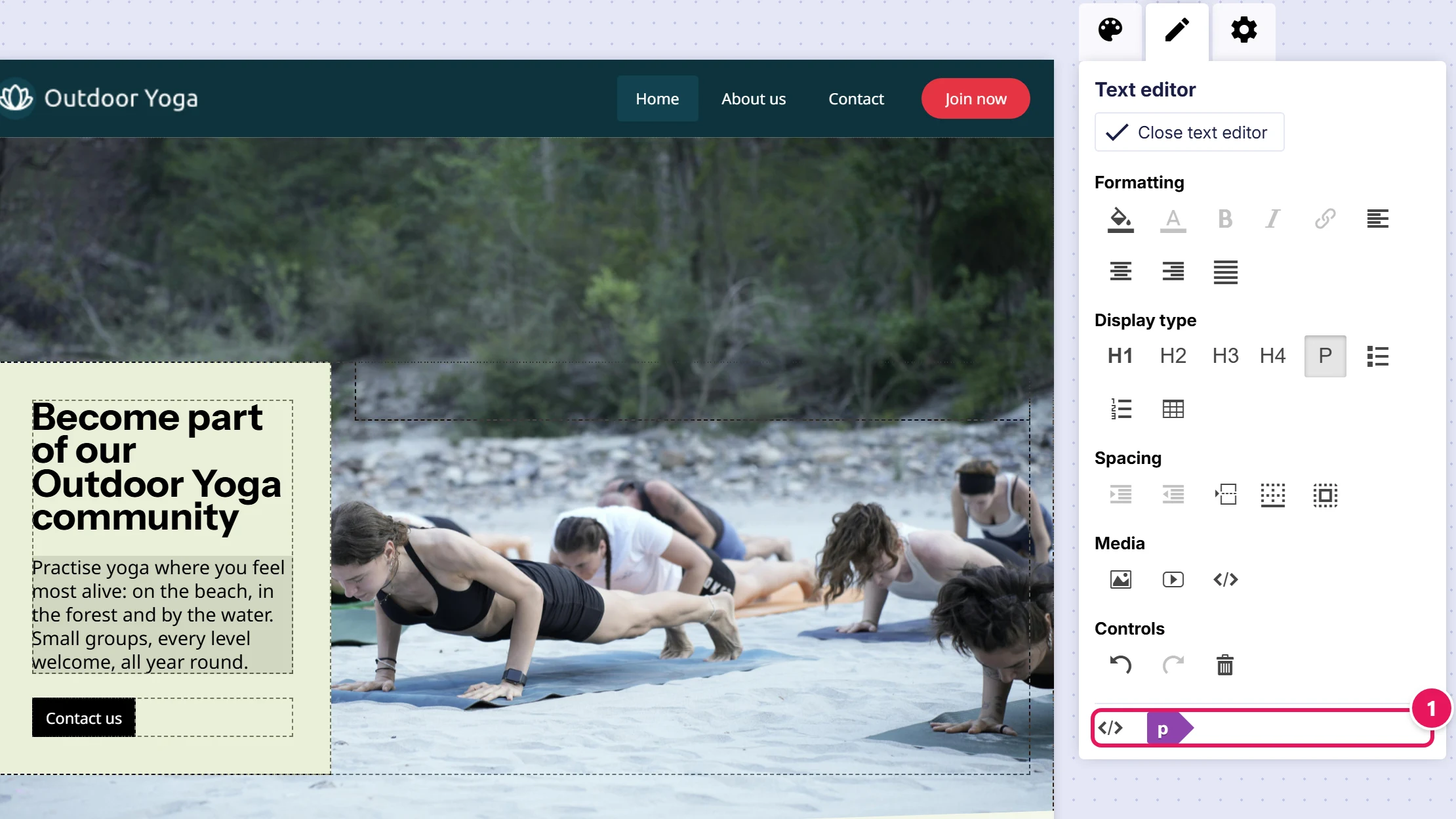
If the window says No styles available for this tag, that tag isn't in any page element's Used on. Go back and add it.
The Properties window comes from the text editor component and is always in English, whatever language the rest of ClickWhale is in. The style names in it are the ones you typed.
Seeing the result
Page-element CSS is applied inside the builder as well as on the live site, so most changes show up in the editor canvas after a reload.
Two things behave differently:
@mediarules don't apply in the builder. They work perfectly on the live site. Check them with Preview and the screen-size buttons rather than in the canvas.- A style you just created needs the editor reloaded before it appears in the Properties list.
And as always, the live site only changes when you publish. See Saving, previewing and publishing.
Deleting one
The bin icon on the Page elements list removes it. The CSS stops being published, so anything still carrying that class simply loses the look. The class stays in the text, harmlessly, until someone switches it off in the Properties window.
Page elements or a display set?
| Display set | Page element | |
|---|---|---|
| Made with | Visual controls | CSS you write |
| Applies to | Elements: sections, rows, buttons, text elements | Tags inside a text element: a paragraph, a heading, a list item |
| Applied by | Attaching the set to an element | Ticking it in the text editor's Properties window |
| Responsive | Yes, per screen size, visually | Only if you write the media queries |
| Best for | Anything that repeats across the site | A look the builder can't express, on some blocks and not others |
If a display set can do it, a display set is the better answer, because the next person to edit the site can change it without knowing CSS. Reach for a page element when it can't: a two-column paragraph, a first-letter drop cap, a gradient on the text itself.
Common issues
My style isn't in the Properties window.
keyboard_arrow_down
remove
Used on doesn't include that tag, or it's empty, which offers the style nowhere. Check it's lower case and has no spaces.
There's no tag row and no Properties window.
keyboard_arrow_down
remove
You're not in text editing. Double-click the text first; the tags appear only while you're editing. See Writing and formatting text.
I ticked the style and nothing looks different.
keyboard_arrow_down
remove
Either the CSS class name field is empty (with no class name nothing is published, even though the style still shows in the list), or your CSS doesn't mention that class. The class name and the selector in your CSS have to match.
It works on the live site but not in the editor.
keyboard_arrow_down
remove
You used a media query, or another rule that the builder's preview can't apply. Judge it in Preview.
My CSS is being ignored on some elements.
keyboard_arrow_down
remove
Element styling set in Display settings is written against that element's own id, which outranks your class. Either move the styling into the builder, or make your selector more specific. See Site-wide custom code, which has the same problem and the same answers.
The style disappeared from the text after I edited it.
keyboard_arrow_down
remove
Retyping a whole block can replace it, taking its class with it. Reapply from the Properties window.
Can I use this on a button or an image element?
keyboard_arrow_down
remove
No. Page elements reach the tags inside a Text content element only. Style a button or an image element with a display set, or wrap it in a Custom code element if it really needs hand-written CSS.
What will you create today?

ClickWhale is a website management system created by Ikabus