First 100 spots 50% lifetime discount. Start free.
Writing and formatting text
Text on a ClickWhale page lives in Text content elements. Writing into one takes an extra step.
| Where | The Text editor tab (the pencil icon) in the editor's right column |
|---|---|
| Takes effect | After you save and publish (how) |
A single click selects; a double-click lets you type. Selecting and editing are two different modes, so you can restyle a paragraph without any risk of changing its words.
Starting to write
Double-click the text you want to change. ClickWhale switches to the Text editor, turns on editing, and puts the cursor in the paragraph you double-clicked. Type.
That's the quick way. There's also a longer way, which does the same thing for the whole page:
- Open the Text editor tab in the right column (the pencil icon).
- Click Start text editor inside it. Every text element on the page becomes editable.
- Click into the text you want to change and type.
Either way, a formatting toolbar appears while you're typing.
Finishing
- Click Close text editor (the button with the tick) when you're done.
- Click Save changes in the editor's toolbar.
Both are needed. Closing the text editor puts your text into the element; the Save button sends it to ClickWhale. Every time you close it, ClickWhale shows Don't forget to save your changes! and briefly highlights the Save button.
If you leave the editor between closing the text editor and the Save, your text is gone.
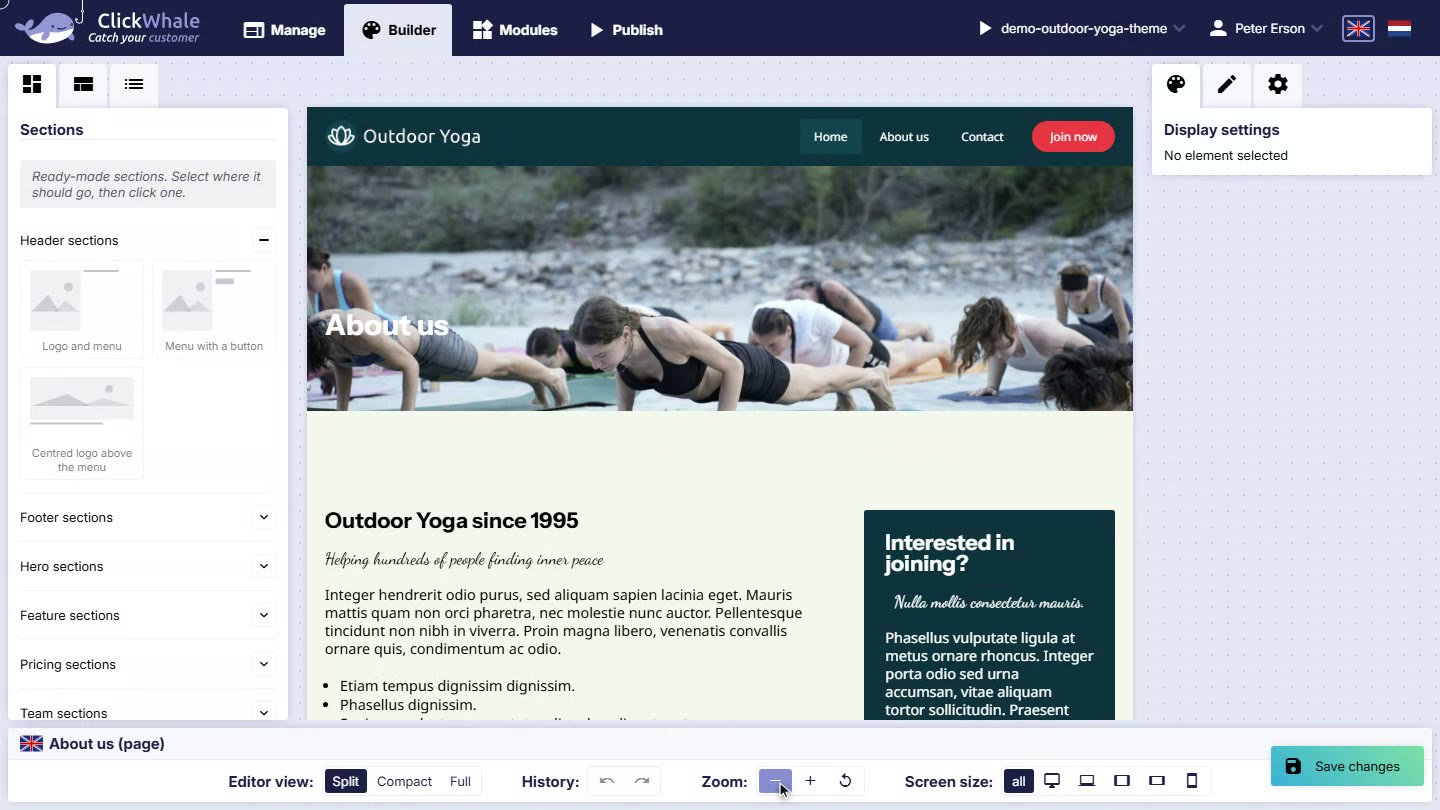
The formatting toolbar
Five groups, each with its title above it:
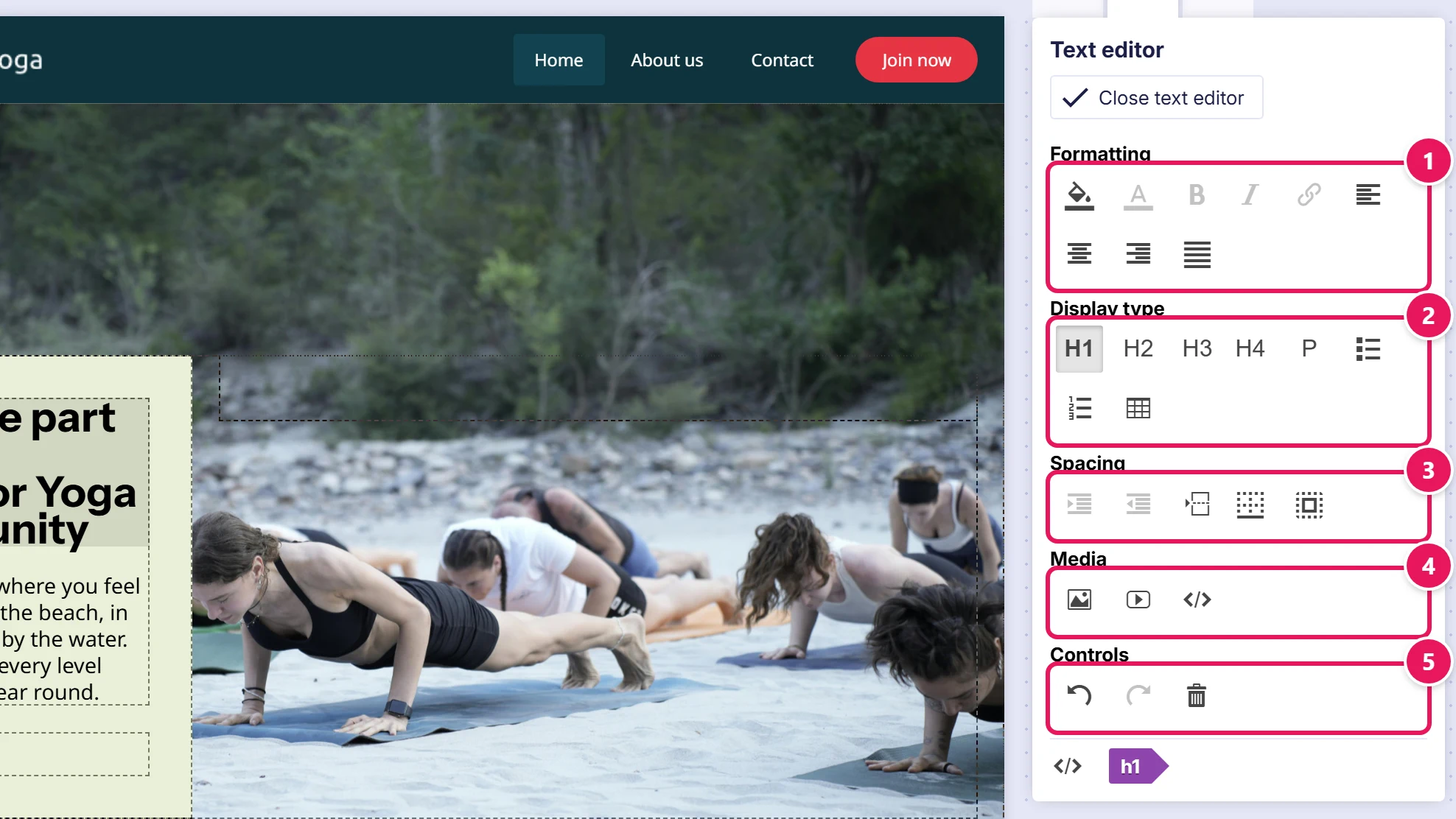
| Group | Tools |
|---|---|
| Formatting | Background colour, text colour, bold, italic, link, and the four alignments: left, centre, right, justified |
| Display type | Heading 1 to 4, paragraph, bullet list, numbered list, table |
| Spacing | Indent, unindent, line break, remove bottom whitespace, space around element |
| Media | Image, video, preformatted text |
| Controls | Undo, redo, and remove, which deletes the current block |
Display type changes what a block is, not just how it looks. Hover over a tool to see its name.
Headings are structure, not size
Don't pick Heading 3 because Heading 2 looked too big.
Headings tell search engines and screen readers how your page is organised. Skipping from a heading 1 to a heading 4 because of how it looked leaves your page structurally scrambled. Fix the styling instead:
- To change how all your headings look, use a display set under Manage → Design → Elements. See Display sets.
- To change one heading only, select it and use the Display settings tab.
Use heading 1 once per page, for the page's actual title. Then 2 for sections, 3 for subsections, in order.
Links
Select the words you want to link, then click the link button.
For a link to another page on your own website, it's better to use a Button or make the whole column clickable instead. Those let you pick the page from a list, so the link keeps working if you later change that page's address. A link typed into text is a fixed address and won't follow a rename.
To make a whole text block clickable, put a link in its text, select the block and switch on Make whole block clickable in its properties. A click anywhere on the block then follows the first link in it. Any other link in the same block still goes to its own address.
Images inside text
The toolbar can insert an image into a paragraph: a small inline image that flows with the words.
For anything larger, use a proper Image element instead. You get aspect ratio, sizing, alt text and a link action, none of which an inline image has.
Writing for the web
- Short paragraphs. Three or four lines. What reads fine in the editor looks like a wall of text on a phone.
- Front-load. Put the point in the first sentence of the section, not the last.
- Meaningful link text. "Read our delivery terms", not "click here". Better for readers, better for search.
- Check it at phone width before you publish. Use the screen-size buttons in the toolbar.
Common issues
I can't type in my text.
keyboard_arrow_down
remove
Double-click it. If that doesn't help, open the Text editor tab and click the pencil button.
Double-clicking does nothing on this element.
keyboard_arrow_down
remove
Only text can be edited this way. An image, a button's box or a row isn't text. Select it and use the Display settings tab instead. Accordion titles and their contents are text, and can be double-clicked.
I typed something and it disappeared.
keyboard_arrow_down
remove
You left the editor before pressing Save. There is no automatic save.
I closed the text editor and the live site hasn't changed.
keyboard_arrow_down
remove
Closing the text editor is not Save, and Save is not Publish. All three are needed. See Saving, previewing and publishing.
My text is a different size than the same heading elsewhere.
keyboard_arrow_down
remove
One of them has its own styling on top of the shared set. Select it and check the Display settings tab, and remember the setting might have been made at one specific screen size.
Pasting from Word brings strange formatting.
keyboard_arrow_down
remove
Paste into a plain text editor first, then copy from there into ClickWhale. That strips the hidden formatting Word carries with it.
What will you create today?

ClickWhale is a website management system created by Ikabus