First 100 spots 50% lifetime discount. Start free.
The editor
The editor is where you actually build.
| Where | Click a page on Manage → Pages, or a template on Manage → Templates |
|---|---|
| Takes effect | After you publish (how) |
It has three columns and a toolbar.
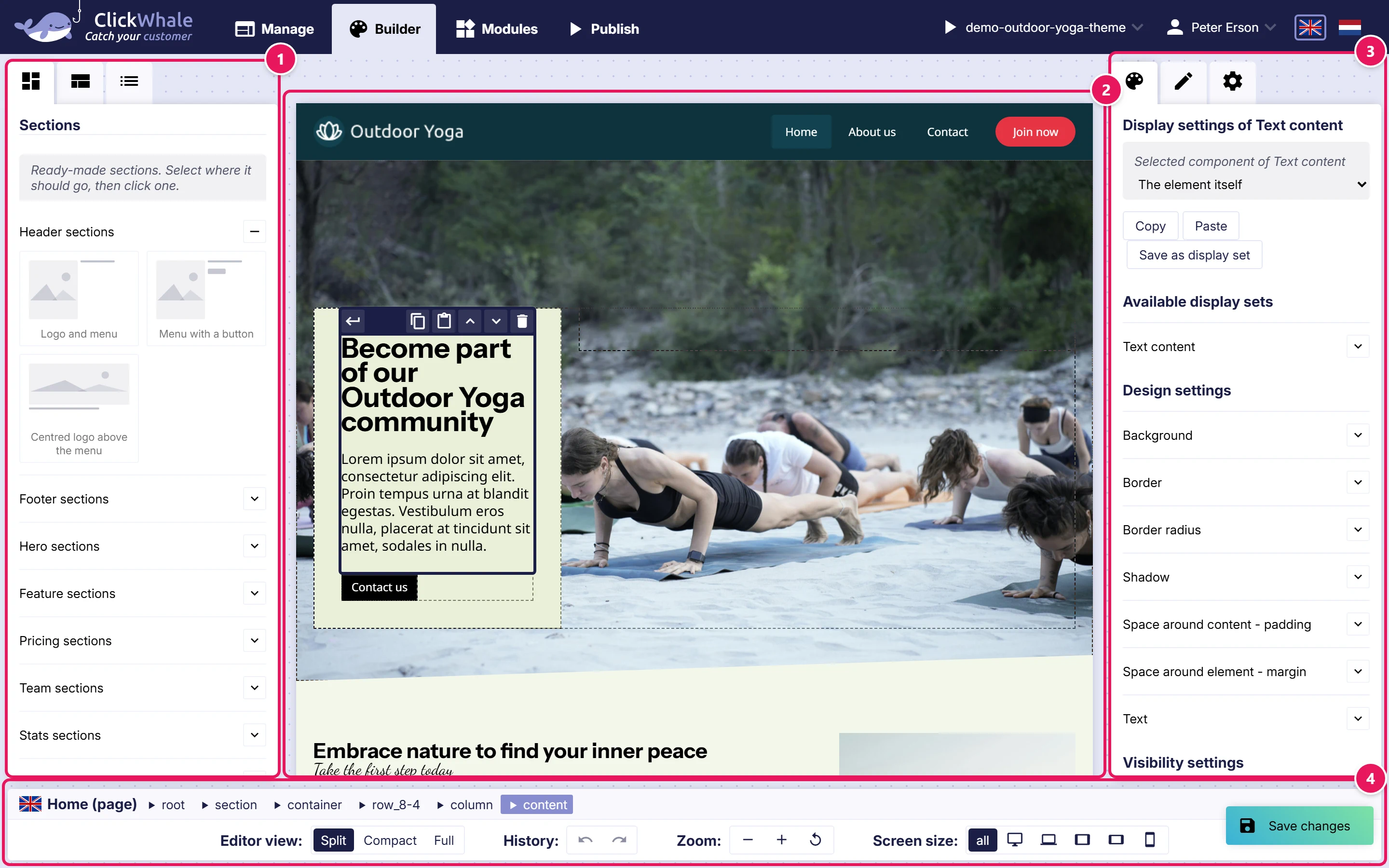
The name at the top tells you what you're editing. It reads either Home (page) or Main template (template), with a flag for the language. On a multi-language site, check it before you start typing. Editing the English page when you meant the Dutch one is easy to do and easy to miss.
The left column: what you can add
Three tabs, and the one it opens on is the first.
Sections is a catalogue of ready-made sections (a hero, a pricing block, a team row), grouped into categories, one open at a time. Select the element the section should go into and double-click a tile, or drag it onto the page, and the section arrives complete with its rows, columns and placeholder content for you to edit. Tiles grey out when the selected element can't hold a section, the same rule that greys out individual components below.
Component selector (the second tab) lists the individual elements you can add, in five groups. Adding elements to a page lists what each group holds.
Two ways to add one: drag it onto the page, or select the element you want it to go inside and double-click the component.
Some components will be greyed out, and that's normal. Elements can only go in certain places. A Text content block can't sit directly in a Section, it needs a Row and a Column first. The list greys out anything the currently selected element won't accept. If what you want is grey, select a different element first.
The Modules group only lists modules you've switched on under Manage → Settings → Website settings. If the Form element isn't there, that's why.
Component list (the third tab) is the tree of what's already on the page. It's the reliable way to select something small, something behind something else, or a container rather than its contents. See Adding elements to a page for both routes in more detail.
The middle column: the page itself
Your page, as it will look. Click any element to select it. The selected element gets a toolbar for duplicating, deleting and moving it, and you can drag elements around directly.
Double-click a text element to start writing. ClickWhale switches to the Text editor and puts the cursor where you clicked. A single click only selects. See Writing and formatting text.
The right column: settings for what you selected
Which tabs you get depends on the editor view (see below). In the default Split view there are three:
- Display settings (paint icon). How the selected element looks: background, borders, spacing, size, text. Elements built out of parts (an accordion, a tab bar, a slider, a text block with headings and links in it) carry a Selected component of … dropdown here, which switches the settings below to one of those parts without changing which element you're in.
- Text editor (pencil icon): the writing toolbar.
- The gear icon: the selected element's properties. Which menu a Menu element shows, where a button links to, which images are in a slider, and the per-screen-size visibility switches.
Select nothing and the panel tells you so. Select something and it fills with what applies to that element, which is why the panel changes shape as you click around.
The toolbar
Top row:
- The name and language of what you're editing.
- A breadcrumb of the selected element's parents. Click any step to jump up a level. The fastest way to get from a button to the row that contains it.
Bottom row:
- Editor view: Split, Compact or Full.
- Undo and Redo. See Problems in the editor.
- Zoom: minus, plus, and reset. Zoom only changes your view; it changes nothing on the site.
- Screen size: all, and then five device widths from desktop down to a phone in portrait.
- Color scheme: Light and Dark. Only appears if you've enabled dark mode for the website.
The three editor views:
| View | What it shows | Good for |
|---|---|---|
| Split | Page plus both side panels | Building and styling |
| Compact | Page plus one panel, with the left column folded into it as extra tabs | Handing to someone who mostly writes text |
| Full | Just the page, no panels | Checking your work |
Screen size changes what you're editing
The screen-size buttons don't just resize the preview. They decide which version of a setting you are changing. With all selected, a change applies everywhere. Switch to the phone icon and change the text size, and you've changed it for phones only. The desktop keeps what it had.
So the way to work is: set everything up on all first, then walk down the sizes and fix only what breaks. You never need to set the same value six times.
If a change you made seems to have vanished, check which screen size was selected when you made it.
Saving
The Save changes button sits at the right-hand end of the toolbar, with a number beside it counting your unsaved changes.
Two things to know:
- Leaving the editor without saving loses those changes. There is no automatic save.
- Saving is not publishing. Your saved work is in the builder; the live website is unchanged until you publish. See Saving, previewing and publishing.
When you finish editing text, ClickWhale shows a reminder, Don't forget to save your changes!, and briefly highlights the Save button. That's because the text editor's own tick puts your text into the element, but doesn't send anything to the server.
Common issues
A setting I expected isn't in the panel.
keyboard_arrow_down
remove
Not every setting applies to every element. A Text element has no gap setting; an Image has no text settings.
My change only shows up on one screen size.
keyboard_arrow_down
remove
You made it while a specific screen size was selected. Switch to all and set it there.
I typed text and it disappeared.
keyboard_arrow_down
remove
The text editor's tick saves into the element; the Save button saves to the server. If you left the editor in between, the text is gone. See Writing and formatting text.
What will you create today?

ClickWhale is a website management system created by Ikabus