First 100 spots 50% lifetime discount. Start free.
Tab bars
A tab bar is a row of labels over one panel of content: click a label, that panel replaces the last one. It's for content that divides cleanly into a few alternatives a visitor picks between: Description / Specifications / Delivery, or one tab per location, or a price list per season.
| Where | Tab bar in the Advanced elements group of the component list |
|---|---|
| Takes effect | After you publish (how) |
Only one panel is ever visible. Anything a visitor genuinely needs to see belongs on the page, not behind a label they may never click. If they should read all of it, use an accordion or ordinary sections instead.
What it's made of
A tab bar has tabs, and each tab is two things at once:
- Its label: the short text on the button, edited directly on the tab.
- Its panel, everything you put inside the tab, which can be anything a column can hold: text, images, a row of columns, a form.
A new tab bar arrives with one tab, labelled Tab label.
Adding tabs
Select the tab bar. A small Items panel appears beside it, listing the tabs it holds.
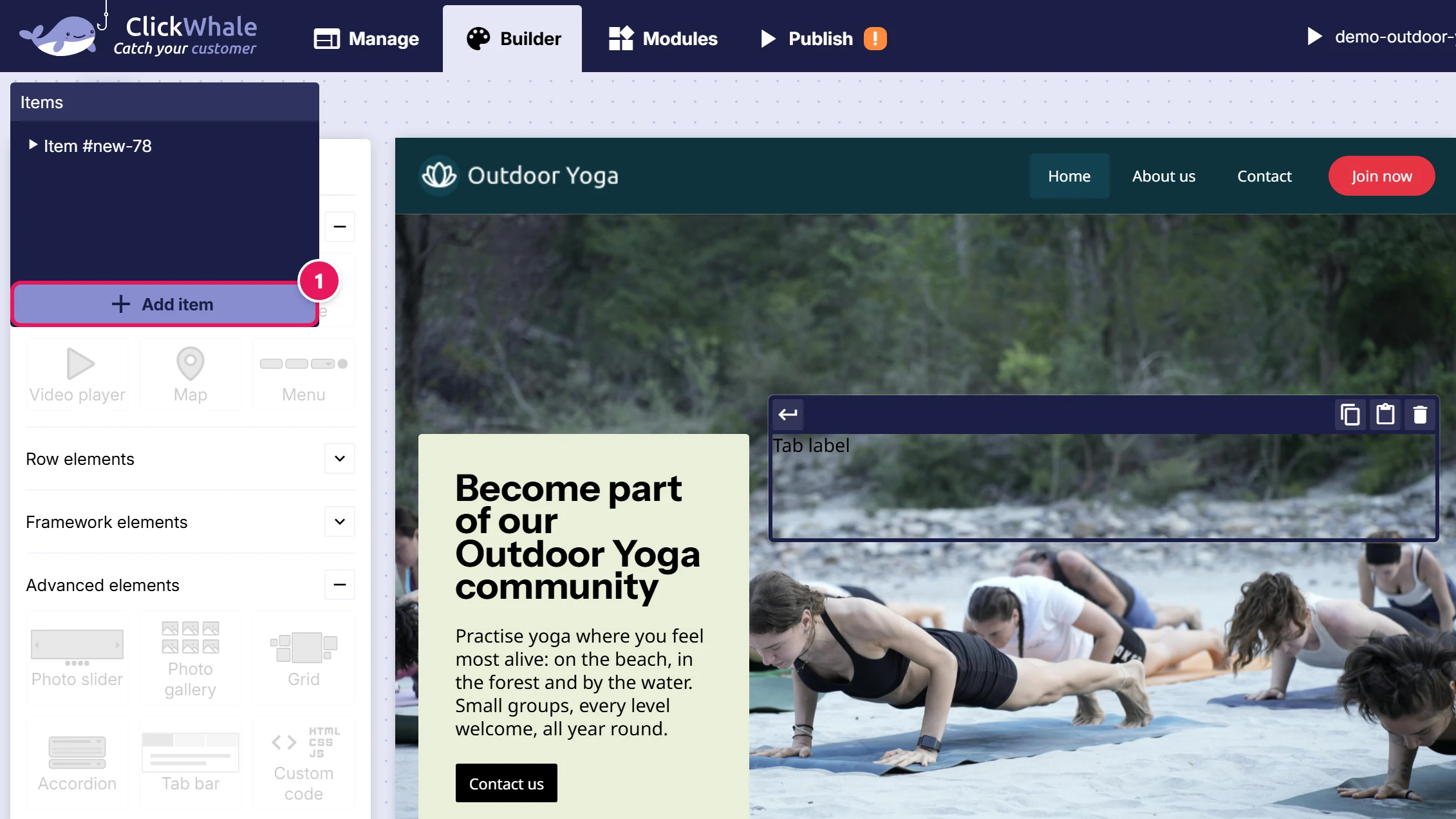
- Add item at the bottom of that list adds another tab at the end.
- Clicking an entry selects that tab: the reliable way to reach one whose label is awkward to click.
The panel is only there in Split editor view, and you can drag it out of the way.
Use ← → on a selected tab's toolbar to change the order of the tabs, and the bin to delete one.
To write the label, select the tab and edit its text directly. To fill the panel, drop elements inside the tab like you would inside any column.
Where the labels sit
Tab position puts the row of labels on one of four sides:
| Position | Reads as |
|---|---|
| Top | The classic tab strip. The default, and the one people recognise. |
| Bottom | Labels under the content. Unusual, worth a reason. |
| Left | A vertical menu beside the content. Good for many tabs, or long labels. |
| Right | The same, mirrored. |
Left and right turn the tab bar into something closer to a sidebar menu, which is often the better shape once you have more than five or six tabs. A top row of eight labels wraps badly and looks broken on a phone.
Styling it
The tab bar itself takes background, border, border radius, shadow, gap and padding, the box around the whole thing.
Its parts are styled separately. Select the tab bar, then pick the part from the Selected component of Tab bar dropdown, under Design settings in the styling pane on the right. Parts you haven't touched yet are marked (not styled), and The element itself takes you back to the tab bar's own settings:
| Part | What it is | States |
|---|---|---|
| Tab row | The strip holding all the labels | default |
| Tab label | One label button | default, hover, active |
| Tab panel | The box the open panel sits in | default |
Put the card styling on Tab panel, not on each tab. Background, border and padding belong to the box, which stays put while the content inside it changes. Set them on individual tabs and the box appears to jump every time a visitor clicks.
And give Tab label an active state that clearly differs from default: a different background, or a rule along the edge nearest the content. Without it a visitor cannot tell which tab they're on.
If your site has a default tab-bar set, a new tab bar attaches it automatically, only the first time. See Reusable styling with display sets.
Linking straight to one tab
Each panel has its own address. Click through to the tab you want, and the address bar picks up a # fragment for it. Copy that and the link opens the page with that tab already selected.
Handy for support answers ("here's the delivery information: …") and for pointing at one item in a long list of options without asking the reader to hunt for it.
Two useful details: clicking tabs doesn't fill up the browser's Back button, and two tab bars on the same page don't fight over the address.
Keyboard and screen readers
The tab bar is a proper tabs widget, so it behaves the way people who don't use a mouse expect:
- Tab moves into the label row, then out of it. The row counts as one stop, not one per label.
- Arrow keys move between labels: left/right for a top or bottom row, up/down for a left or right one.
- Home and End jump to the first and last tab.
- Enter or Space opens the selected tab.
Screen readers announce which tab is selected and how many there are, so long as the labels say something. Tab 1, Tab 2 tells a listener nothing. Write real labels.
If a visitor has JavaScript switched off, the first tab's content is still shown rather than an empty box. It won't switch, but nothing disappears.
Tips for tabs
- Two to six tabs. One tab isn't a tab bar; ten is a menu, and belongs on the left.
- Short, parallel labels. Description · Specifications · Delivery, not What it is · Some technical detail you might want · How long will it take to get here?
- Don't hide the price. Or the opening hours, or the safety warning. First panel or on the page.
- Roughly even panels. A tab bar takes the height of whichever panel is open, so one enormous panel among four small ones makes the page jump. Minimal height on the Tab panel component evens that out.
Common issues
I can't add a second tab.
keyboard_arrow_down
remove
It isn't in the component list. Select the tab bar and use Add item in the floating Items panel, in Split editor view.
The floating panel isn't there.
keyboard_arrow_down
remove
You're in Compact or Full editor view. Switch to Split in the bottom bar. Styling the parts does not need it: the Selected component of … dropdown works in Compact too.
I can't tell which tab is open.
keyboard_arrow_down
remove
The Tab label part has no active state set. Pick it from the Selected component of Tab bar dropdown, switch the state selector to active and give it a different background.
The page jumps when I switch tabs.
keyboard_arrow_down
remove
The panels are very different heights. Set a Minimal height on the Tab panel component.
My labels wrap onto two lines.
keyboard_arrow_down
remove
Too many tabs, or labels too long, for a top row. Shorten the labels or move Tab position to Left.
The whole box shifts when I click a tab.
keyboard_arrow_down
remove
Background or padding is set on the individual tabs instead of on the Tab panel component. Move it.
What will you create today?

ClickWhale is a website management system created by Ikabus