First 100 spots 50% lifetime discount. Start free.
Accordions and expandable sections
An accordion is a stack of headings that open when clicked. It's the standard answer to a long list of frequently asked questions, and it works just as well for delivery terms, technical specifications, or anything else a visitor wants to scan first and read second.
| Where | Accordion in the Advanced elements group of the component list |
|---|---|
| Takes effect | After you publish (how) |
A new accordion arrives with exactly one item. To add a second, select the accordion and use the small floating panel that appears beside it. See "Adding items" below.
What it's made of
An accordion has items, and each item has two halves:
- The summary: the line that's always visible and that the visitor clicks.
- The details: the content that unfolds underneath.
Both are ordinary text regions: double-click to edit, with the full text editor. See Writing and formatting text. A new item starts with the placeholder words Summary and Details, so you can see what you're editing.
Adding items
Select the accordion. A small Items panel appears next to it, listing the items it holds.
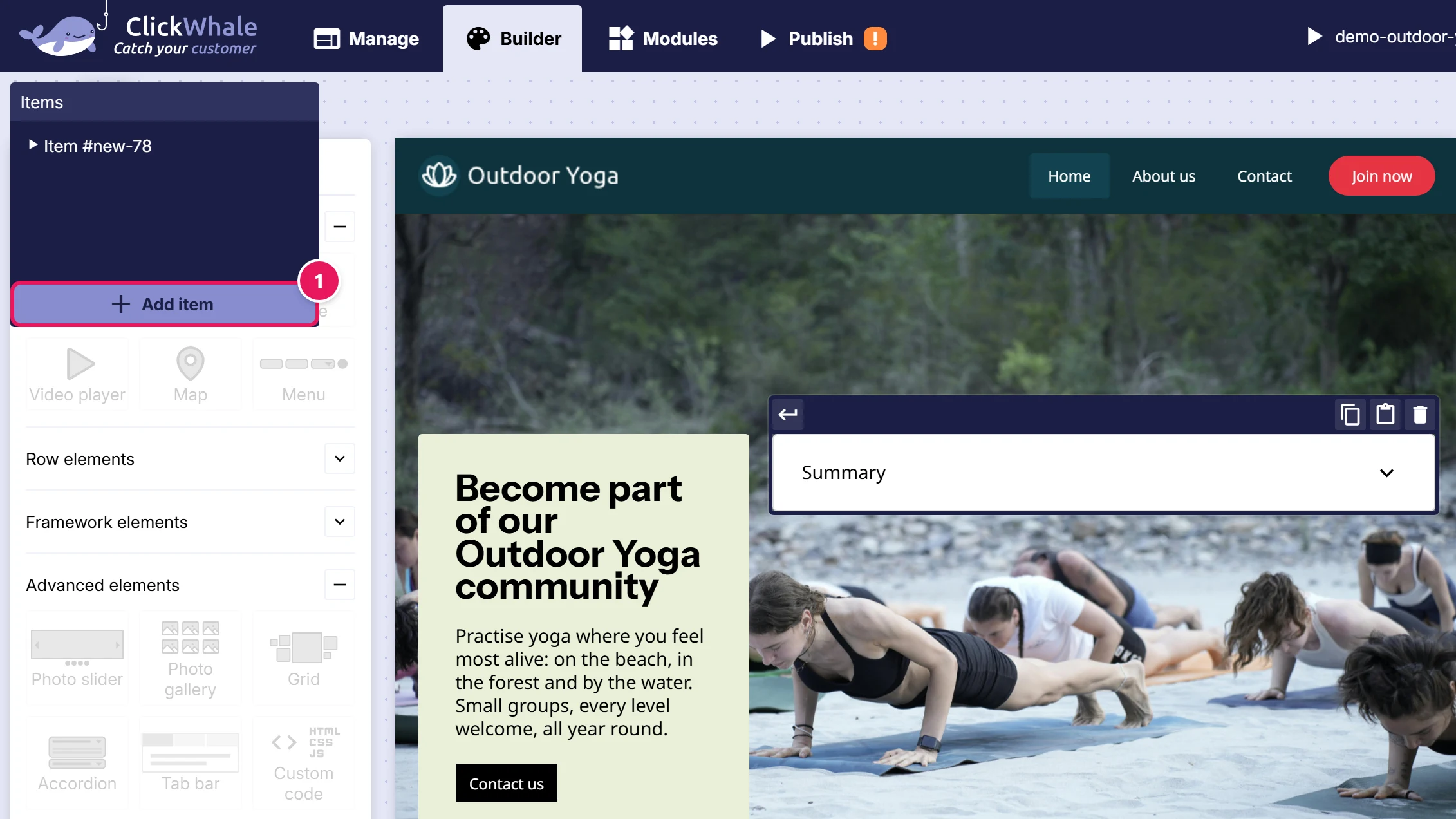
- Add item at the bottom of that list adds a new item at the end.
- Clicking an entry in the list selects that item, which is the reliable way to get at one whose summary is hard to click.
The panel only exists in Split editor view, and you can drag it out of the way if it's covering what you're working on. Styling is a separate control and does not need it. See "Styling it" below.
Use ↑ ↓ on a selected item's toolbar to reorder items, and the bin to delete one.
In the editor, items behave slightly differently
Clicking an item's summary text in the editor opens the item and never closes it, because that click is also how you place the cursor to start editing. To fold one up and check how it looks closed, click the chevron on the right of the summary instead.
Selecting an item always opens it, so the item whose settings are on screen is the one you're looking at.
Styling it
The accordion element itself takes background, border, border radius, content alignment, gap and padding. That's the outer box around the whole stack.
The parts of an item are styled separately. Select the accordion, then pick the part from the Selected component of Accordion dropdown, under Design settings in the styling pane on the right. Parts you haven't touched yet are marked (not styled), so the list tells you where the work already is:
| Part | What it is | States |
|---|---|---|
| Summary | The clickable line | default, hover, open |
| Details | The item's outer box, the frame around summary and content together | default, hover, open |
| Details content | The panel that unfolds | default only |
The dropdown changes which part the settings underneath belong to; the heading above it keeps naming the accordion, so you always know which element you are working inside. Pick The element itself to go back to the accordion's own settings.
The open state is what makes an accordion feel like one: give the summary a different background when its item is open and the visitor can see at a glance where they are.
Put padding on Summary and Details content, not on Details. Padding on Details pushes the summary inwards, and the part of the row that isn't the summary doesn't open the item when clicked, so you end up with a strip along the edge that looks clickable and isn't.
If your site has a default accordion set, a new accordion attaches it automatically, the same way buttons and forms do, and only ever the first time. Change the set from Display this element as …, or edit the set itself to change every accordion at once. See Reusable styling with display sets.
Tips for accordion content
- The summary is the question, not a label. "How long does delivery take?" beats "Delivery".
- Keep the summary to one line. It's a click target, and two lines of it on a phone is most of the screen.
- Don't hide anything a visitor must see. Prices, opening times and safety information belong on the page, not behind a click. An accordion is for depth, not for tidiness.
- Items open independently: a visitor can have several open at once, and opening one doesn't close another.
Common issues
I can't find a way to add a second item.
keyboard_arrow_down
remove
It isn't in the component list. Select the accordion and use Add item in the floating Items panel, in Split editor view.
The floating panel isn't there.
keyboard_arrow_down
remove
You're in Compact or Full editor view. Switch to Split in the bottom bar. Styling the parts does not need it: the Selected component of … dropdown works in Compact too.
My item won't close in the editor.
keyboard_arrow_down
remove
Clicking the summary text opens it and keeps it open. Click the chevron on the right instead.
Part of my summary row doesn't respond to clicks.
keyboard_arrow_down
remove
Padding has been set on Details rather than on Summary. Move it, and see the note above.
The open state looks the same as the closed one.
keyboard_arrow_down
remove
You styled the default state. Switch the state selector to open at the top of the Display settings pane before changing anything.
What will you create today?

ClickWhale is a website management system created by Ikabus