First 100 spots 50% lifetime discount. Start free.
Meta title, description and share image
Three fields per page that decide how it looks in a search result and when someone shares the link. They're not visible on the page itself.
| Where | Manage → Pages, in a page's ⋮ menu → Edit metadata |
|---|---|
| Takes effect | After you publish (how) |
An empty meta title is not blank. It falls back to the page's name. So every page has a title whether you wrote one or not. The description has no fallback: leave it empty and search engines invent one from your text, usually the first sentence they find.
The three fields
| Field | Where it shows up | Practical length |
|---|---|---|
| Title | The clickable line in a search result, and the browser tab | 50–60 characters |
| Description | The grey text under it | 140–160 characters |
| Image | The picture in a WhatsApp, LinkedIn or Facebook preview | Wide, at least 1200 × 630 px |
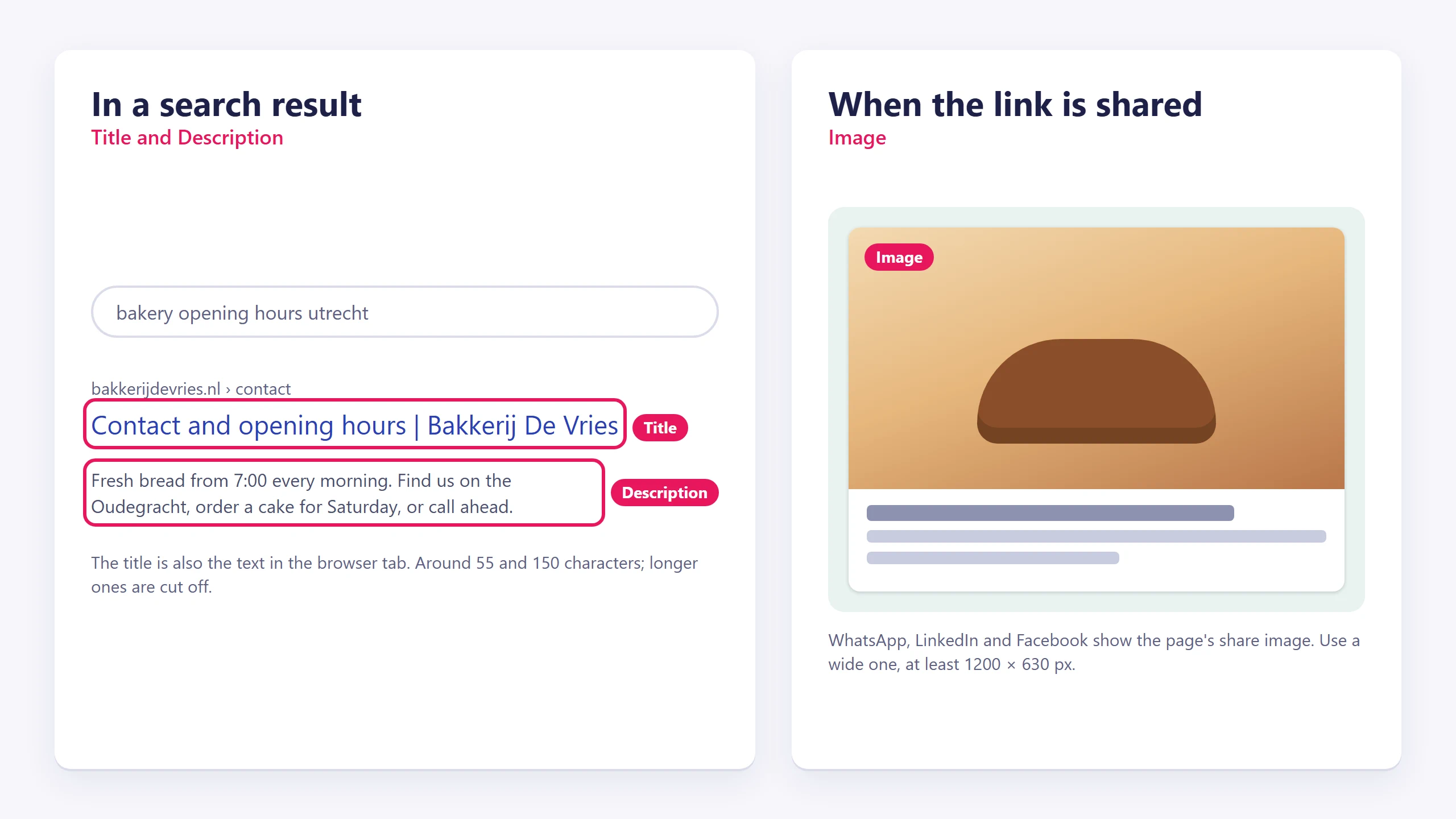
Longer titles and descriptions aren't rejected. They're cut off mid-sentence, which is worse than being short.
Two habits: put the thing people would search for near the start of the title, and write the description as an invitation rather than a summary. It doesn't affect your ranking directly; it affects whether anyone clicks.
Blog articles fill all three in for you. Articles have no metadata fields of their own. They're all shown through the one article page, so ClickWhale builds them from the article itself: its title becomes the page title, followed by your website's name, giving Our new office | Acme, its summary becomes the description in search results, and its image is the picture that appears when someone shares the link.
That makes the summary and image you set when creating an article do double duty: they're what your own overview shows and what Google and WhatsApp show. Write the summary as a sentence that would make a stranger click. Leave either one empty and the article falls back to the article page's version, which is the same for every article, so fill both in.
Site-wide settings
Three settings under Manage → Settings → Website settings decide what search engines are allowed to do at all:
| Setting | Meaning |
|---|---|
| Allow search index | Whether your pages may appear in search results |
| Allow search follow | Whether search engines may follow the links on your pages |
| 404 page | Which of your pages is shown for an address that doesn't exist |
These switches apply to your own domain, not to the free address. The address your website came with is kept out of search results: every page on it is served noindex, nofollow, its robots.txt refuses every crawler and it has no sitemap or llms.txt, whatever these two switches say. Connect your own domain and the switches take effect there.
sitemap.xml, robots.txt and llms.txt
All three are generated for you; there's nothing to switch on.
/sitemap.xmllists every page that isn't members-only, with the date it last changed, and links each page to its other-language versions so search engines pair them up correctly. Your blog articles are in it too, with the date they were written./robots.txtallows crawling and points at your sitemap. It is not where indexing is controlled. That's the Allow search index switch, which works per page via a tag in the page itself./llms.txtis a short summary of your website for AI assistants such as ChatGPT: your website's name, the description and contact details from Organization details, and the same pages and articles as the sitemap, each with its description. It isn't there when Allow search index is off.
Submit your sitemap once in Google Search Console; after that it takes care of itself.
Site verification
Manage → Settings → Analytics and verification → Site verification takes a Google and a Bing verification code, which is how those tools let you see what they know about your site. Paste the code, save, publish. See Measuring your visitors.
Checklist per page
- A meta title that names the thing, ~55 characters.
- A description that gives someone a reason to click, ~150 characters.
- A share image on anything you'd post on social media.
- One H1 per page, then H2s in order. Headings are structure, not sizes. See Writing and formatting text.
- Alt text on images that carry meaning.
- The page reachable from a menu, or at least from another page.
- Published.
Common issues
Google shows a different title than the one I set.
keyboard_arrow_down
remove
Google rewrites titles when it thinks it has a better one for the search that was typed. Nothing is broken. Making the title clearly match the page's subject reduces it.
My change isn't in the search results.
keyboard_arrow_down
remove
Search engines re-visit on their own schedule, days to weeks. See "I changed it and the website didn't change" to rule out the causes that are under your control.
The wrong image shows when I share the link.
keyboard_arrow_down
remove
Set the share image on that page, then re-share. Social networks cache aggressively; most have a debug tool that forces a refresh.
My site isn't in Google at all.
keyboard_arrow_down
remove
Check Allow search index first. Then check which address you're looking at: the free address your website came with is never indexed, no matter what that switch says. Your site has to be reachable on your own domain before search engines will list it.
What will you create today?

ClickWhale is a website management system created by Ikabus