First 100 spots 50% lifetime discount. Start free.
Making your website multilingual
ClickWhale can serve the same website in several languages, each with its own addresses and its own words. It isn't a translation service. You write every language yourself, but it keeps the versions side by side so a visitor lands in theirs.
| Where | Manage → Languages |
|---|---|
| Takes effect | After you publish (how) |
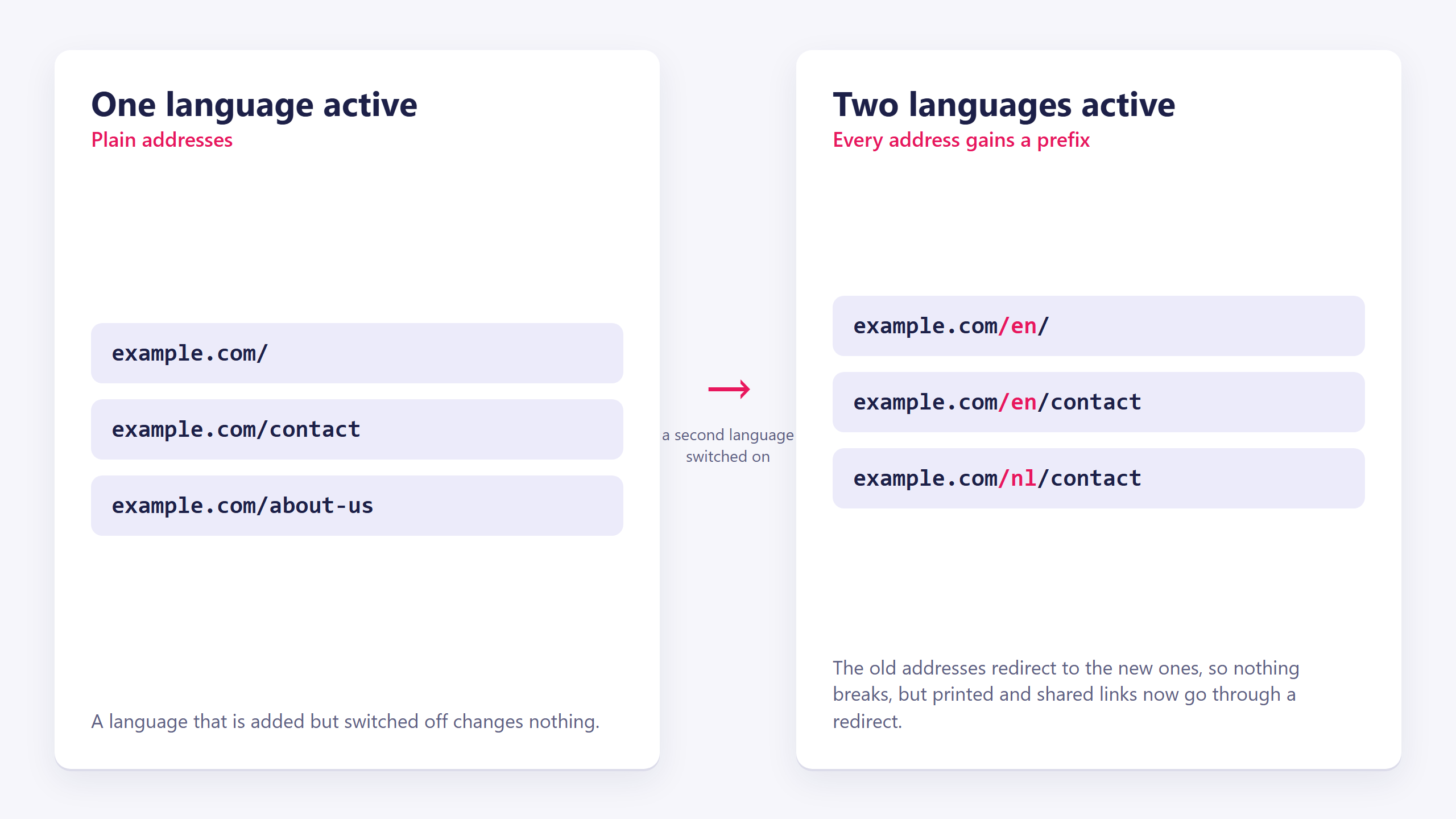
The second visible language rewrites every address on your site. With one language your home page is example.com/. With two it becomes example.com/en/, and every other page gains the same /en/ prefix. The old addresses redirect, so nothing breaks, but anything you've printed, linked or submitted to Google now points at a redirect. Get the languages right early.
The screen
Three lists, and they mean different things:
| List | What it is |
|---|---|
| Default language | The language your website was created in. It shows the name and code, and nothing else, it can't be changed here |
| Added languages | Every other language you've added, each with an Active switch |
| Other available languages | The languages you haven't added yet, each with a + button |
Eight languages are available: Danish, Dutch, English, French, German, Italian, Portuguese and Spanish.
There is no delete. Once a language is added it stays on the list, but switching it off takes it off the website completely, which is the practical equivalent.
Adding a language
A language is added to the website, but a template and a page each exist once per language, and each has to be created separately.
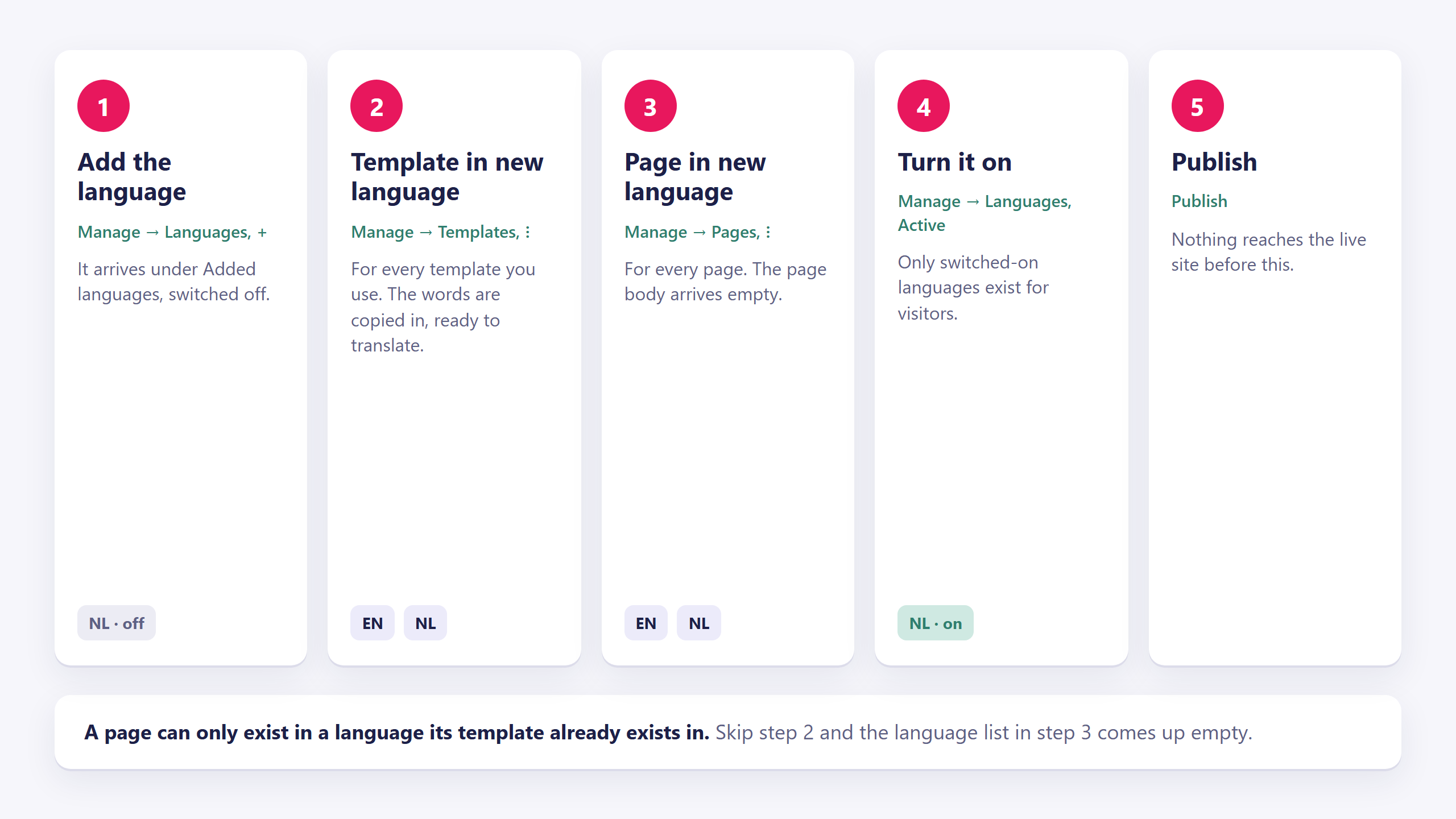
- Add the language. Manage → Languages → + next to the language you want. It appears under Added languages, switched off.
- Add the template in that language. Manage → Templates → the ⋮ menu on a template → Template in new language → pick the language → Create. Do this for every template you use.
- Add the page in that language. Manage → Pages → the ⋮ menu on a page → Page in new language → pick the language, give it a name and an address → Create. Do this for every page.
- Turn the language on under Manage → Languages, then publish.
Do it in a different order and the dropdown is empty, which reads as a fault and isn't:
- No languages offered on a template: you haven't added the language to the website yet. The dialog says so and links to the Languages screen.
- No languages offered on a page: the template that page uses doesn't exist in that language yet. Step 2 first.
The rule behind it: a page can only exist in a language its template already exists in.
Once a language variant exists it gets its own row on the Templates or Pages screen, with a small flag beside the name. Two rows with the same name and different flags are the same page in two languages, not two pages.
What gets copied, and what doesn't
| Adding a language to… | What you get |
|---|---|
| A template | The same layout, with the current language's words copied in, ready to overwrite |
| A page | The template's frame around an empty page body |
Your header, menu and footer come across with their text; the content you built on the page does not.
The practical way to work is therefore:
- Build one language completely.
- Add the second language to the template and the page.
- In the finished language, select a section and use copy on its toolbar. Switch to the other language's page and use paste. The clipboard survives moving between pages and templates, so you can bring across a whole section at a time, then translate the words in place.
Turning a language on and off
The Active switch under Added languages is what decides whether the language exists for visitors at all. A newly added language starts off, which is what lets you build it in peace.
The screen warns you when a language is on: Disabling affects search engine indexing and website availability. Switching a language off removes every one of its addresses from the live site, and search engines that had indexed them will start seeing errors.
Two consequences:
- Only switched-on languages count. Your site is "multilingual" (with URL prefixes) from the moment a second language is switched on. One on, and the addresses stay plain.
- Switching one off is not a soft hide. The pages are still there in the builder, but they leave the published site entirely.
Every change here needs a publish before it reaches visitors. See Saving, previewing and publishing.
Which language a visitor gets
In order:
- The address they came to.
example.com/nl/contactis Dutch, full stop. - Their browser's preference. Arriving at
example.com/with no language, ClickWhale reads the browser's language list and picks the first one your website has. - Your default language, if neither matched.
They're then redirected to the address with the prefix, so the language is always visible in the address bar and always shareable.
To let people switch by hand, add a language selection item to your menu. It only appears as an option on a multi-language site. See Building a menu.
What it means for search engines
Each page gets hreflang links to its own translations, so Google can tell the versions apart instead of reading them as duplicates. That happens automatically for pages that exist in more than one language, nothing to configure, but it is a reason to give a page a real translation rather than a copy of the other language.
Your sitemap.xml carries the same alternates. See Meta title, description and share image.
Before you start
Do you need it at all? A second language doubles every page you write and every page you later edit. A single well-written page in the language most of your visitors read usually beats two half-maintained ones.
Which is the default? It's set when the website is created and there is no screen to change it afterwards. It's the language a visitor gets when nothing else matches, so make it the one your broadest audience reads.
Common issues
The language dropdown is empty when I add a page.
keyboard_arrow_down
remove
The template that page uses doesn't exist in that language yet. Manage → Templates → ⋮ → Template in new language first.
The language dropdown is empty when I add a template.
keyboard_arrow_down
remove
You haven't added the language to the website. Manage → Languages → +.
I added a language and nothing changed on my site.
keyboard_arrow_down
remove
It's added but not Active: that's how a new language arrives. Switch it on, then publish.
My new language page is empty.
keyboard_arrow_down
remove
That's expected: a page's own content isn't copied between languages. Copy the sections across from the finished language with the toolbar's copy and paste.
All my links suddenly have /en/ in them.
keyboard_arrow_down
remove
You switched on a second language. That's the multilingual URL scheme, and the old addresses redirect to the new ones.
I edited the text and the other language changed too.
keyboard_arrow_down
remove
You edited the template, not the page, and a template's layout is shared across its languages even though its text isn't. Check which one you have open in the editor's top bar.
I can't remove a language.
keyboard_arrow_down
remove
There's no delete. Switch it off instead; it disappears from the live site.
I can't change the default language.
keyboard_arrow_down
remove
Not from the builder. Contact support if it's genuinely wrong.
One language is fine and the other 404s.
keyboard_arrow_down
remove
That page doesn't exist in that language yet. Add it, or point the menu item at a page that does.
What will you create today?

ClickWhale is a website management system created by Ikabus