First 100 spots 50% lifetime discount. Start free.
Building a menu
A menu in ClickWhale is two jobs in two places. Manage → Menus decides what is in a menu. The Menu element in the editor decides where it appears and what it looks like.
Build it in that order: fill the menu first, then place it.
| Where | Manage → Menus for the contents, the Menu element in the editor to place it |
|---|---|
| Takes effect | After you publish (how) |
Adding a page does not add it to your menu. Nothing is automatic. A new page is invisible to visitors until you put it in a menu yourself, or link to it from somewhere.
Part 1. What's in the menu
Manage → Menus lists your menus. Add menu makes a new one; the pencil renames it; clicking its name opens it.
Inside a menu you get four buttons, and which you see depends on your site:
| Button | Adds |
|---|---|
| Add page | A menu item, see the three types below |
| Add menu group | A group that holds sub-items, i.e. a dropdown |
| Add language selection | The language switcher. Only on multi-language sites |
| Add cart | The shopping basket. Only when the webshop module is on |
Add page asks for a Type:
| Type | What it links to | Fill in |
|---|---|---|
| Internal page | A page on this website, picked from a list, so the link survives a URL change | One or more pages at once |
| External page | Another website | The full address |
| Within page | A spot on the current page, e.g. #contact | The anchor |
Display text is optional on all three: leave it empty and the page's own name is used, fill it in and the menu shows your wording instead. That's how a page called Contact and opening hours becomes just Contact in the menu.
Drag the handle at the left of a row to reorder items. Drag one into a group to make it a sub-item.
Sub-menus
The obvious way is a menu group: add one, then use its own + button to add items inside it. The group becomes a dropdown; its children become the sub-items.
The less obvious way is the Connect button on a page item, which attaches a whole other menu to that item. The item then shows that menu as its dropdown. It's the tool for a mega-menu, or for a sub-menu you want to reuse under more than one item. Edit it once, and every place it hangs from updates. Connected menus are listed on the row, and the bin next to each disconnects it without deleting anything.
Part 2. Putting the menu on the page
In the editor, drag a Menu element into your template. The header, usually, so every page built on that template gets it. Then set two properties:
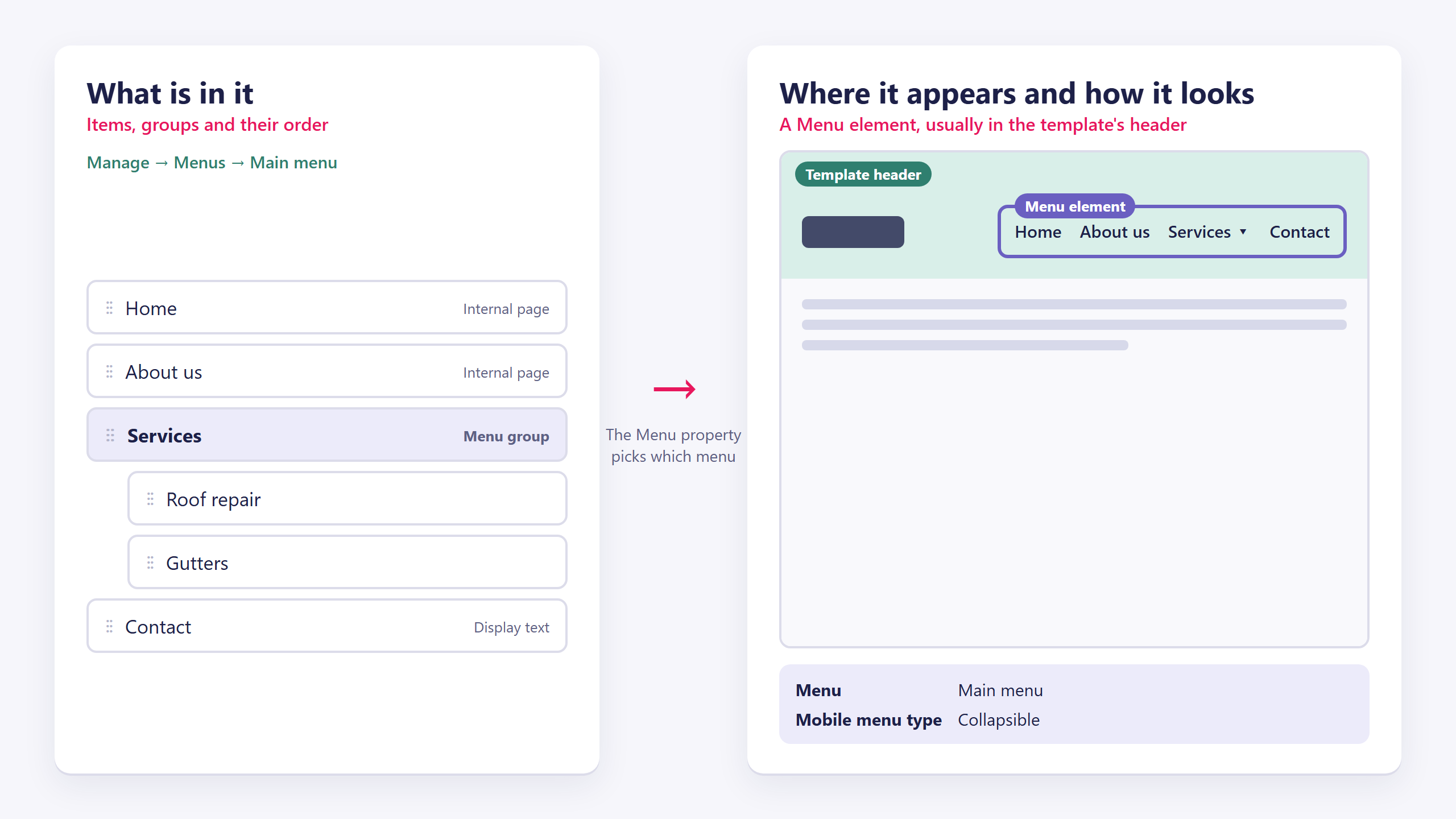
| Property | What it does |
|---|---|
| Menu | Which of your menus this element shows |
| Mobile menu type | How it behaves on a narrow screen: Collapsible, Sidebar (left), Sidebar (right) or Full screen |
Because the element lives on a template, a different template can carry a different menu. That's how a campaign page or a members area gets its own navigation. See Templates and pages.
Styling it
A menu is four styleable parts, each with its own display set:
| Part | What it is |
|---|---|
| Menu | The bar itself, background, spacing, direction |
| Menu item | A top-level item |
| Menu sub item | An item inside a dropdown |
| Menu sub item container | The dropdown panel that holds them |
Items and sub-items have default / hover / active states, so the current page can look different from the rest. Style them once as a display set and every menu on the site follows. See Display sets.
Remember there is no hover on a phone. Never make hover the only way to reach something. That's what the mobile menu type is for.
Common issues
My new page isn't in the menu.
keyboard_arrow_down
remove
Pages aren't added automatically. Manage → Menus → open the menu → Add page.
The dropdown doesn't open on my phone.
keyboard_arrow_down
remove
It isn't meant to open on hover there. Check the Mobile menu type on the Menu element and test each option at a phone width.
The menu item shows the wrong text.
keyboard_arrow_down
remove
That's the Display text field on the item, or the page's own name if you left it empty.
I renamed a page and the menu still shows the old name.
keyboard_arrow_down
remove
An item with its own display text keeps it. Clear the field to follow the page name again.
My menu is on one template but not the other.
keyboard_arrow_down
remove
The Menu element is placed per template. Add one to the other template too.
What will you create today?

ClickWhale is a website management system created by Ikabus