First 100 spots 50% lifetime discount. Start free.
Dark mode
Most phones and laptops now have a dark setting. Switch dark mode on and your site gets a second set of colours that appears automatically for visitors whose device asks for it.
| Where | Manage → Settings → Website settings: Enable dark mode |
|---|---|
| Takes effect | After you publish (how) |
Dark mode needs its own colours. Every colour on your site gains a second value that has never been set, and an unset dark colour is solid white. Turn dark mode on, publish, and look at your site on a dark device and you'll find white text on white boxes. The work is going through your design and giving each colour its dark half.
What changes in the builder
Two things, both only once dark mode is on:
- Every colour control splits in two. Where the Display settings pane showed one swatch, it now shows Light mode and Dark mode, each opening the same colour picker. That's background colour, text colour, border colour, shadow colour, everywhere a colour is chosen.
- A Color scheme switch appears in the editor toolbar, next to the screen sizes: Light / Dark. It changes what the canvas shows so you can design in the one you're working on. It's hidden in Compact editor view; use Split or Full.
Only colours and gradients change. A background image is not a colour and doesn't follow the scheme, and neither does an Image element. Pictures look the same in both.
Where to do the work
The same place you did the light design: display sets. If your headings, body text, buttons and menus get their colours from sets, then dark mode is a couple of dozen colour choices, not several hundred. If they're all styled one element at a time, it's a long afternoon.
If you're about to turn dark mode on for a site that doesn't use sets, move its styling into sets first. See Display sets.
Function colours in dark mode
Under Manage → Design → Colors, the function colours are references. Point ten elements at function colour 3 and changing slot 3 recolours all ten. But a slot holds one value, so a function colour is the same in light and dark mode.
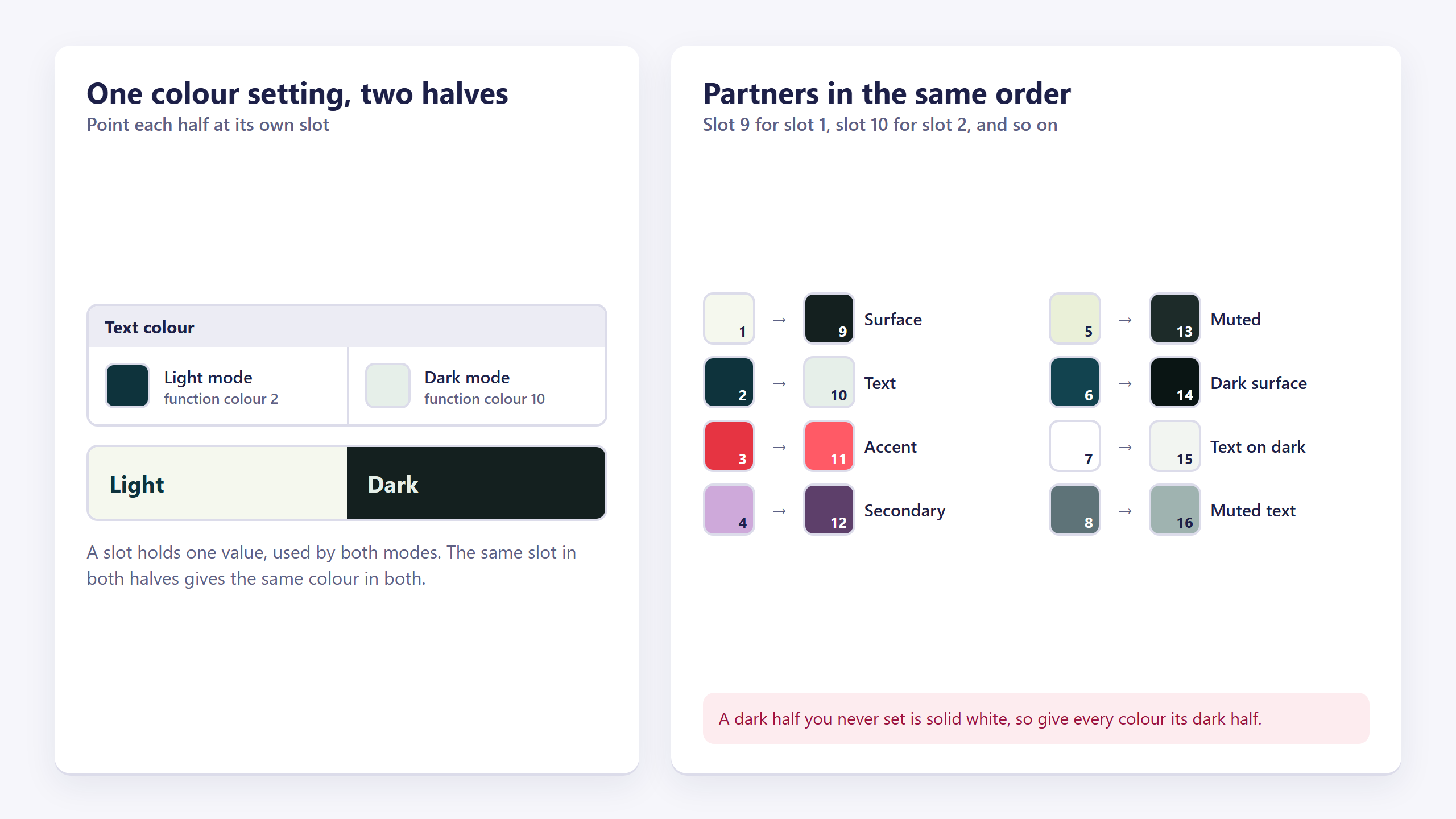
So for anything that has to differ between the two:
| Approach | When |
|---|---|
| Two function colours, say slot 2 (Text) for the light half and slot 10 "text in dark mode" for the dark half of the same control | Best. Still one place to change each, and both stay editable |
| Plain hex values on the light and dark halves | Fine for a one-off, awkward when you rebrand |
| The same function colour in both halves | Only for a colour that genuinely works on both backgrounds, an accent, a logo colour |
The first eight function colours have a fixed meaning and serve the light half. Keep their dark-mode partners in slots 9 to 21, in the same order (slot 9 for slot 1, slot 10 for slot 2, and so on), so the pairs are easy to remember. See The colour palette.
Which visitors see dark mode
The visitor's device decides. Their phone or laptop is set to light or dark, their browser passes that along, and your site follows it.
There is no dark-mode button on your website, and you can't add one. It isn't a setting a visitor chooses per site. It's their system preference.
Which also means: you can't check it by looking at your own site, unless your own machine is set to dark. Switch your operating system to dark for an afternoon, or use the editor's Light/Dark switch and Preview.
Setting up dark mode
- Design the light version completely. Don't try to do both at once.
- Switch dark mode on and publish, or preview.
- Work through your display sets in Dark, one at a time. Page background, body text, headings, links, buttons, menu, form fields.
- Then walk the actual pages in Dark and fix what the sets didn't reach: a section with its own background, a coloured band, a card.
- Check contrast. Pure white text on pure black is harsh to read. Use slightly-off-white on a very dark grey instead.
- Look at your images. Background colours and gradients follow the scheme; a background image does not, and neither does an Image element. A logo saved as black-on-transparent disappears on a dark background, and there is no way to show a different file per scheme, so the fix is a logo that reads on both, or one sitting on its own small panel whose background colour you set for each scheme.
Turning it off again
Switch Enable dark mode off, save and publish, and your site renders the light colours for everyone. Your dark colours are kept, so switching it back on later picks up where you left off.
Common issues
My colour controls don't have a dark half.
keyboard_arrow_down
remove
Dark mode isn't on, or the editor was already open when it was switched on. Save the setting, publish and reload the editor.
There's no Light/Dark switch in the toolbar.
keyboard_arrow_down
remove
Either dark mode is off, or you're in Compact editor view. Switch to Split or Full in the bottom bar.
Everything is white in dark mode.
keyboard_arrow_down
remove
That's the unset default. Each colour needs its dark half set. Start with the page background and body text in your display sets, which fixes most of the site at once.
I set a colour and both modes changed.
keyboard_arrow_down
remove
You used a function colour. One slot is one colour; use two different slots for the two halves.
It looks right in the editor and wrong on my phone.
keyboard_arrow_down
remove
Publish. And check the phone is actually in dark mode. The editor switch is a preview of a preference the device makes, not the preference itself.
My site never goes dark, whatever I do.
keyboard_arrow_down
remove
Confirm the setting is saved and published, and that the device you're testing on is set to dark rather than "automatic at sunset" with the sun still up.
My logo disappeared.
keyboard_arrow_down
remove
It's a dark logo on a dark background, and images don't follow the scheme. Use a version that reads on both, or give the element around it a background colour you set for light and dark.
Text is hard to read now.
keyboard_arrow_down
remove
Contrast. Aim for a very dark grey background rather than black, and an off-white rather than pure white, and check any coloured text against its new background rather than assuming.
What will you create today?

ClickWhale is a website management system created by Ikabus