First 100 spots 50% lifetime discount. Start free.
Adding a blog to your website
A blog in ClickWhale is two pages working together: one that lists your articles, and one that displays whichever article a visitor clicked. Setting that up takes six steps.
| Where | Modules → Publications for the articles; the Modules group of the editor's component list for the two elements that show them |
|---|---|
| Takes effect | The pages after you publish (how); articles you write later as soon as you save |
| Needs | The publication module switched on (step 1) |
The two pages are separate. The overview page holds a list. The article page holds an empty frame that fills with whatever article was clicked. It is not one article, and you only ever build it once.
Step 1: Switch the module on
Manage → Settings → Website settings, scroll to Enabled modules, switch on Enable publication module and press Save.
Until you do this, the Publications menu isn't there and the publication elements don't appear in the editor's component list.
Step 2: Create a category
Go to Modules → Publications and press New category. Give it a name your visitors will recognise (News, Blog, Cases) and pick the language.
A category is per language: on a bilingual site, News and Nieuws are two categories, each with their own articles. Everything else on this page hangs off the category, so it's the first thing to create and the last thing you'd want to reorganise.
Step 3: Build the article page
Create a page, call it article, and put a Publication container on it from the component list's Modules group.
This is the frame. Leave it empty; it fills itself in when a visitor opens an article. Its options:
| Option | What it does |
|---|---|
| Show publication date | Prints the date the article was created |
| Show author | Prints the name of the account that wrote it |
| Heading type | Which heading level the article title uses, H1 on an article page |
| Show RSS feed button | Adds a feed link for the article's category |
This page doesn't belong in your menu. Visitors reach it by clicking an article, never directly.
Step 4: Build the overview page
Create a second page, call it blog, and put a Publication category on it. The name is misleading: this is the list element, and the category is simply what you point it at.
Then set its properties:
- Source type → Single category, and pick the category from step 2.
- Max number of items → how many articles per page. Six to twelve is normal.
- Use pagination → on, so visitors can reach older articles.
Step 5: Link the overview to the article page
On the list element, set Article page to the page you made in step 3.
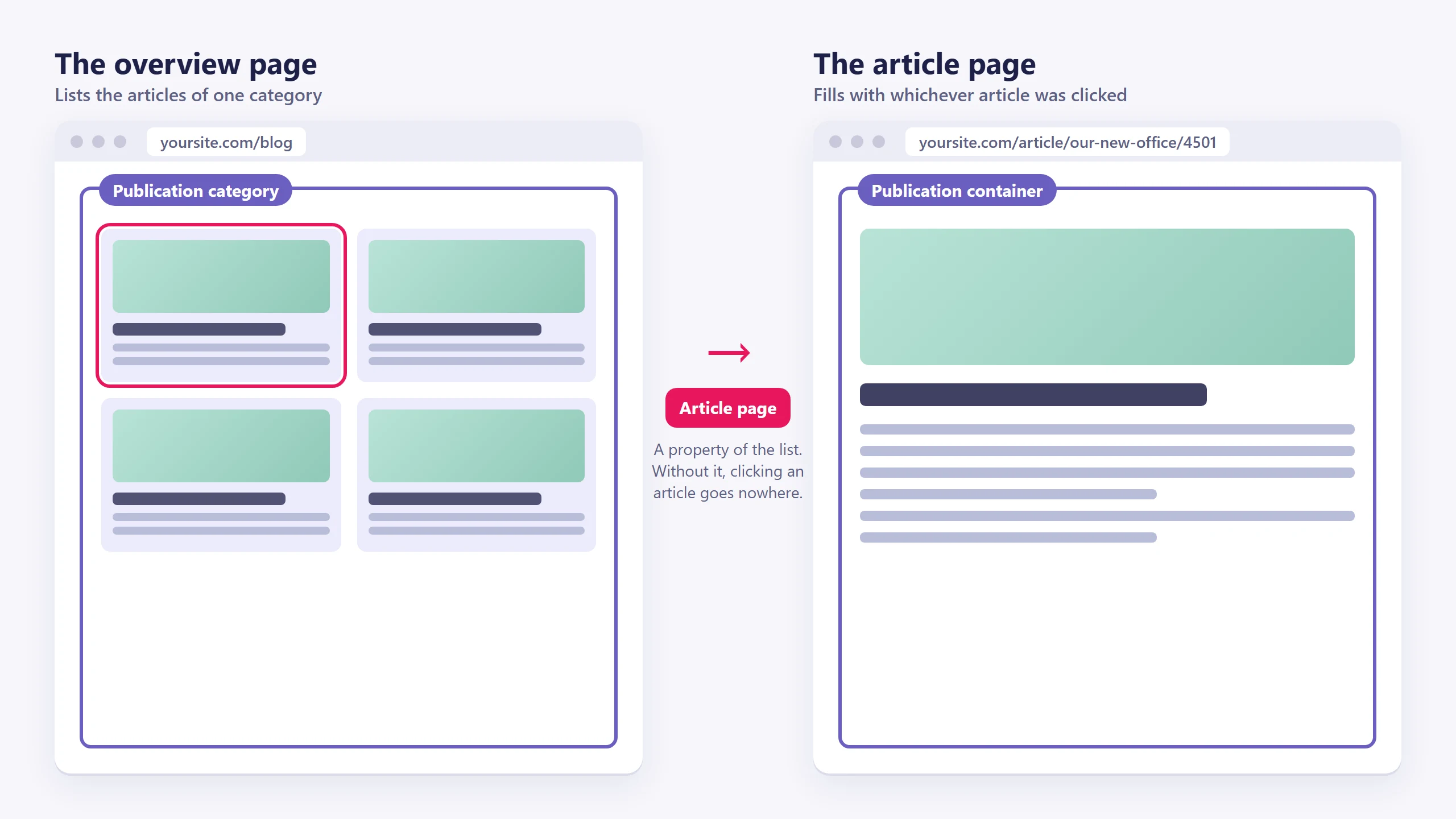
Don't skip this step. Without it, clicking an article in the overview goes nowhere. The list works, the articles exist, and the links are dead. If your blog doesn't work, check this property first.
Step 6: Publish
Add the overview page to a menu, Manage → Menus, then save and publish. Until you publish, none of this exists for visitors. See Saving, previewing and publishing.
What the overview can do
The other properties of the list element:
| Property | Use it for |
|---|---|
| Source type | Single category, everything on the site, or one fixed article |
| Show image + Max image size + Image ratio | Article thumbnails, cropped to a consistent shape |
| Show description | The summary line under each title |
| Show publication date | Dates in the list, shown as "3 days ago" here, while the article page prints the full date |
| Heading type | The heading level of the titles in the list, H2 or H3, since the page has its own H1 |
| Number of items per row | The grid: set it per screen size, so three across on desktop and one on a phone |
| Item offset | Skips the first n articles. This is how you build a "latest article" block at the top of a page and a list below it that doesn't repeat it |
| Equal column height (shown as Enabled) | Cards that line up when the summaries differ in length |
| Show RSS feed button | A feed link for the whole list |
A single list element can be a featured block. Set the source to one article, or use one item with no offset and put a second list below it with an offset of 1. Two elements, one category, no duplication.
Styling the list
The article card is not one element. The item, its image, its text block and its read-more button are separate sub-elements, each with its own display set, so you style one card and every article follows. See Display sets.
What an article's address looks like
An article's URL is the article page's URL with the article's name and a number appended, like /article/our-new-office/4501. You don't set it. ClickWhale builds it from the title and the article's id, and it changes if you rename the article, so avoid renaming one you've already shared.
Common issues
The publication elements aren't in the component list.
keyboard_arrow_down
remove
The module is off. Step 1.
Clicking an article does nothing.
keyboard_arrow_down
remove
The list element's Article page property isn't set. Step 5.
The list is empty.
keyboard_arrow_down
remove
Either the category has no articles yet, the articles are switched off, or their publish window hasn't started. See Writing and publishing an article.
The article page shows nothing when I open it directly.
keyboard_arrow_down
remove
That's correct behaviour. There's no article to show. Open it by clicking an article in the overview.
My Dutch list shows English articles
keyboard_arrow_down
remove
: or nothing at all. Categories are per language. Point the Dutch list at the Dutch category.
What will you create today?

ClickWhale is a website management system created by Ikabus