First 100 spots 50% lifetime discount. Start free.
Managing your templates
A template is the frame your pages are built on: header, footer, and whatever else every page of a kind should share.
| Where | Manage → Templates |
|---|---|
| Takes effect | After you publish (how) |
Read Templates and pages first if you're not sure what a template is for.
How the list is arranged
Each template on the screen has two levels.
The top row is the template, with its name. This is what the whole thing is called, and it is what you rename.
The rows underneath are its languages: one per language you've made it available in, each with a flag and Edit template (English), Edit template (Nederlands) and so on. Clicking one opens the editor for that language.
The layout is shared across the languages; only the text is separate. There is one set of elements, sections and styling behind a template, however many languages it has. Move a section on the English version and it moves on the Dutch one too. What each language keeps to itself is the content inside those elements. See Multiple languages.
On a site with only one language you'll still see both levels; there's just one language row.
Templates have no folders. Pages do. The Pages screen has an Add folder button and groups pages under folder headings. The Templates screen has neither, and there's no way to make a template folder anywhere in the builder. If you have a lot of templates, the name is your only organiser, so a prefix like Shop - or Blog - helps.
Making a new template
Add template, at the top right.
| Field | What to put in it |
|---|---|
| Name | What you'll call it in the list. Change it later if you want. |
| Language | Only shown on a multi-language site. The language the first version is made in, usually your main one. |
Create, and the template appears in the list with one language row. It starts empty: open it and build the frame you want.
There is no "duplicate this template" action. To make a variant of an existing template, create a new one and use the editor's copy and paste to bring elements across. See Problems in the editor for how that clipboard behaves.
Renaming a template
On the template's top row, ⋮ → Edit. The dialog is called Edit template details and it has one field: Name. Save.
Renaming is safe: pages stay attached and nothing on the live site changes. The name is a label in the builder and never appears on your website.
Adding a language to a template
On any language row, ⋮ → Template in new language. Pick a language and Create.
The dropdown offers only languages the template doesn't already have. If it's empty you get There are no available languages, with a link to the Languages screen. Add the language to the website first, then come back.
The new language starts as a copy. The text from the language you started from is copied into the new one, ready for you to translate in place. Pages behave differently: a new page language arrives empty. See Multiple languages.
You need this before you can make a page in that language: a page can only exist in a language its template already exists in.
Which pages use this template?
Every language row tells you.
- "3 pages" with a chevron. Click it and you get the list, each page a link straight to its editor. Check this before you change a template: it is exactly the set of pages your change will land on.
- "Not in use": no page is built on this language of the template.
A template that's in use cannot be deleted. The Delete option isn't shown at all on a language row with pages behind it. Move or delete the pages first, and the option appears.
Deleting a template
On a language row with no pages, ⋮ → Delete template. You're asked to confirm, and the confirmation names both the template and the language, so you can see exactly which one you're removing.
Two things to know:
- You delete a language of a template, not the whole template. The other languages stay.
- Deleting the last language deletes the template itself, and it disappears from the list.
Sharing a header or footer between templates
If several templates should share exactly one header (the same elements, not a copy that drifts apart) you share the root elements rather than rebuilding them.
Root elements are the top-level elements of a template: usually the header section, the main content area and the footer section. They're the ones at the very top of the component tree in the left pane.
To share them:
- Open the template that already has the header or footer you want, in the template editor. Sharing is only offered while you're editing a template, never on a page.
- Switch to Split editor view, so the component list is visible.
- Tick the checkbox beside each root element you want to share. Only saved root elements have one. A section you've just added and haven't saved yet doesn't.
- Below the list, under Share elements, press Share selected elements.
- Choose the template to share them with, and press Share elements.
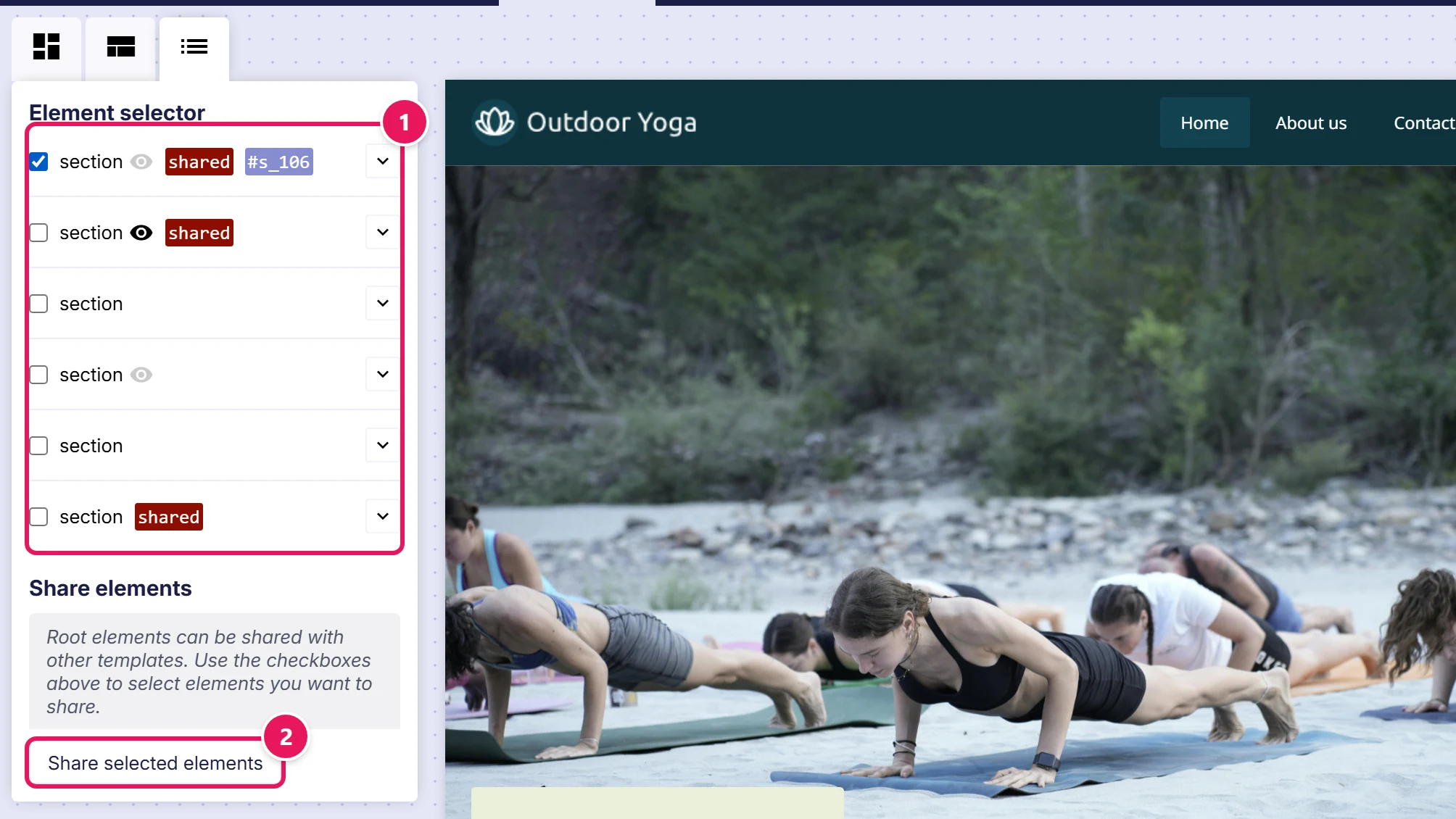
The elements now belong to both templates. Editing them in either place changes both. A shared element is marked as shared in the component list.
Sharing is one-directional and additive. It adds your elements to the other template. It doesn't remove anything already there, and it doesn't bring the other template's elements back to yours. If both templates already have a header, the other one ends up with two.
Before you change a shared element, select it and use Element info from its actions. It tells you how many templates use it and names them.
Common issues
I can't find Add folder on the Templates screen.
keyboard_arrow_down
remove
There isn't one. Templates have no folders; see above.
Template in new language shows an empty list.
keyboard_arrow_down
remove
Every language the website has is already on this template. Add the language to the website first, under Manage → Languages.
There's no Delete option on the row.
keyboard_arrow_down
remove
The template has pages built on it. The page count on the same row lists them, so you can see which.
I deleted a language and the whole template vanished.
keyboard_arrow_down
remove
It was the last one. Deleting the last language deletes the template.
I renamed a template and the website didn't change.
keyboard_arrow_down
remove
It never will. The name is used only in the builder. If you expected something on the live site to change, you were probably after a page name or a menu item instead.
I shared elements and one of them didn't arrive.
keyboard_arrow_down
remove
A section that belongs to a single page can't be shared: it's tied to that page and would render nowhere on the receiving template, so it's skipped silently. Share from the template's own root elements rather than from something that was added on a page.
I edited a shared header and it changed on the other templates too.
keyboard_arrow_down
remove
That is what sharing means. If you want them independent, don't share. Copy and paste the elements instead, which gives each template its own.
I don't see the checkboxes for sharing.
keyboard_arrow_down
remove
You're either on a page rather than a template, or not in Split editor view. Both are required.
What will you create today?

ClickWhale is a website management system created by Ikabus