First 100 spots 50% lifetime discount. Start free.
Having AI build your website
Instead of starting from a blank page or a theme, you can describe the website you want and have ClickWhale generate it for you: pages, text, layout and design in one go. What comes back is a preview you can look at and then decide about. Turning it into a real website is a separate step.
| Where | Account portal → AI Websites → Create new website |
|---|---|
| Needs | Credits, except for the first generation on a new account, which is free. See Credits, and how you buy them |
A preview is not a website yet. Generating gives you something to look at, nothing more. It doesn't appear in your websites list, it has no address, and it costs nothing further to leave alone. Only Make available online turns it into a real website you can edit and publish. That means you can generate a few and keep the one you like.
Filling in the form
The form has four steps. Nothing on it is fixed afterwards: everything you enter is a description of what you want, and the design you get back is fully editable in the builder.
1. Website summary. The name, the main language of the website (eight are offered: Dutch, English, German, French, Spanish, Italian, Danish and Portuguese), and the description. The whole generation is based on the description. Write what the website is for, who it's for, and what has to be on it. Links are not opened, so describe what you like about a website instead of linking to it. See Writing the brief for your AI website.
Steps 2 to 4 are optional: a name and a description are enough to generate a website. Click a step's top line to fold it away or open it again.
2. Look & feel. A font, chosen from twelve named styles (Simple, Friendly, Luxurious, Geometric, Modernist, Formal, Contemporary, Corporate, Marker, Elegant, Humanist and Rounded), with Simple selected unless you choose another, and a colour palette. Surprise me is selected unless you choose otherwise: it picks the one of thirty palettes, the fifteen shown plus fifteen more, that suits your description best. Below it are the fifteen ready-made palettes of five colours each, and a last option that lets you pick your own five. The palette fills the first eight function colours of the new website, which you can change later under Manage → Design → Colors. See The colour palette.
3. Preferences. Seven design choices: Hero, Corners, Spacing, Colour, Imagery, Headings and Cards. Each starts on Surprise me, and anything you leave there is picked for you.
4. Pages. Four rows are ready-made (Home, About us, Contact and Blog) each with a tickbox and its own description field. Switch off the ones you don't want. Two blank rows below them are for pages of your own: give each a name and a description.
Describe every page you care about. A page with a name and no description gets whatever the AI infers from the rest of the brief. A sentence or two per page is the difference between a page that's about your business and a page that's about businesses in general.
The Credits box beside the form says what a generation costs and what your balance is. The button reads Generate AI website if you have enough credits, and Pay and generate AI website if you don't, in which case your request is saved first and you're offered exactly the shortfall. While your free first generation is still unused, there is no Credits box and the button reads Generate AI website.
Starting without an account
Without an account you land on Create your website with AI: the same form, with a fifth step that creates your account and starts the free first generation in one go. See Creating a website with AI before you have an account.
What happens after you press the button
Generation is queued work, not something that finishes while you wait. You land on the AI Websites list, where the request appears with a status that updates itself.
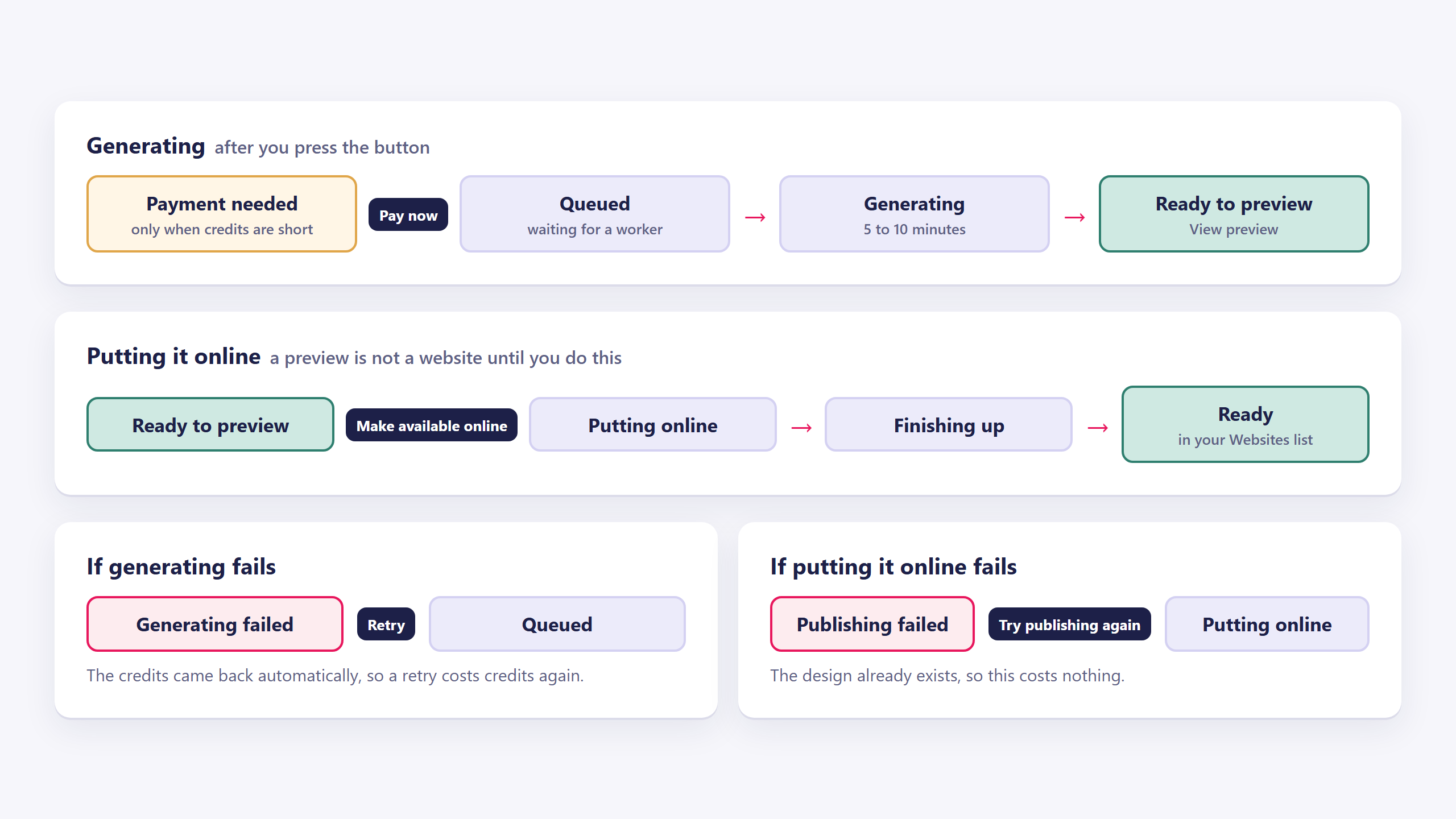
| Status | What's happening |
|---|---|
| Payment needed | The request is saved but not paid for. Press Pay now. |
| Queued | Waiting for a free worker. |
| Generating | Being written. A progress bar runs alongside it. |
| Ready to preview | Finished. There's something to look at. |
| Putting online / Finishing up | You pressed Make available online and the website is being built. |
| Ready | It's a real website now. |
| Generating failed / Publishing failed | Something went wrong. See Common issues below. |
Generating usually takes five to ten minutes, and the page says so. You can close the tab. The list updates itself when you come back. If a generation is taking longer than usual, the progress bar says that too.
Looking at the result, and keeping it
View preview opens the generated website in a preview of its own.
Make available online, in the row's ⋮ menu, is the step that makes it real. It asks for confirmation and offers one more link to the preview first. Confirming queues the build, the portal says We are building your website. It will appear here in a few minutes., and the status moves through Putting online and Finishing up to Ready. From then on the website is in your Websites list like any other: you edit it in the builder, give it a domain, and publish it.
Two other actions live in the same menu:
- Use as input for a new website reopens the form with the same brief filled in, so you can change one thing and try again. It's a brand new generation and costs credits again; nothing of the previous result is carried over. It's offered whatever state the old request is in. If the request used Surprise me, the form shows the palette it got: selected among the fifteen, or filled in as your own five colours when it was one of the extra fifteen.
- Delete removes the design and the request. If you've already put it online, the website itself stays online and is unaffected. You'd delete that from your websites list instead. The screen says so before you confirm.
The detail page of a request (click its name) shows everything it was generated from: the description, the font, the colours, the language, the preferences and each page with its description. For a preference you left on Surprise me it shows what was picked, marked Surprise me.
Common issues
It says "Payment needed" and nothing is happening.
keyboard_arrow_down
remove
The request was saved but the credits weren't charged. Press Pay now; you'll be offered exactly what's missing, and you will not be charged twice.
It's been generating for a long time.
keyboard_arrow_down
remove
The progress bar tells you when it's taking longer than usual, and it is still running. Nothing is lost if you close the page.
"Generating failed".
keyboard_arrow_down
remove
The error is shown on the row and on the detail page. Your credits have already been given back automatically, so pressing Retry starts a fresh generation and costs credits again. If it was your free first generation, the credits you got back pay for the retry. If it fails twice on the same brief, try shortening or simplifying the description.
"Publishing failed".
keyboard_arrow_down
remove
The website was generated. Only putting it online went wrong. The button reads Try publishing again and it costs nothing, because the design already exists. The preview still works in the meantime.
The preview won't open.
keyboard_arrow_down
remove
The portal says the preview isn't available right now. Try again in a few minutes.
It generated the wrong thing.
keyboard_arrow_down
remove
Don't fight it in the builder if it's badly off. Use Use as input for a new website, sharpen the description, and generate again. If it's nearly right, publish it and edit it in the builder like any other website.
Where has my website gone?
keyboard_arrow_down
remove
A generated design lives on the AI Websites list, not on Websites. It only moves to Websites once you've used Make available online.
What will you create today?

ClickWhale is a website management system created by Ikabus